How to convert HEIC to JPG, PNG, WEBP | Tips & Tools
If you’ve ever tried to upload a photo to a website or send it to a Windows user only to encounter a “file not supported” error, you’ve likely encountered the HEIC image format. Many Apple products use High Efficiency Image Container (HEIC) files to save space when storing high-quality images, but formats like JPEG and PNG are more universally compatible.
Thankfully, converting your HEIC and HEIF images to a different format is fast and easy with QuillBot’s free HEIC image converter. Read on to learn more about how to convert and share your images with the click of a button.
How to convert an HEIC image
One of the easiest ways to convert an HEIC image is to use an online tool like QuillBot’s HEIC image converter. Regardless of which tool you use, there are three simple steps you’ll have to follow.
1. Upload your image
Start by uploading your image to your tool of choice. Most tools will allow you to either drag and drop your image into the interface or select and upload it from your computer—QuillBot’s tool has both options!
2. Choose your desired output format
Once you’ve uploaded your image, you’ll have to select the output format you need. Some common options are outlined below, as well as the use cases they’re best for.
- JPG/JPEG: A common image format is JPEG (or JPG). These formats are identical and interchangeable; they differ only in the number of letters in the file extension (four vs. three), as some older operating systems require three-letter extensions. JPEG files load faster than PNG images and are good for general sharing or web applications where speed is more important than quality.
- PNG: The PNG file format preserves image quality and is the best option for images that will be edited or printed. Because PNG images use lossless compression, their file size is bigger than a JPEG and they can take longer to load.
- WebP: This file format is best for images on websites; its small size helps minimize load times. However, it’s not ideal for offline sharing or editing.
3. Download your converted image
After you’ve selected your desired format, all that’s left to do is convert your image. The tool should preserve the original image resolution. You can then download your image to save it to your device—it’s now ready for any platform!
Using an HEIC image converter
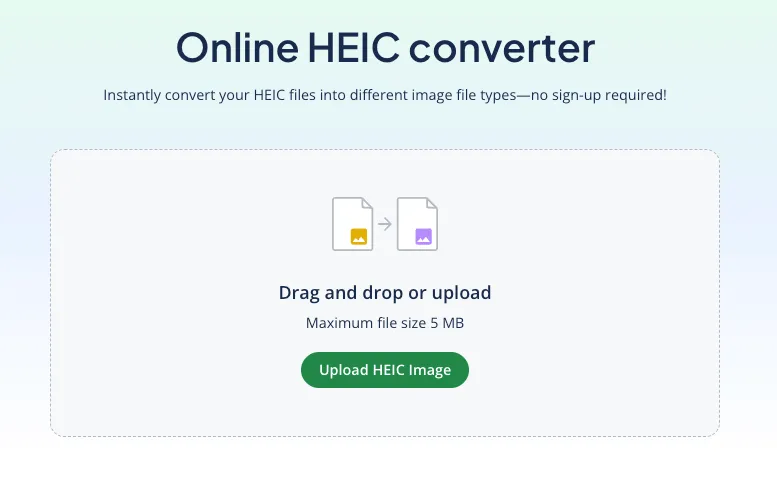
QuillBot’s free HEIC/HEIF image converter makes it easy to transform your files into universally compatible formats. It’s fast, simple, and there’s no sign-in required. The tool has an intuitive interface that allows you to upload your image with the click of a button.
QuillBot’s HEIC image converter interface
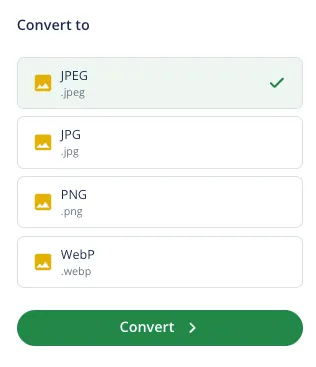
The tool offers four universally editable and viewable file formats to ensure compatibility with any device.
QuillBot’s HEIC image converter output options
Frequently asked questions about converting HEIC images
- How do you convert an HEIC/HEIF image to JPG?
-
To convert an HEIC or HEIF image to JPG and other file formats, try an online tool like QuillBot’s free HEIC image converter.
Simply upload your image, select “JPG” as your output file format, and click “Convert.” You can then download your transformed image.
- How do you convert an HEIC/HEIF image to PNG?
-
To convert an HEIC/HEIF image to PNG and other file formats, try an online tool like QuillBot’s free HEIC image converter.
Simply upload your image, select “PNG” as your output file format, and click “Convert.” You can then download your transformed image.
- What is an HEIC file?
-
HEIC (High Efficiency Image Container) is an image format. It can be used to store high-quality images while minimizing storage space. The HEIC file format is common on Apple devices.
To convert HEIC files to more common formats, you can use online tools like QuillBot’s free HEIC image converter.
- What is the difference between JPEG and PNG?
-
JPEG and PNG are both raster-based image formats, meaning they consist of pixels rather than resizable shapes or vectors. The main difference between these two formats is how they handle compression—the process that reduces file size.
JPEGs reduce file size by removing some image data. This is OK for photographs or web images where fine detail isn’t essential, but it can make text, graphics, or sharp edges blurred or pixelated.
PNGs use lossless compression, so no image data is lost when the file is saved. File sizes are larger than JPEGs, but PNG is a better format for logos, icons, or graphics with text.
PNGs also support transparent backgrounds, making them useful when you need to place an image on top of another background.
Use QuillBot’s free online JPEG converter if you need to convert a JPEG to a PNG.
Cite this QuillBot article
We encourage the use of reliable sources in all types of writing. You can copy and paste the citation or click the "Cite this article" button to automatically add it to our free Citation Generator.
QuillBot. (2026, February 27). How to convert HEIC to JPG, PNG, WEBP | Tips & Tools. Quillbot. Retrieved February 28, 2026, from https://quillbot.com/blog/image-tools/how-to-convert-heic-images/