
Extract Pages from a PDF | Steps & Tools
PDF files are notoriously tricky to edit, especially when you need to extract a single page or graphic from a large document. That’s where online tools can help.
Try QuillBot’s free PDF extractor to easily pull the exact pages you need from any PDF.
What is a PDF extractor?
A PDF extractor is a tool that allows you to select specific pages from a larger document and save them as a separate file. It’s useful when you only need certain sections and want to leave the rest behind.
How to extract pages from a PDF
Rotating a PDF with QuillBot’s free PDF Extractor tool is as easy as 1-2-3. Just follow these steps:
1. Upload your PDF
Locate the PDF from which you want to extract specific pages. Open QuillBot’s PDF Extract landing page, click “Upload Files,” and upload onto the PDF Extractor tool.
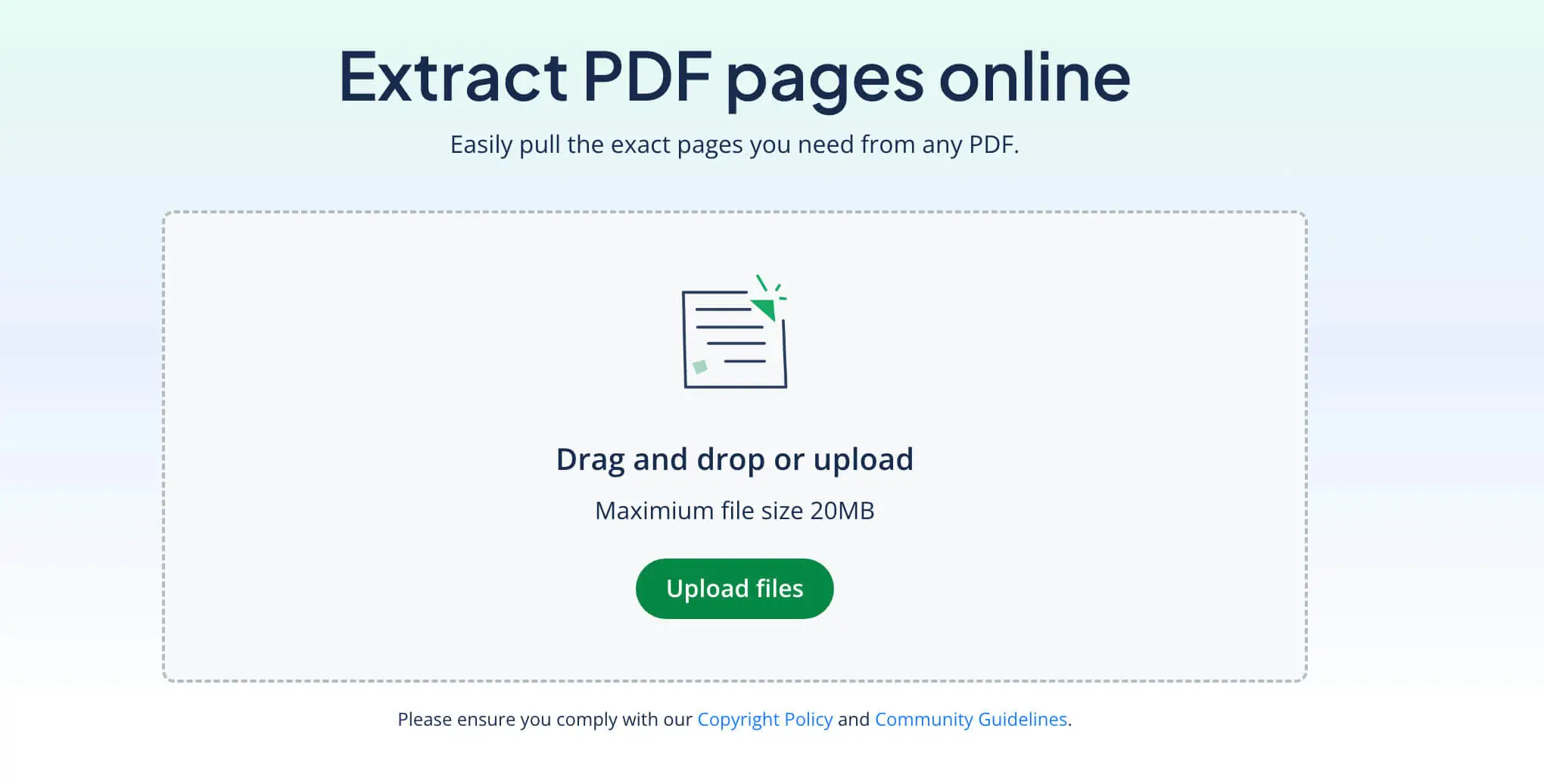
2. Select the pages you want to extract
Once your file is uploaded, tick the box in the top left corner of the pages you want to extract. You’ll know they’ve been selected when a green box with a check mark appears. Then click “Extract” at the bottom of the page.
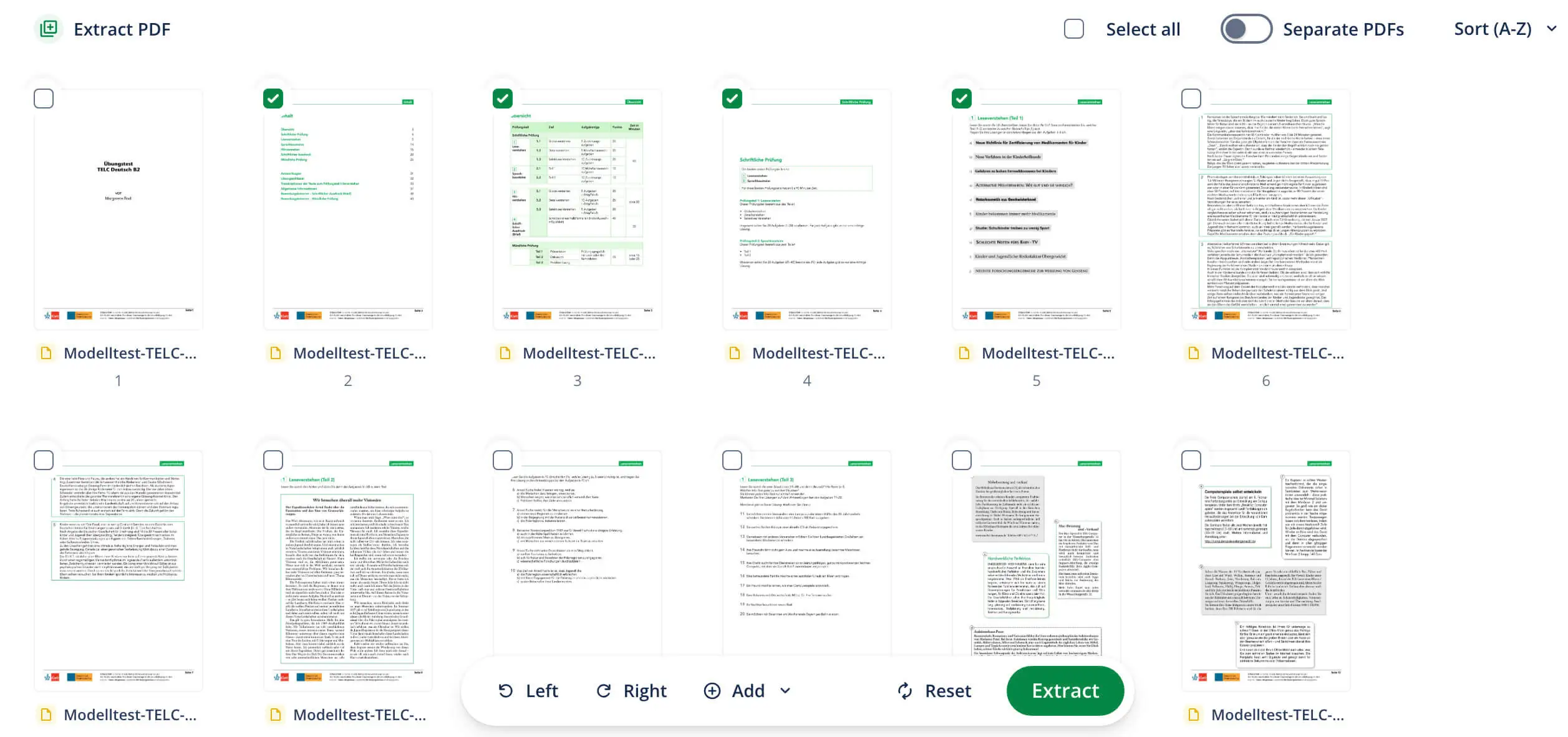
3. Download and save the PDF
Click “Download,” and save your PDF document.
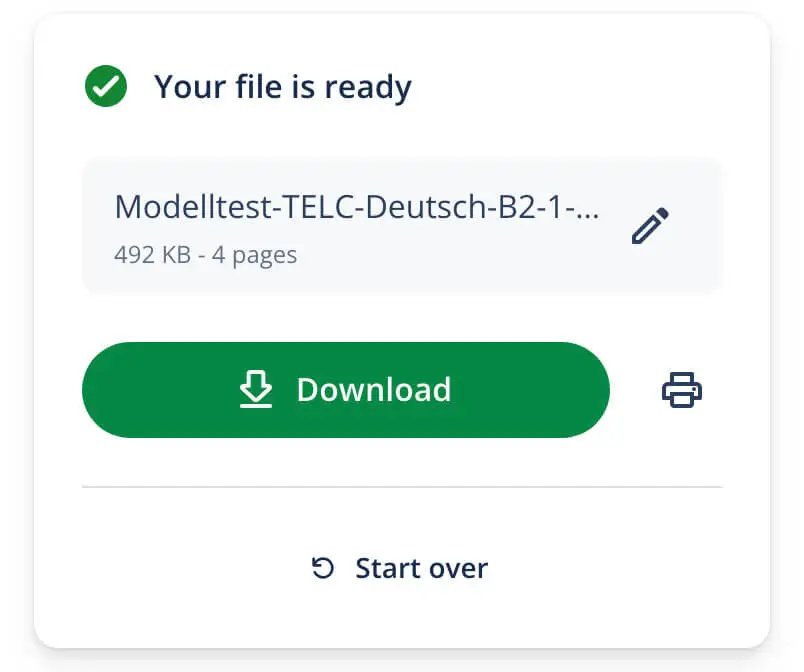
Why extract pages from PDFs?
Extracting pages from a PDF is useful anytime you only need part of a larger document.
Note the following situations where it can come in handy next time you need help:
- Sharing only relevant sections. Send specific pages of a contract, report, or proposal without including confidential or unnecessary content.
- Submitting assignments or forms. Upload only the required pages instead of an entire packet.
- Creating custom study materials. Pull selected chapters or practice pages from longer textbooks or guides.
- Isolating invoices or receipts. Extract individual billing pages from bundled financial statements.
- Cleaning up large documents. Remove outdated or duplicate sections by extracting only the pages you still need.
Extract PDFs: Helpful tips
Extracting pages is simple, but a few small issues can come up. Here’s how to handle them.
The extracted file is blank
If the new file downloads but shows empty pages, the wrong pages may have been selected.
The wrong pages were extracted
It’s easy to miscount pages in long documents. Scroll through the PDF first to confirm page numbers, especially if the document includes a cover or table of contents that affects numbering.The document is password-protected
Some PDFs restrict editing or page extraction.
File size is still too large
Extracting pages doesn’t always reduce file size significantly, especially if the original includes high-resolution images.
Formatting looks different
Occasionally, extracted pages may appear slightly altered depending on how the original file was created.
Frequently asked questions about extracting pages from PDFs
- How can I extract pages from PDFs for free?
-
You can extract pages from PDFs for free by using QuillBot’s PDF extractor. The process only takes three easy steps:
- Click “Upload files.”
- Select the pages you want to extract.
- Download the new PDF.
With this free online tool, extracting PDFs has never been easier.
- Is it safe to edit PDFs online?
-
Yes, it is safe to edit PDFs online if they don’t include sensitive personal data (e.g., health, financial, or academic records). QuillBot’s online PDF editor is perfect for editing a wide variety of PDFs, but always use caution with confidential documents and omit confidential data before you upload PDFs.
Cite this QuillBot article
We encourage the use of reliable sources in all types of writing. You can copy and paste the citation or click the "Cite this article" button to automatically add it to our free Citation Generator.
Cichanowicz, L. (2026, February 24). Extract Pages from a PDF | Steps & Tools. Quillbot. Retrieved February 28, 2026, from https://quillbot.com/blog/pdf-tools/extract-pages-from-pdf/

