How to Convert PDF to DOCX With a PDF Converter
Working with PDF documents has a major advantage: you can open them in any PDF reader, regardless of the operating system (Windows, Mac, Android, etc.), and they will display the same way every time—without any layout or formatting issues. Even so, PDF files can be cumbersome to edit and reformat, especially when it comes to contracts, resumes, or other text-heavy documents.
That’s where a PDF to DOCX converter comes in handy. Keep reading to find out how to turn a PDF into a DOCX using online tools like QuillBot’s free PDF to DOCX converter.
How to convert PDF to DOCX
If you need to edit a PDF or repurpose its content, converting it to a DOCX file is one of the quickest solutions. Most online tools make the process straightforward. Below are the basic steps to follow.
1. Upload your PDF
Choose the PDF file you want to convert and upload it to the online converter. Most tools let you drag and drop the file directly into the upload area.
2. Select the output format
Most converters default to DOCX, but if not, pick it from the available options in the dropdown menu or settings panel.
3. Download your file
After the tool processes your PDF, download the DOCX file to your device. You can then open it in any word processor to edit, update, or reuse the content as needed.
Using an online PDF to DOCX converter
Using the online PDF converter from QuillBot makes it easy to turn a fixed-layout PDF into an editable Word document in just a few clicks. QuillBot’s converter keeps the process simple and fast, so you can upload your file, convert it, and start editing right away. Below’s how it works.
1. Select your file
Select or drag your PDF file into the upload area to add it to the converter.
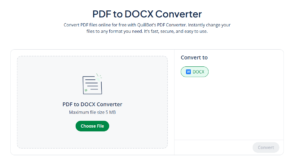
2. Choose DOCX as your format
Confirm that DOCX is selected as the output so the tool can generate an editable Word file.
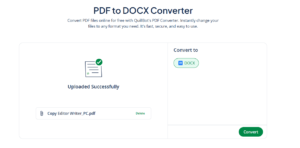
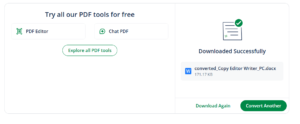
3. Download your converted document
Once the conversion is complete, save the DOCX file to your device and open it in your preferred word processor.
Frequently asked questions about PDF to DOCX converter
- Do I need to install software to convert PDFs?
-
Not at all. Many online tools let you convert PDFs directly in your browser without any downloads or installations—QuillBot’s free PDF to DOCX converter is one convenient option. Just upload your file, convert it, and download the editable document quickly and securely.
Cite this QuillBot article
We encourage the use of reliable sources in all types of writing. You can copy and paste the citation or click the "Cite this article" button to automatically add it to our free Citation Generator.
QuillBot. (2026, February 19). How to Convert PDF to DOCX With a PDF Converter. Quillbot. Retrieved March 3, 2026, from https://quillbot.com/blog/pdf-tools/pdf-to-docx-converter/