Some photos are too good to use just once. Turning them into WhatsApp stickers lets you reuse your favorite reactions, faces, and moments anytime you need them. That’s why learning how to make WhatsApp stickers from photos has become so popular. It’s a fun and easy way to personalize every chat.
The only thing standing between a great photo and a great WhatsApp sticker is the background. Once you remove it, turning a photo into a clean, sticker-ready image is surprisingly simple. With QuillBot’s background remover, turning your favorite photos into WhatsApp stickers has never been easier.
Keep reading to discover why photos make such great WhatsApp stickers and how to use QuillBot’s free online tool.
Published on
December 19, 2025
by
QuillBot.
Revised on
March 13, 2026
AI photo and picture generators make it possible to turn a few words into fully formed photos, illustrations, and graphics in seconds. Whether you’re creating social media content, blog visuals, product mockups, or just experimenting for fun, the key to using tools like QuillBot’s free AI image generator is how you write your prompts.
In this guide, we’ll walk through the basics of how to create an AI image and show you how to put it all into practice using QuillBot’s photo generator.
The easiest way to add a solid white background to a photo is to use a tool that handles the editing for you. A clean white backdrop can make product shots look polished, help profile photos stand out, and give marketing visuals a more professional, studio-ready feel—all without any manual masking or layering.
QuillBot’s free background remover can replace any background with a solid white one in seconds, right in your browser, and with no editing experience required.
An AI cartoon generator uses advanced AI models to transform text descriptions into high-quality cartoon art. By interpreting an AI prompt, the generator can produce anything from playful characters and whimsical animals to dynamic action scenes. You don’t need professional illustration skills or fancy illustration software, just your imagination, some basic knowledge of cartoon styles, and a great prompt.
In this guide, you’ll learn how to choose a cartoon style, how to write effective text-to-cartoon prompts, and how to use QuillBot’s free AI cartoon generator.
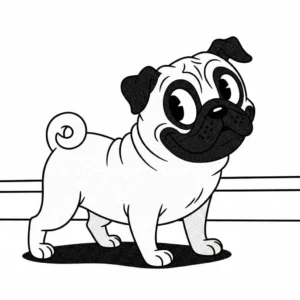
AI cartoon generator exampleAI prompt: Adorable pug with large, expressive eyes and a happy smile, retro grainy texture, rubber hose vintage cartoon style, simple and cheerful mood
Pixel art has evolved from a technical limitation of early computing into a distinctive aesthetic embraced by indie game developers, content creators, and digital artists. While its retro, 8-bit and 16-bit-inspired charm remains popular, creating pixel art from scratch is time-intensive and requires specialized skills.
AI pixel art generators speed up the process by turning simple text prompts into pixelated visuals in seconds. Developers can quickly create character and object graphics for games, creators can produce unique visuals for their channels, and hobbyists can bring ideas to life without learning complex techniques.
Keep reading to learn how to make retro game art with AI, write effective text prompts, and use a beginner-friendly AI pixel art maker like QuillBot’s pixel art generator to generate pixel art characters and other game assets directly from text.
If you’ve engaged in any type of digital communications, by now you’ll have seen emoji—maybe a heart emoji ❤️🩷🤍, a thumbs up emoji 👍, a laughing emoji 🤣, or a crying emoji 😭.
Emojis have become more than just playful icons. They’re a universal language that conveys emotion, tone, and context in seconds. But with thousands of emojis to choose from and subtle differences across devices and platforms, finding the right one can be tricky.
That’s where an emoji tool comes in, making it fast and easy to find and use emojis.
Copy and paste emoji for free with QuillBot’s free emoji picker.
When you want a clean and professional logo, icons for a website, or a product photo that seamlessly blends into your website, a transparent background is essential. So, it’s important to know how to create and save images with transparent backgrounds.
You can do this manually while creating a new image or by removing the background from an existing image using an online tool like QuillBot’s free background remover. This guide outlines how to do both.
A word cloud is a simple yet powerful way to turn words into eye-catching visuals. Word cloud examples include personalized wall art, classroom vocabulary displays, and visual aids for professional meetings. Whether you’re decorating your home, planning a classroom activity, or leading a presentation, the right word cloud idea can make your project stand out.
The 20 word cloud examples below will help you find the perfect inspiration for the home, classroom, or workplace. Your perfect word cloud is also just a click away! Try QuillBot’s free word cloud generator, and start creating today.
A word cloud is an efficient way to visualize language patterns, highlight repeated terms, and demonstrate emphasis in written content. Whether you’re analyzing survey responses, summarizing long documents, or creating a visual for presentations or teaching, word clouds turn text into insights.
This guide covers important concepts you need to know about how to make a word cloud, plus how to make one using AI generators, like QuillBot’s free word cloud generator.
Word clouds are a convenient way of turning the key ideas in a piece of writing into an eye-catching graphic. You can make one in seconds with QuillBot’s free word cloud generator, which automatically identifies the most important terms in your text and arranges them into a customizable visual.