
How to Rotate a PDF Online for Free
Editing a PDF can be frustrating, particularly when your document is sideways or upside down. Luckily, there are tools and tricks for rotating PDFs quickly and easily.
Try QuillBot’s free rotate PDF tool to instantly rotate your PDFs hassle free.
How to rotate a PDF
Rotating a PDF with QuillBot’s free rotate PDF tool is as easy as following these simple steps:
1. Upload your PDF
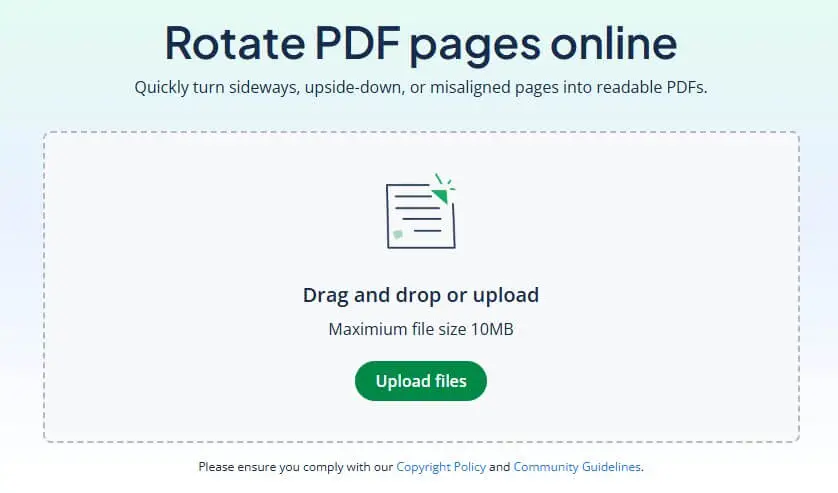
On QuillBot’s rotate PDF tool landing page, select the PDF file you’d like to rotate and upload it.
QuillBot’s rotate PDF tool landing page
2. Rotate the entire PDF or individual pages
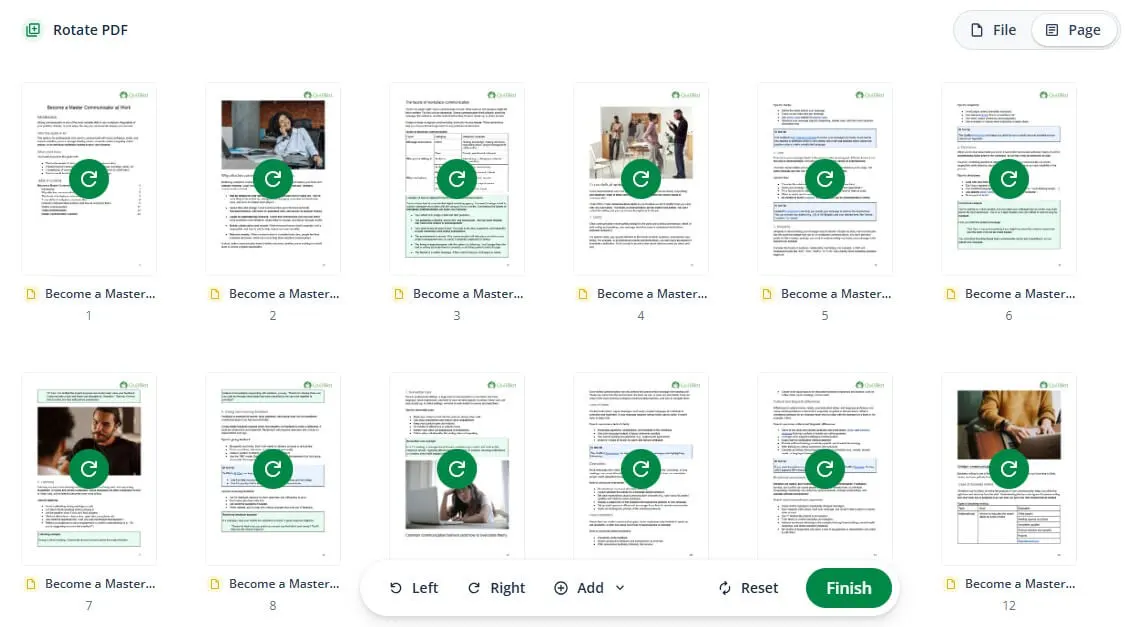
Select “File” in the top right if you want to rotate the entire file, or “Pages” if you only want to rotate specific pages.Click the green arrow icon on the PDF to rotate. Click “Finish” once you’ve rotated the document to your liking.
Uploaded PDF in QuillBot’s free rotate PDF tool
3. Download and save the PDF
Download and save your updated PDF document.
Rotate PDF: Useful applications
Knowing how to use rotate PDF tools can help make your life easier in lots of everyday situations. Take note of these useful applications for next time you’re in a bind:
- Fixing scanned documents. Scanners often flip PDFs sideways. Rotate them to make contracts and forms readable.
- Correcting phone photos converted to PDFs. Images saved as PDFs sometimes change orientation. A quick rotation restores the original layout.
- Preparing presentations. If your landscape slides are saved incorrectly, rotate those pages so they display properly on screen.
- Adjusting reports and academic papers. Charts and tables often read better in landscape orientation.
- Merging files with mixed layouts. If combined PDFs have inconsistent page directions, rotating pages keeps everything aligned.
Helpful tips to rotate PDFs
With the right tool, rotating PDFs is quick and simple. However, if you’re experiencing obstacles, these tips can help.
The rotation doesn’t save
If your file looks unchanged after rotating, the updated version may not have been saved properly. Make sure you download the updated file after rotating. If not, changes won’t apply.
Only one page needs rotating
Sometimes just a single page is sideways while the rest of the document is correct.
The file looks distorted
If the layout seems off after rotating, the issue might be related to the original formatting.
The document is locked
If the PDF is password-protected, you may need to unlock it before editing. Some PDFs have “view-only” restrictions, and these must be removed in order to make edits.
Alternatively, if someone else sent the file, ask them to provide an unlocked version or share the password.
Frequently asked questions about rotating PDFs
- Are there tools available to help rotate a PDF online?
-
Yes, you can rotate a PDF online with tools that are quick and easy to use.
For example, you can try QuillBot’s free rotate PDF tool tool to instantly rotate your files.
- How do you rotate one page in a PDF?
-
Knowing how to rotate a PDF for specific pages starts with choosing a tool that allows single-page rotation.
If you need to rotate specific pages within a PDF, try QuillBot’s free rotate PDF tool. It allows you to select individual pages or rotate the entire PDF.
- How do you rotate a PDF and save it?
-
Here’s how to rotate a PDF and save it: Upload your file, rotate selected pages, and then download the updated version to apply the changes.
If you want to make other changes to PDFs like adding text or images to your document, try QuillBot’s free PDF editor
Cite this QuillBot article
We encourage the use of reliable sources in all types of writing. You can copy and paste the citation or click the "Cite this article" button to automatically add it to our free Citation Generator.
Cichanowicz, L. (2026, February 24). How to Rotate a PDF Online for Free. Quillbot. Retrieved February 28, 2026, from https://quillbot.com/blog/pdf-tools/how-to-rotate-pdf/

