
How to Remove Pages from PDF | Tools & Tips
PDF files are tricky to edit. Most PDF readers offer limited options, and if you can change something, it often impacts quality. This especially goes for when you want to remove pages from a PDF file.
Luckily, online tools can help. Delete unwanted pages with ease using QuillBot’s free Remove PDF Pages tool. This guide explains how.
Remove pages from PDFs
Remove PDF Pages is a tool that enables you to delete selected pages of a PDF without impacting the quality of your document. It’s easy to use on mobile devices, tablets, and computers.
How to remove pages from a PDF
Deleting pages from a PDF document is as simple as following these three steps:
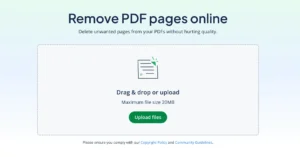
1. Select the file
Locate the PDF from which you want to delete specific pages. Open QuillBot’s Remove PDF Pages in your browser, click “Upload Files,” and upload onto the PDF Remove PDF Pages tool.
2. Edit and delete the pages
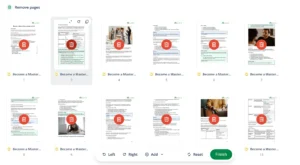
Once your file is uploaded, click on the red trash bin icon to remove select pages from your PDF document. The pages will then disappear from the file. Once you’ve deleted all the pages, simply click “Finish” at the bottom of the page.
3. Download and save PDF file
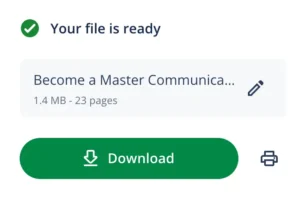
Next, all you have to do is click “Download” on the right side of the screen, and your updated PDF is ready.
Why delete pages from PDFs?
Deleting pages from a PDF is useful anytime you only need part of a larger document and want to remove the rest.
Here are some common situations where it can come in handy next time you need help:
- Remove confidential data. Send specific pages of a contract, report, or proposal without including confidential or unnecessary content.
- Reduce file size. Remove unnecessary pages and high resolution images or graphics to make the PDF file easier to share via email.
- Delete outdated info. Get rid of any irrelevant or inaccurate pages without having to create or scan a new PDF from scratch.
- Correct formatting errors. Quickly eliminate poorly scanned or mis-formatted pages from the document.
- Customize your PDF documents. Keep only the pages you need and clear away the rest.
Delete PDF pages: Helpful Tips
With the right tools, deleting PDF pages is simple, but a few small issues can sometimes come up. Here’s how to solve them.
File is password protected
If the PDF is password-protected, you might need to unlock it before editing. Some PDFs have “view-only” restrictions, and these must be removed in order to make edits.
Alternatively, if someone else sent the file, ask them to provide an unlocked version or share the password.
Cannot delete the last page
When you use tools like Remove PDF Pages, you’ll need to keep at least one page in the final document in order to save.
You get a “Bad Parameter” error
Files can sometimes become corrupted if you’ve merged multiple PDF documents already.
You delete the wrong page
It can be easy to lose track of which pages you want to delete, especially when dealing with a large document.
File size is too large
Deleting pages doesn’t always reduce file size by much, especially if the original includes high-resolution images.
Frequently asked questions about PDF page removers
- Why remove PDF pages from a document?
-
Remove PDF pages from a document if you want to:
- Remove confidential data
- Reduce file size
- Delete outdated info
- Correct formatting errors
- Customize your PDF documents
You can remove pages from PDFs, or extract specific pages you want to keep using tools like QuillBot’s PDF Extractor.
- How to delete pages from PDF?
-
Knowing how to delete pages from PDF documents is as simple as following these 3 steps:
- Select the file
- Edit and delete the pages
- Download and save PDF file
Remove pages from PDFs with QuillBot’s free Remove PDF Pages tool.
- How do I remove the background from a signature in a PDF?
-
To create a background-free signature for use in a PDF, follow these simple steps.
- Write your signature on a blank piece of paper.
- Take a photo of your signature or scan it into your computer.
- Use a free background remover like QuillBot’s AI-powered background remover to make the background transparent.
- Paste your background-free signature into your PDF or other digital document.
Cite this QuillBot article
We encourage the use of reliable sources in all types of writing. You can copy and paste the citation or click the "Cite this article" button to automatically add it to our free Citation Generator.
Cichanowicz, L. (2026, March 17). How to Remove Pages from PDF | Tools & Tips. Quillbot. Retrieved March 17, 2026, from https://quillbot.com/blog/pdf-tools/how-to-use-a-pdf-page-remover/

