How to Merge PDF Files | For Free & Online
Knowing how to merge PDF files is an essential skill for anyone who needs to combine reports, contracts, invoices, applications, or scanned pages. Merging PDFs helps you keep related documents organized, reduce digital clutter, and share information more efficiently.
While there are various ways to merge PDF documents, the easiest and most efficient way is with a free, online solution—like QuillBot’s merge PDFs tool. When using these tools, you don’t have to work from a specific type of device or install any software.
How to merge PDF files for free online
Here’s how to merge PDF files for free online with QuillBot’s merge PDF tool in just four simple steps. This guide shows how to merge two PDF files, but you can certainly merge more than that.
1. Upload your PDF files
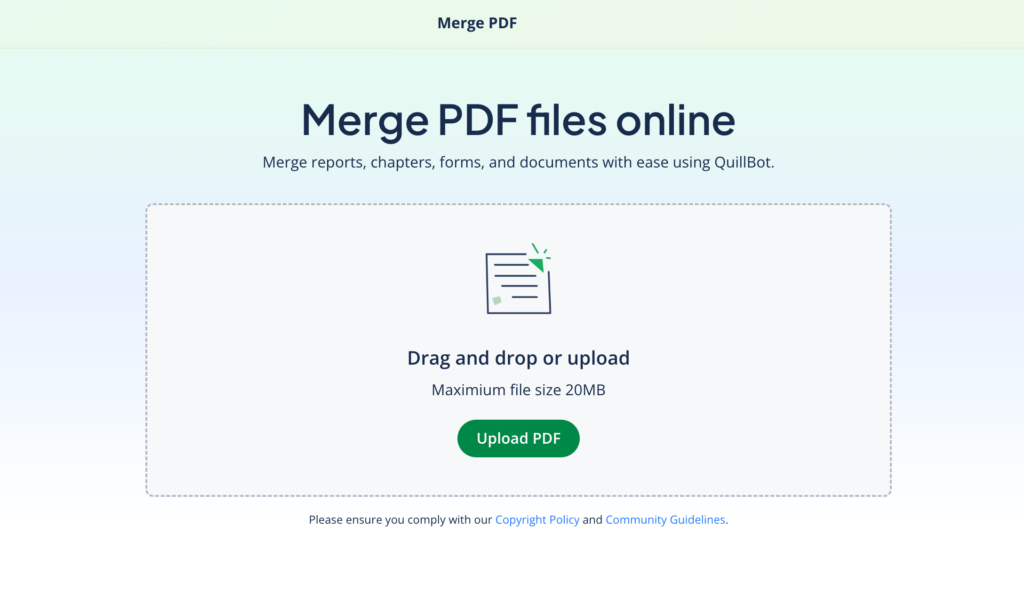
Go to QuillBot’s merge PDF tool, and you’ll see a green button that says “Upload PDF.” Click this button to start uploading or drag and drop PDF files into the gray box. You don’t need to install any software, input any payment details, or even create an account.
2. Reorder or edit the files as needed
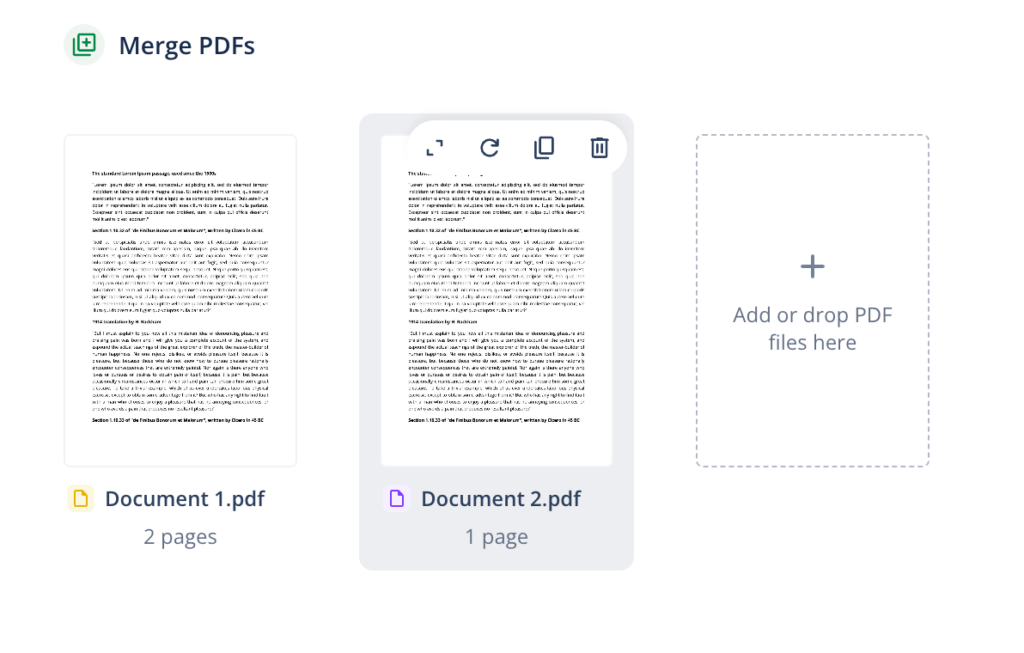
Next, arrange your uploaded PDF files as needed. Drag to reorder pages and find the perfect flow for your new merged PDF. You can also rotate, duplicate, or delete pages. If you want to check a page’s content, click the two arrows to view it.
3. Review and merge
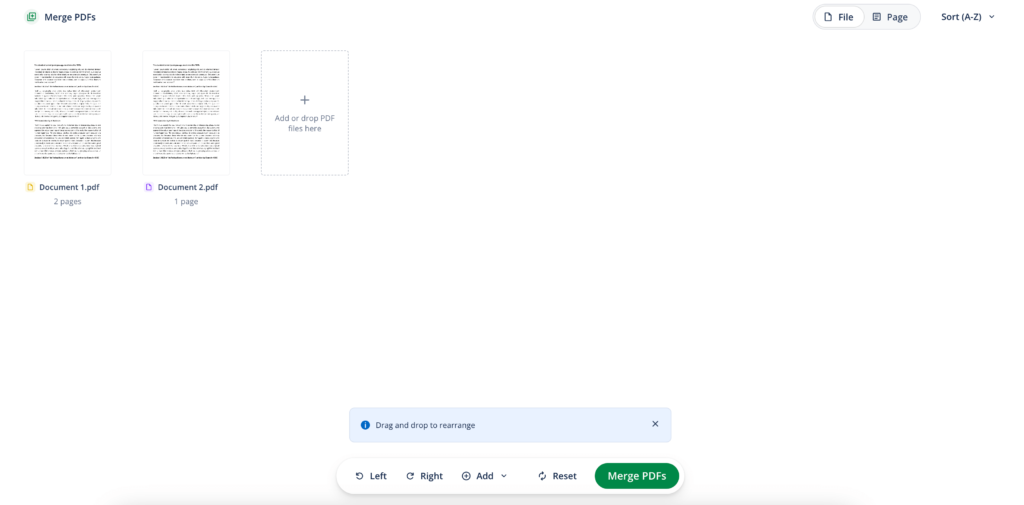
Review your documents to make sure you’re happy with the order of your PDFs. At the top right of the tool, you can toggle between “File” and “Page” view to see either the uploaded PDF files or all the pages those files contain. Forgot a file? Use the “Add” button at the bottom toolbar to upload it. Once you’re satisfied, click the “Merge PDFs” button.
4. Name and download your file
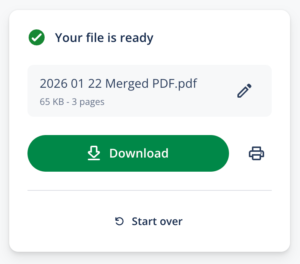
When your merged file is ready, you can rename it if you’d like by clicking the pencil icon. Finally, click “Download” or, if you’d like to print the document instead, click the printer icon.
How to merge PDF files on different devices
Want to merge PDF files offline instead? Here’s how to merge PDF files on Mac and Windows.
How to merge PDF files on Mac
MacOS includes a built-in PDF viewer called Preview, which allows you to merge PDF files without using external tools.
To merge PDF files on Mac:
- Open the first PDF file in Preview.
- Click “View” in the top menu and select “Thumbnails.”
- Drag another PDF file into the thumbnail sidebar.
- Reorder pages by dragging them up or down.
- Click “File” and then “Export” to save the merged file as a new PDF.
How to merge PDF files on Windows
Windows does not include a built-in tool to merge PDFs, so you’ll need to download third-party software. How to merge PDF files on Windows depends on which program you use, but follow these general steps:
- Open the PDF merging program.
- Import your PDF files.
- Reorder and merge them.
- Save the combined file.
Best practices for how to merge PDF files
While merging PDF files is a fairly straightforward process—especially if you’re using a free online tool—there are some best practices you can employ to make sure the process goes smoothly:
- Back up the original PDF files: Maintain a version of the original files alongside the new merged one. This way, if something goes wrong with your merge, or you realize you’ve left out information, you can go back to the originals.
- Have a file-naming convention: The more organized you keep your file names, the easier the merging process will be. Use descriptive filenames before uploading (e.g., “Invoice_January.pdf” instead of “scan001.pdf”). Likewise, use a clear and informative name for your new, merged PDF file.
- Unlock locked PDFs: Password-protected PDFs will need to be unlocked before you can upload them to a PDF merger.
- Double-check orientation: Make sure all pages have the correct rotation. Mixed orientations can make the final PDF difficult to read.
- Remove unnecessary pages: Delete blank pages, duplicates, or irrelevant sections before merging to keep the final document concise.
- Be conscious of file format and size: Large merged PDFs can be hard to share or upload. If your final file is too big, consider compressing it afterward. Also, think about which format you need the new document in. If it’s not PDF, use QuillBot’s PDF converter to export it as another file type.
- Consider accessibility or security: If your audience includes people with accessibility issues, make sure your merged PDF is accessible with readable fonts, document tags, and image alt text. For sensitive documents, make sure the tool you’re using is secure, and consider encryption for your newly merged file.
Frequently asked questions about how to merge PDF files
- How do I merge PDF files on iPhone?
-
To merge PDF files on iPhone, the easiest method is to use an online PDF merger in your mobile browser.
Open a browser on your iPhone and:
- Go to a PDF merger, like QuillBot’s free PDF combiner
- Upload the files from your device or cloud storage
- Arrange them in the correct order
- Name your new merged document
- Download the merged PDF
- How do I merge PDF files on Android?
-
To merge PDF files on Android, you can use an online PDF merger or a dedicated mobile app.
The simplest option is to open a browser on your Android phone and:
- Go to a merging tool, like QuillBot’s free merge PDFs
- Upload your PDF files
- Reorder them as needed
- Give your merged PDF a name
- Export the merged PDF
This method avoids installing apps and works on any Android device.
Cite this QuillBot article
We encourage the use of reliable sources in all types of writing. You can copy and paste the citation or click the "Cite this article" button to automatically add it to our free Citation Generator.
Santoro, K. (2026, March 08). How to Merge PDF Files | For Free & Online. Quillbot. Retrieved March 18, 2026, from https://quillbot.com/blog/pdf-tools/how-to-merge-pdf-files/