How to Reorder PDF Pages | Tips & Free Tools
Whether you’re sharing documents with a customer, organizing a digital portfolio, or just cleaning up a messy scan, the order of your document matters. A poorly organized PDF can confuse readers and may seem careless or unprofessional. Fortunately, you don’t need fancy software or advanced technical skills to fix this issue.
Online solutions like QuillBot’s reorder PDF tool provide a seamless, fast, and free way to manage your documents.
Why page order matters
Rearranging the pages in a PDF document isn’t simply about aesthetics—it’s about user experience and information hierarchy. A logically ordered document helps your reader process information and find what they’re looking for faster.
The F-pattern
As you reorder your PDF, you might want to consider how you expect your reader to navigate the document. What information will they be looking for, and in what order will they need this information?
In today’s digital world, people don’t usually follow typical “left-to-right, top-to-bottom” reading patterns. Instead, they scan, searching for key information. Eye tracking data reveals that people’s eye movements often follow an “F” shape—they read a few lines at the top of the document before starting to scan vertically. Strategically placing key information in areas where you expect your reader to look first will help them navigate your document with ease.
How to rearrange PDF pages
With QuillBot’s online Reorder PDF tool, you can organize your documents in just three simple steps.
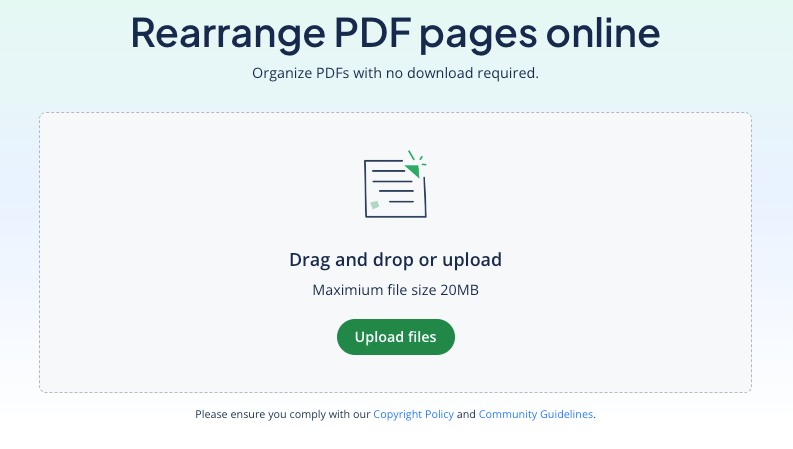
1. Upload your PDF
Start by uploading your PDF file by selecting it from your computer or dragging and dropping it directly into the tool.
QuillBot’s reorder PDF interface
2. Edit and reorder the pages
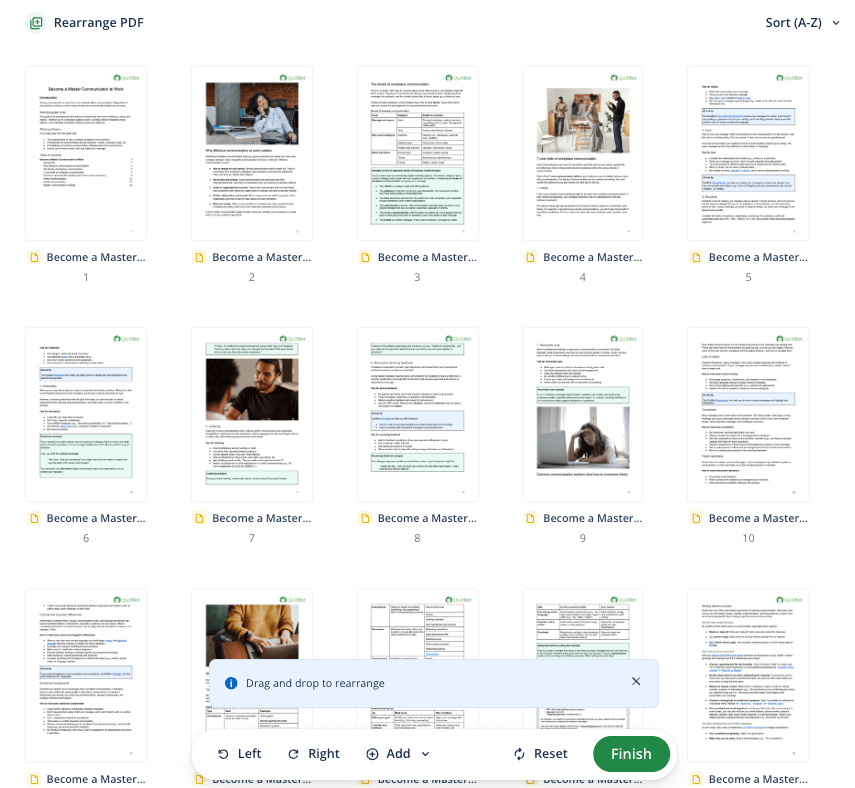
Once your file has been uploaded, you’ll see a thumbnail view of every page. You can drag and drop these pages into the correct order. You can also delete any unnecessary pages, rotate pages, or upload additional files to combine with your original document.
Using the tool
3. Download and share!
Once you’re happy with the order of your pages, you can click “Finish” to download your rearranged file. Save your newly organized PDF and share it instantly with your team, classmates, or clients.
Frequently asked questions about how to reorder PDF pages
- How do you reorder the pages of a PDF online?
-
If you need to reorder the pages of a PDF, one of the simplest solutions is to use an online tool.
QuillBot’s reorder PDF tool is a fast and easy way to rearrange the pages in a PDF file. Simply upload your document, drag and drop pages into whatever order you want, and download your edited file.
- How can I split a PDF into multiple pages online?
-
Looking to split a PDF into pages? Online tools like QuillBot’s split PDF tool make the process a breeze. Simply upload your file, select the pages you need, and download your new-and-improved document.
- How do I add text to a PDF without Adobe?
-
You can easily add text to a PDF using the free QuillBot online PDF editor. Because it’s browser-based, it doesn’t matter what operating system or device you are using. You can add text, highlights, images, or drawings simply and quickly.
There’s no need to create an account, and your results can be printed or saved from the browser.
Cite this QuillBot article
We encourage the use of reliable sources in all types of writing. You can copy and paste the citation or click the "Cite this article" button to automatically add it to our free Citation Generator.
QuillBot. (2026, February 06). How to Reorder PDF Pages | Tips & Free Tools. Quillbot. Retrieved March 28, 2026, from https://quillbot.com/blog/pdf-tools/how-to-reorder-pdf-pages/