How to Split PDF Pages | Guide & Free Tools
We’ve all been there—you receive a massive, 150-page PDF, but you only need the quarterly earnings report on page 57 or a specific diagram from the appendix. Trying to email, print, or share an oversized file is a guaranteed path to “File Too Large” errors and frustration.
Instead of wrestling with an oversized PDF file, you can use QuillBot’s split PDF tool. This fast, easy-to-use solution will help you extract exactly what you need from your document without paying for or downloading expensive software.
The benefits of splitting a PDF
While it might seem like a minor task, splitting a PDF has some major benefits. Here are some reasons why you might consider separating your file into multiple pages.
- Smaller files improve shareability: A smaller document not only saves storage space but also makes it easier to find the information that matters—your recipient will thank you!
- Improved organization: Instead of one massive file you have to dig through every time you open it, splitting a PDF lets you isolate the pages you need to refer to most frequently.
- Privacy and security: Sharing a document that contains sensitive information is a big no-no. Fortunately, splitting up a PDF allows you to share the “safe” sections externally without worrying about compromising security.
- Easier mobile viewing: Scrolling through a 200-page document on a smartphone is a pain, but a 2-page excerpt is no problem at all.
How to split a PDF into pages online
QuillBot’s Split PDF Online tool makes this process effortless and intuitive. Follow these three simple steps to isolate what you need from your document in seconds.
1. Upload your PDF file
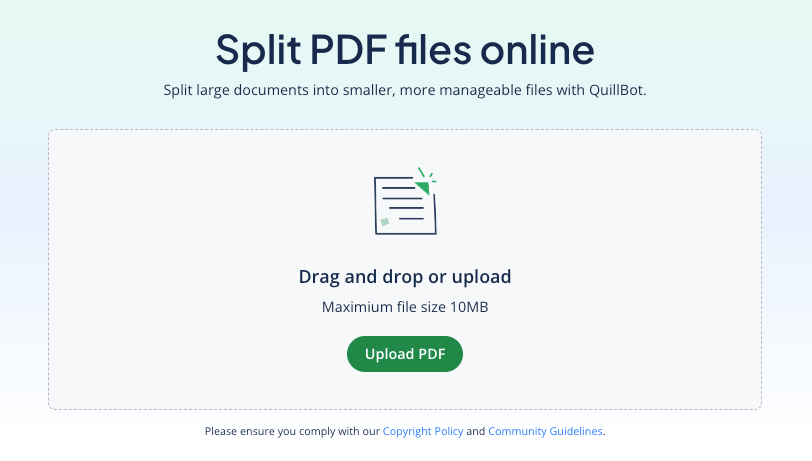
To get started, simply drag and drop your file into the tool, or choose a file from your computer to upload.
QuillBot’s Split PDF interface
2. Edit and split the pages
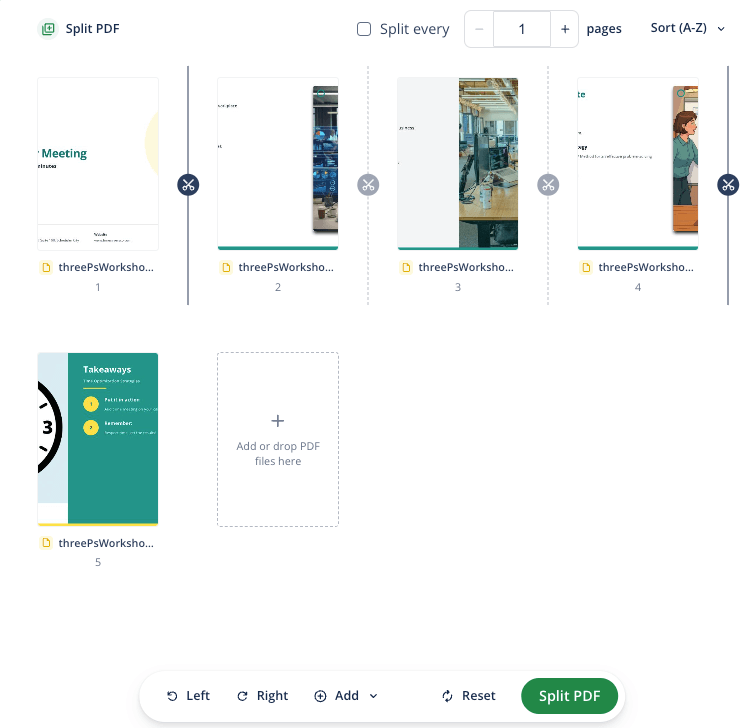
Once your file is uploaded, you’ll be brought to the editor. To split your PDF, you can either manually specify the “breaks” where you want your document separated or opt to insert a break every X pages. This page also has additional editing options—you can rotate the pages of your document, drag pages to reorder them, or even upload a new PDF to combine with the first. When you’re done, click the “Split PDF” button at the bottom to view your new files.
The PDF editor page where you can split, reorder, or rotate the pages in your document or upload additional pages
3. Download your new document
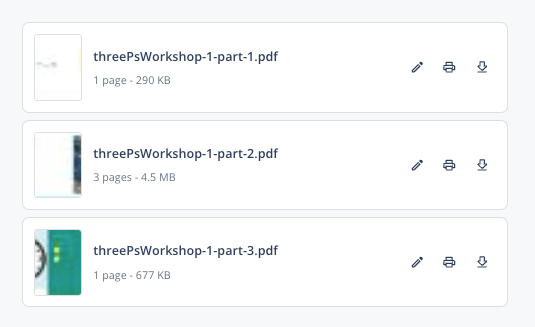
The tool will create a new separated file wherever you chose to insert a break. You’ll be given the option to rename, print, or download these files.
The split files available to rename, print, or download
Frequently asked questions about splitting PDF pages
- How can I split a PDF into multiple pages online?
-
Looking to split a PDF into pages? Online tools like QuillBot’s split PDF tool make the process a breeze. Simply upload your file, select the pages you need, and download your new-and-improved document.
- How do I add text to a PDF without Adobe?
-
You can easily add text to a PDF using the free QuillBot online PDF editor. Because it’s browser-based, it doesn’t matter what operating system or device you are using. You can add text, highlights, images, or drawings simply and quickly.
There’s no need to create an account, and your results can be printed or saved from the browser.
- What’s the difference between editing and adding text in a PDF?
-
Editing a PDF involves changing the actual text of the document, whereas adding text is more like annotating. Editing is difficult and in many cases not worth it—it is better to go back to the course document and amend it before creating a new PDF.
Adding text to a PDF is simple with an online tool like the QuillBot PDF editor. As well as text, you can add images, highlighting, and drawings.
Cite this QuillBot article
We encourage the use of reliable sources in all types of writing. You can copy and paste the citation or click the "Cite this article" button to automatically add it to our free Citation Generator.
QuillBot. (2026, February 18). How to Split PDF Pages | Guide & Free Tools. Quillbot. Retrieved March 18, 2026, from https://quillbot.com/blog/pdf-tools/split-pdf-pages/