How to Use a PDF to Word Converter (Step-by-Step Guide)
PDF files are excellent for preserving layouts, fonts, and graphics, but they’re not the easiest to edit. When you need to revise a contract, update a report, or repurpose text for another project, converting a PDF to an editable Word document is the fastest way to get the job done.
To convert a PDF to Word (DOC or DOCX), you can use a free online tool, such as QuillBot’s PDF to Word converter. Simply upload your PDF, choose DOC or DOCX as the output format, and download your fully editable document.
Keep reading to learn how to use a PDF to Word converter, why it’s useful, and how QuillBot makes the process quick and effortless.
Why use an online PDF to Word converter?
While PDFs are perfect for sharing final versions of documents, they aren’t built for easy editing. That’s why converting a PDF to Word is one of the most common file-conversion tasks. Here are the most popular reasons people turn to online PDF converters:
1. Editing text without formatting challenges
Copying text from a PDF into Word often leads to broken spacing, missing characters, or strange line breaks. A converter preserves the formatting so the document opens cleanly in Word.
2. Updating reports, resumes, or proposals
If you need to revise numbers, add sections, or refresh outdated content in a resume or report, converting the file to Word allows you to make quick edits without recreating the document from scratch.
3. Improving collaboration
Teams can easily suggest edits, leave comments, and co-author documents in Word, which is much harder to do with a locked PDF.
4. Repurposing content for new projects
Whether you’re turning a report into a blog post or using existing text in training materials, a Word version makes it easy to copy, reorganize, and rewrite content.
5. Saving time on manual retyping
Manually copying text from a PDF is slow and error-prone. A PDF to Word converter automates the process so you can focus on the content instead of the formatting.
How to convert PDF to Word with QuillBot
Follow these steps to use QuillBot’s free PDF to Word converter from any browser.
1. Upload your PDF
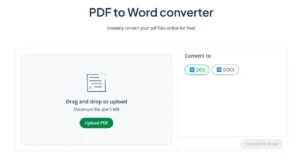
Start by clicking the “Upload PDF” button in QuillBot’s converter tool. Choose the PDF you want to convert from your computer or mobile device. Once selected, the file will upload automatically.
QuillBot’s free PDF to Word converter
2. Convert to Word
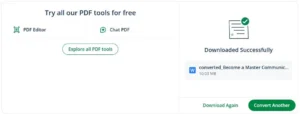
After your file uploads, select “DOC” or “DOCX” and “Convert to Word.” QuillBot will quickly process the document and generate an editable DOC or DOCX file that mirrors the formatting of your original PDF. The converted Word file will automatically download.
PDF to Word successful download
3. Edit and save
Open the Word file (e.g., in your “Downloads” folder) to make any necessary edits. You can update text, change formatting, reorganize sections, or add new elements to the document. Once finished, save your edited file like any other Word document.
Frequently asked questions about how to use a PDF to Word converter
- What is a free online PDF to Word converter?
-
A free online PDF to Word converter is a tool that you can access from any device with a browser. It allows you to convert a PDF file to a Word document without special software. For example, with QuillBot’s free PDF to Word converter, you can convert a PDF to a DOC or DOCX file.
Cite this QuillBot article
We encourage the use of reliable sources in all types of writing. You can copy and paste the citation or click the "Cite this article" button to automatically add it to our free Citation Generator.
QuillBot. (2025, December 09). How to Use a PDF to Word Converter (Step-by-Step Guide). Quillbot. Retrieved March 18, 2026, from https://quillbot.com/blog/pdf-tools/how-to-convert-pdf-to-word/