Thumbnail Generator | How to Create Clickable Thumbnails
Thumbnails are often the first thing viewers notice when browsing content online. Many platforms can automatically generate a thumbnail for you, but sometimes you want a custom thumbnail to better convey your message, showcase your brand, or make your content stand out.
An AI thumbnail generator lets you quickly create unique, visually engaging thumbnails without expensive software or special design skills. With QuillBot’s free AI thumbnail generator, you can experiment with different art styles, color schemes, and layouts to match your content and brand.
This guide walks you through the step-by-step process for creating custom thumbnails that are professional, clickable, and eye-catching, even if you’re new to design.
Table of contents
Step 1: Define the purpose and audience for your thumbnail
Before generating a thumbnail, decide what you want it to achieve and who will see it. Thumbnails can serve several purposes:
- Attract clicks: The most common goal is to get people to notice your content and click. Thumbnails designed for clicks often use bold color and clear focal points.
- Convey information: Some thumbnails summarize what the content is about. For example, a tutorial thumbnail might depict the main topic or a key step.
- Build brand recognition: If you’re creating content consistently, thumbnails can include logos, consistent colors, or recurring styles to help viewers recognize your brand at a glance.
- Set the tone or mood: The style, colors, and visuals can tell viewers whether your content is fun, serious, educational, or dramatic.
Step 2: Choose the right thumbnail dimensions
Different platforms use different dimensions for thumbnails, so it’s important to pick the correct width-to-height ration. The technical term for this is the aspect ratio. QuillBot’s AI thumbnail maker includes several choices, such as:
- 16:9 (horizontal rectangle) for YouTube or other video platforms
- 1:1 (square) for social media posts
- 9:16 (vertical rectangle) for stories or vertical content
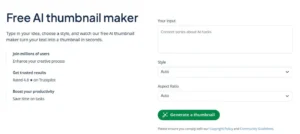
Most platforms (YouTube, Instagram, etc.) provide official aspect ratio guidelines. If you’re unsure, 16:9 is usually a safe bet for videos and most desktop or mobile players. QuillBot’s AI thumbnail maker includes a dropdown menu with several aspect ratios to choose from.
QuillBot’s thumbnail generator interface
Step 3: Pick a style that matches your content
QuillBot’s thumbnail generator lets you choose a style, which affects the look and feel of your thumbnail. In the “image style” dropdown menu, select the option that best fits your brand identity and content.
- 3D scene: Three-dimensional, layered visuals
- Anime: Cartoon-like artwork
- Artistic: Painterly or illustrated style
- Cinematic: Dramatic and filmlike
- Digital art: Clean, polished illustrations
- Educational: Clear and informative visuals
- Fantasy world: Imaginative, otherworldly scenes
- Prototyping and mockup: Minimalist, concept-focused visuals
- Realism: Lifelike or photorealistic appearance
Step 4: Write your thumbnail prompt
In the “prompt” section of the interface, type a description of what you want your thumbnail to look like, and click “generate a thumbnail.” Your AI image prompt tells the AI what to generate. Include these details to get the best possible output:
- Main subject
- Color scheme
- Key objects or symbols
- Captions or words (if applicable)
Output from QuillBot’s AI thumbnail maker

Step 5: Review the output, and download or refine
After you enter your prompt, QuillBot’s thumbnail maker will display two images to choose from. If you’re happy with one of the first two results, download and save at this time. You can also refine your prompt and regenerate if you want to explore other options. Download the first output before entering a new prompt in case you decide to use one of the first results.
Frequently asked questions about how to use a thumbnail generator
- What are the dimensions of a YouTube thumbnail?
-
The recommended dimensions for a YouTube thumbnail are 1280 x 720 pixels with a 16:9 aspect ratio. The minimum width is 640 pixels. Use high-resolution images in JPG, PNG, or GIF format, and keep the file size under 2 MB for best results.
You can quickly and easily make a 16:9 YouTube thumbnail with QuillBot’s free thumbnail maker.
- Can I reuse the same thumbnail on multiple platforms?
-
You can reuse the same thumbnail on multiple platforms, especially if it links to the same content, but adjust the aspect ratio to match the platform guidelines. For example, a thumbnail for a YouTube video should be 16:9 aspect ratio, but for an Instagram reel, it should be 1:1 (square).
With QuillBot’s free AI thumbnail generator, you can choose from several different aspect ratios.
- What are the best fonts for YouTube thumbnails?
-
The best fonts for YouTube thumbnails are sans serif, bold typefaces that stand out in feeds and search results, such as:
- Impact
- Montserrat Extra Bold
- Roboto Bold
- Poppins Bold
- Bebas Neue
You can also experiment with outlines or shadows for contrast. If you’re using an AI thumbnail generator (like QuillBot’s YouTube thumbnail maker), include details about the font you want to use for your title or other text.
Cite this QuillBot article
We encourage the use of reliable sources in all types of writing. You can copy and paste the citation or click the "Cite this article" button to automatically add it to our free Citation Generator.
QuillBot. (2026, March 08). Thumbnail Generator | How to Create Clickable Thumbnails. Quillbot. Retrieved March 30, 2026, from https://quillbot.com/blog/image-tools/how-to-use-a-thumbnail-generator/