How to Use an AI Cartoon Generator (Step-by-Step Guide)
An AI cartoon generator uses advanced AI models to transform text descriptions into high-quality cartoon art. By interpreting an AI prompt, the generator can produce anything from playful characters and whimsical animals to dynamic action scenes. You don’t need professional illustration skills or fancy illustration software, just your imagination, some basic knowledge of cartoon styles, and a great prompt.
In this guide, you’ll learn how to choose a cartoon style, how to write effective text-to-cartoon prompts, and how to use QuillBot’s free AI cartoon generator.
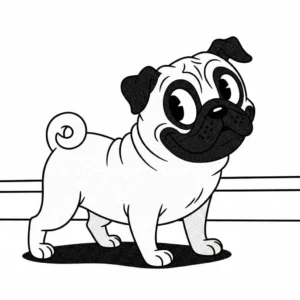
Output from QuillBot’s AI cartoon generator
Cartoon styles for AI
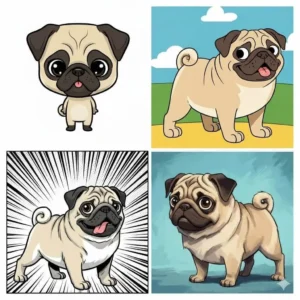
Before you write a prompt for an AI cartoon generator, consider what type of cartoon style you want the AI to generate. Here are some of the many cartoon styles you might include in a text-to-image cartoon prompt.
- Caricature: Features large heads, small bodies, and distorted facial features, mostly used for political satire or funny souvenirs and personalized gifts
- Rubber hose: 1920s–1930s animation style featuring characters with noodle-like limbs, simple rounded shapes, and elastic movement
- Anime: Japanese animation style defined by expressive eyes, dramatic lighting, vivid color palettes, and cinematic framing
- Chibi: Super-deformed, ultra-cute variation of anime, where the characters have oversized heads, tiny bodies, simplified features, and exaggerated expressions
- Surrealist: Uses dreamlike imagery with bold colors, unusual shapes, and playful, surreal characters
- Painterly: Soft, brush-textured look inspired by traditional painting
- Comic-book: Bold lines, dramatic shadows, halftone dots, and high-contrast colors
- Retro Saturday-morning: Bright, simplified characters with smooth outlines and flat colors, inspired by classic 1970s–1990s animation
How to write a text-to-cartoon prompt
Writing a strong prompt is the most important step in generating high-quality cartoon art. Because an AI cartoon generator relies on your description to understand composition, style, and character details, even small improvements to your wording can dramatically change the outcome.
Follow these steps to write a prompt that’s specific, structured, and concise, or try QuillBot’s free AI prompt generator.
1. Start with the cartoon subject
Define who and what the cartoon should depict. Be clear about the character’s identity, species, or role. Here are some examples of specific AI cartoon subjects:
- A lively Saguaro cactus
- An American football player
- A flock of pink flamingos
2. Add distinctive features
Include any important visual traits, such as colors, props, expressions, or physical attributes, like these examples:
- Wearing a bright yellow raincoat
- Holding a steaming cup of coffee
- With oversized expressive eyes
3. Specify the cartoon style
Different AI models can mimic a wide range of cartoon styles, such as comic book art, anime, 2D flat design, children’s book illustration, chibi, retro animation, and more. If the style you want to generate isn’t available in a drop-down menu, include details about your desired style in the prompt. Here are some of the many ways to do that:
- In a soft, painterly animation style
- In bold, graphic comic-book shading
- In a simple, colorful flat-vector cartoon style
- In a whimsical children’s book style
- In a retro Saturday-morning cartoon style
4. Guide the mood and composition
Details about tone and layout help the AI understand the overall energy of the image:
- Bright and cheerful mood
- Dynamic action pose
- Centered composition on a clean background
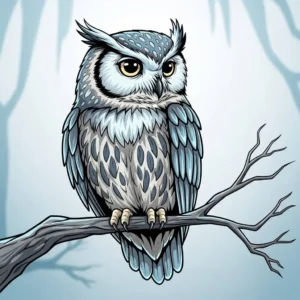
Output from QuillBot’s AI cartoon generator
How to use a text-to-image AI cartoon generator
With QuillBot’s free AI cartoon generator, you can quickly and easily generate a cartoon from a text-based prompt in just a few simple steps:
1. Enter your prompt
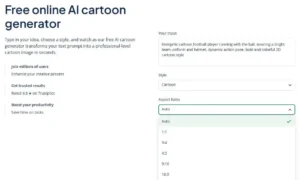
Type or copy/paste your prompt where it says “Your input.” Include details about the subject, features, style, and mood in your text-to-image prompt.
2. Choose an aspect ratio
Make a selection in the aspect ratio drop-down menu, such as 1:1 for a square image.
QuillBot’s AI cartoon generator landing page
3. Generate the cartoon
Click “Generate a cartoon” beneath the aspect ratio menu. QuillBot will generate two images for you to choose from.
4. Download the image
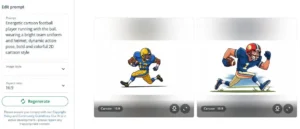
Of the two images that display, choose the one you want to download (or download both). If you need to make adjustments, revise your prompt in the “Edit prompt” panel to the left of the two images, and click “Regenerate” to explore different options.
Output from QuillBot’s AI cartoon generator
Frequently asked questions about using an AI cartoon generator
- Is there an AI that can draw cartoons from words?
-
There are many AIs that can draw cartoons from words. For example, QuillBot’s AI cartoon generator is completely free to use. All you have to do is write a detailed text-to-image prompt, and the tool will generate examples for you to choose from.
- Is there an AI art generator for anime?
-
Yes, there is an AI art generator for anime. QuillBot’s AI art generator lets you experiment with creating anime.
Input your prompt, choose “anime” as the style, and choose the aspect ratio you’d like the tool to use.
Then, review the output, and if there are elements you’re not satisfied with, iterate on your prompt and generate again.
Cite this QuillBot article
We encourage the use of reliable sources in all types of writing. You can copy and paste the citation or click the "Cite this article" button to automatically add it to our free Citation Generator.
QuillBot. (2025, December 12). How to Use an AI Cartoon Generator (Step-by-Step Guide). Quillbot. Retrieved March 4, 2026, from https://quillbot.com/blog/image-tools/how-to-use-an-ai-cartoon-generator/