Free SVG Converter | How to Convert & Tips
An SVG converter makes it easy to turn SVG files into formats that websites, social media platforms, and document editors actually accept. While SVGs are ideal for logos, icons, and illustrations because they scale without losing quality, they aren’t universally supported. And if you’ve ever tried uploading an SVG and received an error, you’ve seen this limitation firsthand.
Online solutions—like QuillBot’s free SVG converter—make converting SVGs easier (and cheaper) than ever. Keep reading to learn more about SVGs and how to convert SVG files in three simple steps.
What is an SVG file?
An SVG (Scalable Vector Graphics) file is a vector image file. SVG files define images using mathematical formulas, lines, and curves. Unlike raster files (e.g., JPEG, PNG)—which are composed of pixels—SVGs can be scaled infinitely without losing quality. SVGs can also be indexed by search engines and animated or enabled with hover effects.
These qualities make SVGs ideal for applications like:
-
Branding design, in which logos and design elements may appear in many different contexts and sizes
-
Web design, where icons and images must look good on a small scale, need to be indexable, and may need to be animated
-
Digital illustration, where crispness is integral to the design of the image
How to convert SVG to PNG
If you’re wondering how to convert SVG to PNG, the process is very straightforward. You just need an SVG converter that exports your vector file as a PNG (Portable Network Graphics), which is a raster image format.
To convert SVG to PNG:
-
Upload or import your SVG file.
-
Select PNG as the output format.
-
Download the converted PNG file.
Converting an SVG to PNG is useful when you need a widely supported image format for web uploads, email attachments, or social media posts. PNG files preserve image quality and support transparency, making them another good option for logos and graphics.
Some instances where you may need to convert SVG to PNG are:
-
A specific platform doesn’t support SVG format
-
You’re adding an image to a document or slide deck
-
You need a static image for sharing
-
A client or collaborator can’t open vector files
Because PNG is a raster format, the image will be pixel-based after conversion. That means resolution matters. Before downloading your converted file, make sure the dimensions are large enough to avoid blurriness for your intended use.
How to use QuillBot’s free SVG converter
QuillBot’s free SVG converter lets you convert SVG files directly in your browser for free—no downloads, design software, or credit cards needed. It’s also super simple; in three steps and a few moments, you can convert your SVG to PNG or another file format.
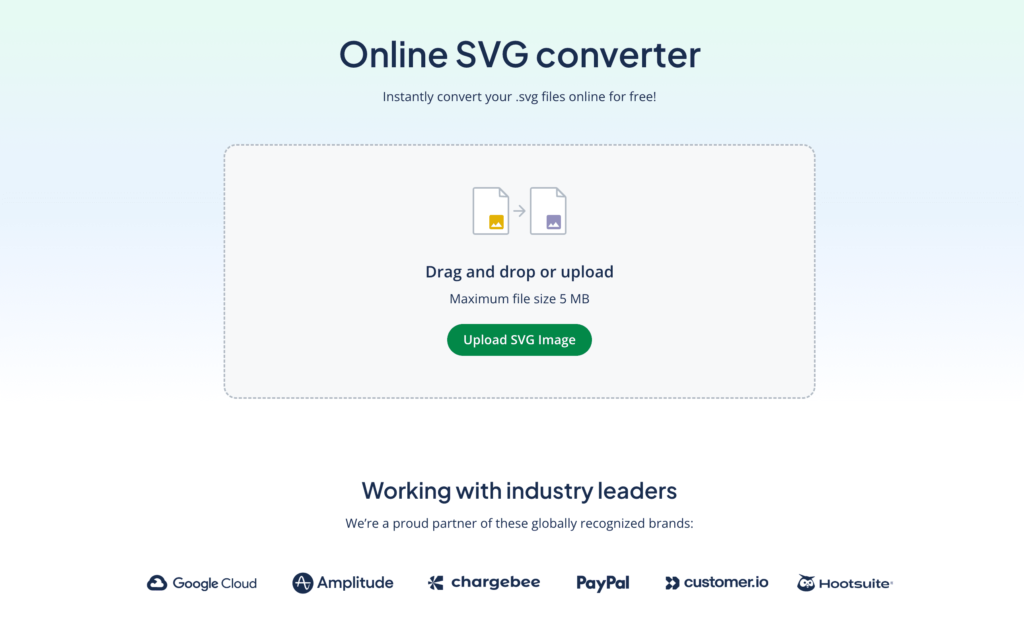
Step 1: Upload your SVG file
Select the SVG file from your device and upload it to the converter. You can also drag and drop it into the gray box.
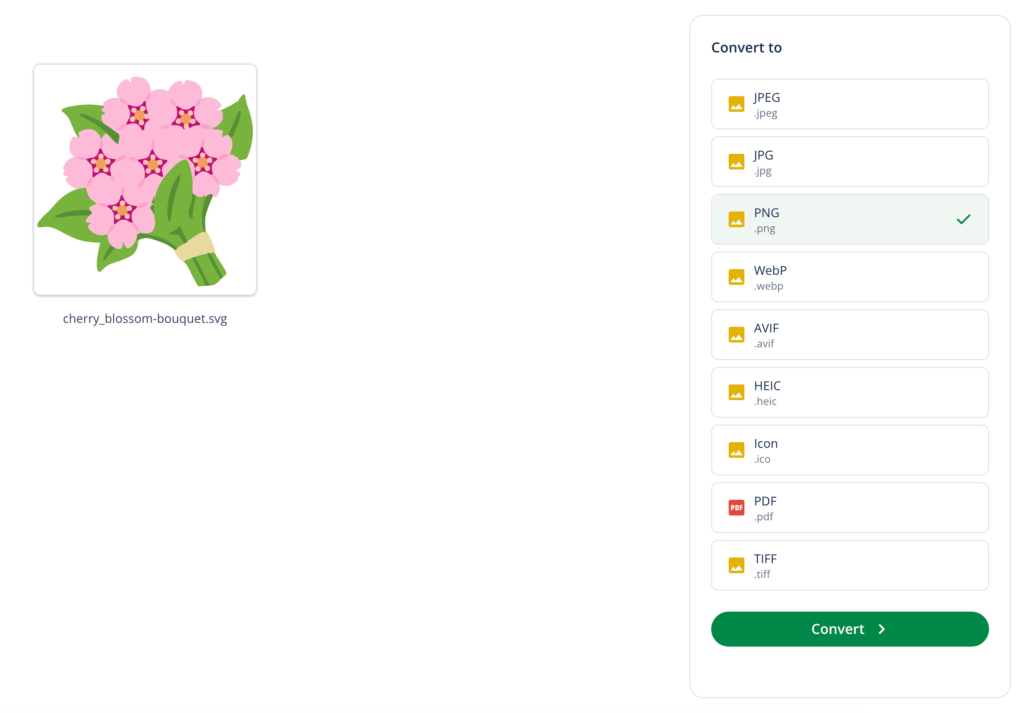
Step 2: Choose your output format
Select the format you want to convert your SVG into. Below are the file formats you can choose from and brief notes about what they’re best for:
-
JPEG: Compressed format for photos and detailed images
-
JPG: Same as JPEG; widely supported across platforms
-
PNG: Best for graphics that need transparency or sharp edges
-
WEBP: Modern web format with strong compression and small file sizes
-
AVIF: High-efficiency format optimized for web performance
-
HEIC: Apple-supported format with efficient compression
-
ICO: Used for favicons and app icons
-
PDF: Ideal for sharing, printing, and preserving layout
-
TIFF: High-quality format for professional print and publishing
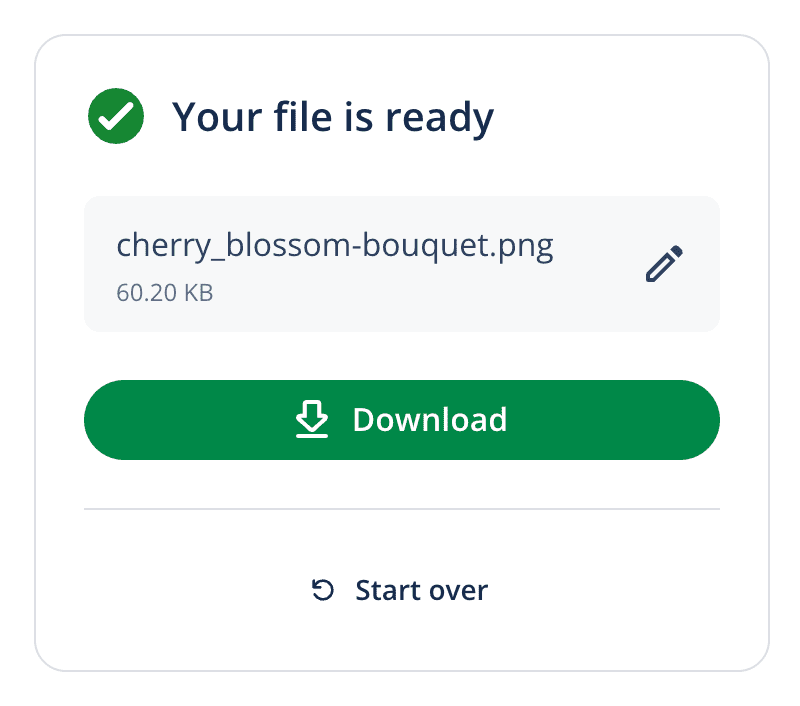
Step 3: Download your converted file
Once the conversion is complete, download the new file to your device. Before downloading, you can also rename your new file, if you want.
Because QuillBot’s free SVG converter runs online, it’s a practical solution when you need a quick file conversion without installing additional software.
Frequently asked questions about SVG converter
- What file formats can I convert SVG files into?
-
SVG files can be converted into popular image formats like PNG, JPG, WEBP, and GIF. Using an online converter tool like QuillBot’s free SVG converter makes this process quick and easy—no software installation needed.
- What does SVG mean?
-
SVG means “Scalable Vector Graphics.” This file format’s name explains exactly what it is: a vector format that can be scaled infinitely without sacrificing quality.
While these qualities make SVG a great format for certain applications like branding design or web design, it’s not supported by every platform or software.
If you need to use an SVG file on a platform where it’s not supported, use QuillBot’s free online SVG converter to convert it to another file format.
Cite this QuillBot article
We encourage the use of reliable sources in all types of writing. You can copy and paste the citation or click the "Cite this article" button to automatically add it to our free Citation Generator.
Santoro, K. (2026, March 02). Free SVG Converter | How to Convert & Tips. Quillbot. Retrieved March 3, 2026, from https://quillbot.com/blog/image-tools/how-to-use-svg-converter/