How to Make a Word Cloud | Tips & Ideas
A word cloud is an efficient way to visualize language patterns, highlight repeated terms, and demonstrate emphasis in written content. Whether you’re analyzing survey responses, summarizing long documents, or creating a visual for presentations or teaching, word clouds turn text into insights.
This guide covers important concepts you need to know about how to make a word cloud, plus how to make one using AI generators, like QuillBot’s free word cloud generator.


How to make a word cloud
Exactly how you make a word cloud depends on the cloud you’re making and what you’ll use it for. But generally, you should follow these steps.
1. Gather and prepare your text
Word clouds work best when the input text is clean and formatted. The accuracy of the final result depends heavily on how the text is prepared. At minimum, you should remove unnecessary punctuation, repeated filler phrases (e.g., “in conclusion”), and extremely common words (e.g., “and”).
The good news? Word cloud generation tools almost always do this work for you.
For quantitative use cases (e.g., surveys or customer feedback), you should usually combine multiple responses into one text block. This will show you the words most used by all participants.
2. Choose your tool and parameters
Next, choose a tool to create your word cloud. With so many AI word cloud generators available nowadays, there’s really no reason to make a word cloud manually. Most word cloud tools allow specific configuration to adjust frequency results and visual output.
The most impactful settings include:
- Word limits: restricts how many words appear
- Frequency thresholds: hides infrequent words
- Stop-word settings: removes irrelevant terms
- Case handling: ensures “Apple” and “apple” are treated as one word
These settings directly determine how representative and legible the word cloud visualization will be.
3. Customize your design
Once the text and logic are set, refine the visual layout. Consider:
- Shape: Do you want a rectangle, circle, freeform, or thematic shape?
- Font: Will a serif or sans-serif work better for your use case?
- Orientation: Do you want words to appear horizontally only? Or vertically, too?
- Color palette: Will you use monochrome for formality or multi-color for emphasis?
For presentations, keep contrast high and layouts simple so the information remains readable.
Using a word cloud generator
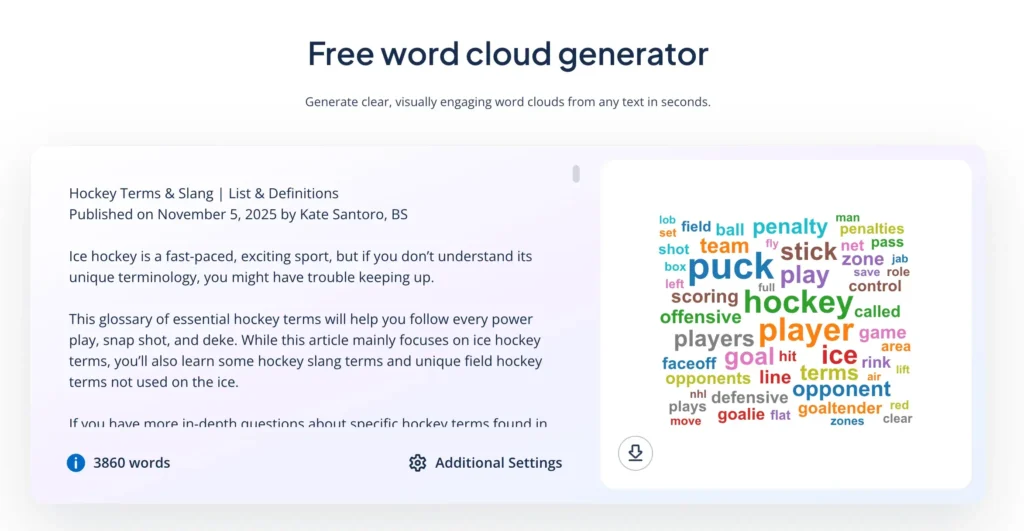
The fastest approach is to use QuillBot’s free word cloud generator. It automatically removes unnecessary formatting and lets you create a customized word cloud in just three steps.
1. Paste or upload your text
Paste your text into the word cloud generator or upload a document that contains your text. The tool will automatically update a word count and generate a preview of your word cloud.
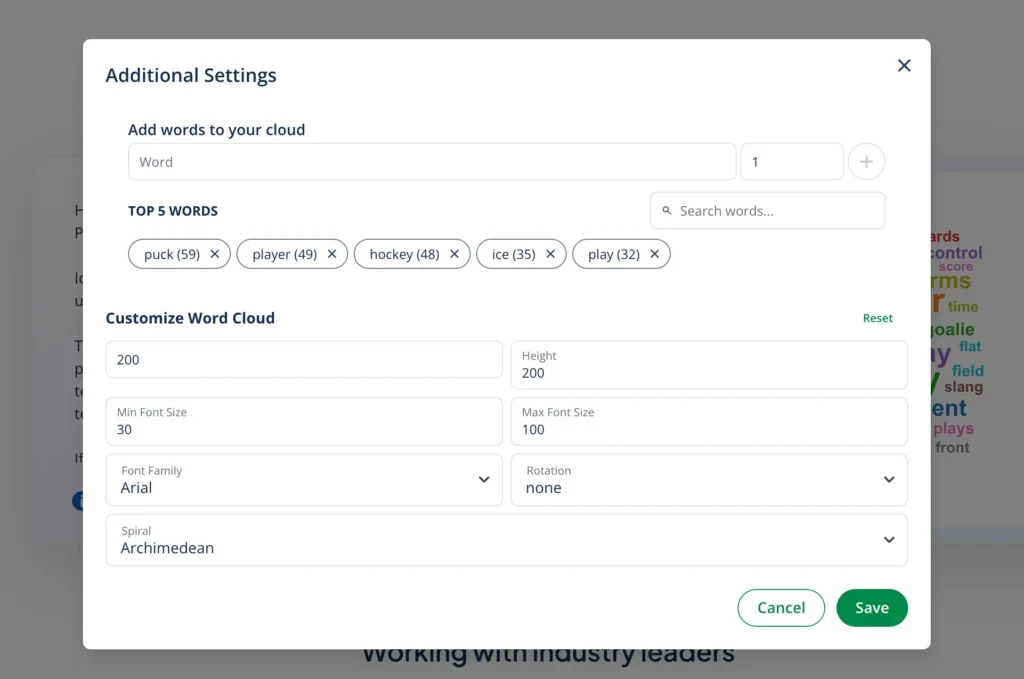
2. Customize your word cloud
Click on “Additional Settings” to adjust the settings of your word cloud’s mechanics and design. Here, you can:
- Manually add words and a number of appearances to your cloud
- Search for specific words in the cloud
- Review the top five words and remove specific words
- Change the font family and size
- Change the orientation of the words in the cloud
3. Download your word cloud
Click the icon of the arrow pointing down to export your word cloud. Upon clicking, you can choose to download the word cloud as either a JPG or PNG file. Need your word cloud image in a different format? Use the PNG converter or JPG converter to convert it.
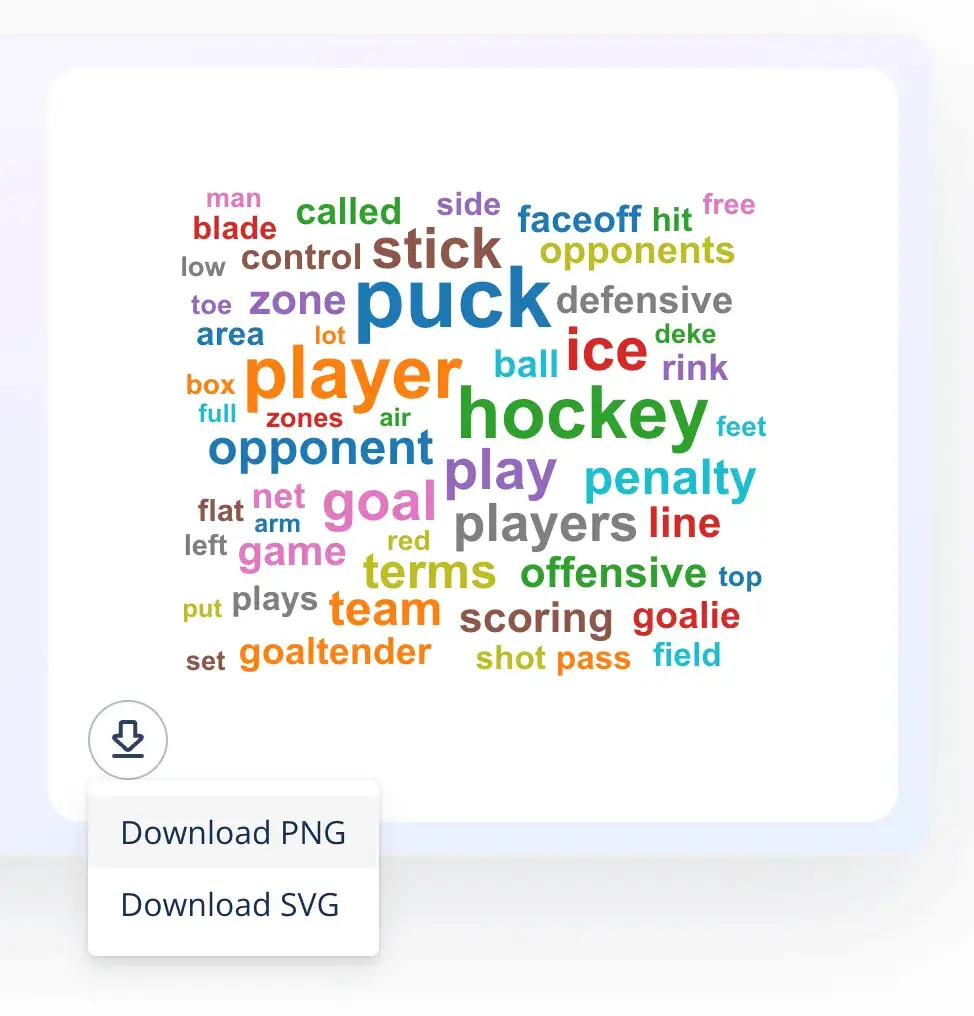
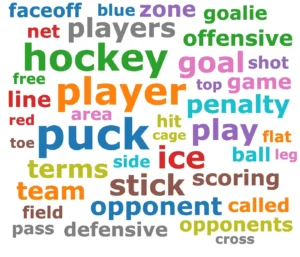
- Height set to “300”
- Font face set to “Verdana”
- Rotation set to “horizontal”
Frequently asked questions about how to make a word cloud
- Can I change the words in my word cloud?
-
Some word cloud generators, like QuillBot’s free word cloud generator, allow you to change the words in your word cloud by excluding and adding particular words in the settings options.
- How can I show a word cloud in the classroom?
-
The easiest way to display a word cloud in the classroom is to download it as an image file and display or project it using your classroom’s screen or video projector. You can insert the image into a presentation slide deck or simply open it with your computer’s default image viewer.
QuillBot’s free word cloud generator lets you download word clouds as PNGs or SVGs, two widely supported file formats.
Cite this QuillBot article
We encourage the use of reliable sources in all types of writing. You can copy and paste the citation or click the "Cite this article" button to automatically add it to our free Citation Generator.
Santoro, K. (2025, December 08). How to Make a Word Cloud | Tips & Ideas. Quillbot. Retrieved March 17, 2026, from https://quillbot.com/blog/image-tools/how-to-make-a-word-cloud/