Removing a Picture Background in Google Slides | Tips & Tools
An unwanted white box around an image can make your slides look unpolished and unprofessional. However, removing the background from an image can be a confusing and painstaking process.
Tools like QuillBot’s AI-powered background remover simplify the process of removing the background from an image. Read on to learn how to use a background remover to create sleek slides in seconds.


How to remove the background from a picture in Google Slides
The background of an image is the part that is behind the foreground, or the main subject. The illustration below depicts what an image with a white background would look like if placed on a slide with a colored background.
Image with opaque background on colored slide

Clearly, including the background in this case results in a slide that looks visually cluttered. Fortunately, removing the background from an image can be as easy as 1, 2, 3.
1. Position your image in the correct order on your slide
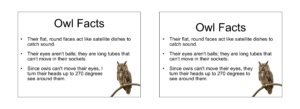
Although removing the background of an image is often a good idea, sometimes it’s unnecessary. If your slides have a white background, you can simply change the order of the image. Moving it behind other slide elements is often the simplest way to negate the issue of a solid background.
To move an image to the back in Google Slides, simply right-click it, select “Order” from the options, and click “Send backwards” or “Send to back” to make it appear behind elements like text and other images on your slide.
On a white slide, move an image to the back to keep it from blocking text
2. Use a built-in background remover tool
Many presentation applications have built-in tools that enable you to remove the background from your image. These tools can generally be found by right-clicking the image and selecting an option called “Remove background” or something similar.
AI-powered tools will remove the background automatically. However, some applications also let you manually select which areas of the image you’d like to keep and delete. This can be helpful if you’d like to remove some but not all of the background.
3. Use a third-party tool
If you don’t have access to an automatic background remover in the presentation software you’re using, there are plenty of free, easy-to-use options available online, like QuillBot’s free AI-powered background remover.
Using an image background remover
Using QuillBot’s AI-powered background remover could not be easier. You simply upload or paste your image into the tool, and it will remove the background without you having to lift a finger.
QuillBot background remover interface
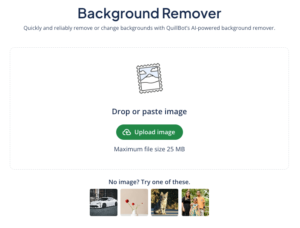
After you upload your image, the tool will automatically remove the background. The parts of the image that have been removed will be replaced with a grey-and-white checkerboard that will not be visible when you download the image.
Image with background removed
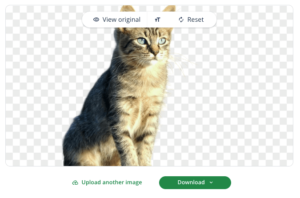
When you click “Download,” your final image will open in a new tab. You can right-click this image to copy it your clipboard to paste into your presentation, or you can save the image to your computer for later use.
Frequently asked questions about removing an image background in Google slides
- Can you remove the background from a picture in PowerPoint?
-
You can remove the background from a picture in PowerPoint if you’re using a paid Microsoft 365 version.
PowerPoint for the web—the free online version that you can use when you’re logged in to your Microsoft account—doesn’t have this functionality.
But it’s easy to remove the background from a picture that you’re using in PowerPoint for the web by uploading the original image file to a free online background remover tool like QuillBot’s free background remover.
Once you’ve removed the background from your picture using the tool, download it as a PNG to preserve the transparency and then import it into PowerPoint for the web by selecting Insert Picture.
- Is the QuillBot background remover free?
-
Yes, QuillBot’s background remover is free to use.
When you’re logged in, you can use it up to five times a day for free. If you’re a Premium QuillBot user, you can use it as many times as you want.
- How do you remove a white background from an image in Google Slides?
-
To remove a white background from an image in Google Slides, select the image, choose “format options,” then “image editing,” and then “remove background.” This option may not be visible to all account types.
You can also remove the white background from your image using QuillBot’s free background remover tool, download the new image, and upload it to Google Slides.
When using images, make sure you have the right to use them and that you don’t infringe on the rights of others by doing so.
- How do you make a PNG transparent?
-
To make a PNG transparent, you have to remove the image’s background. PNG is a file type that supports transparency, so remove the background, save the image, and you’ll have a transparent PNG.
The easiest way to remove a PNG’s background is with QuillBot’s free online background remover.
Cite this QuillBot article
We encourage the use of reliable sources in all types of writing. You can copy and paste the citation or click the "Cite this article" button to automatically add it to our free Citation Generator.
QuillBot. (2025, December 29). Removing a Picture Background in Google Slides | Tips & Tools. Quillbot. Retrieved March 10, 2026, from https://quillbot.com/blog/image-tools/removing-picture-background/