How to create an AI Image | Iterative Text Prompts
AI photo and picture generators make it possible to turn a few words into fully formed photos, illustrations, and graphics in seconds. Whether you’re creating social media content, blog visuals, product mockups, or just experimenting for fun, the key to using tools like QuillBot’s free AI image generator is how you write your prompts.
In this guide, we’ll walk through the basics of how to create an AI image and show you how to put it all into practice using QuillBot’s photo generator.
How to create an AI image
Creating an AI image is a simple process that anyone can learn—here are the key steps to get you started.
1. Select a tool
Start by choosing an AI image generator—also sometimes called AI photo generators or picture generators—that fits your needs. Some tools focus on ultra-realistic photography, while others excel at illustrations, social media graphics, or stylistic art. Look for features like high-resolution downloads, multiple style options, and the ability to refine or regenerate images easily.
Free tools like QuillBot’s free AI picture generator are a great place to start if you want to experiment.
2. Prompt
AI images are generated from text descriptions of the image you want to create, called prompts. In your prompts, you can include details about the subject, mood, colors, setting, perspective, and style.
For example, if you want to make AI-generated images of a soccer game, you could include phrases like “cold winter weather,” “realistic photo,” or “wide-angle view” in your prompts.
3. Iterate
AI image creation is an iterative process. Try starting with a clearly worded but relatively short prompt, then review the initial results and add to and refine your description to bring the image closer to what you envisioned.
Even small additions and adjustments—such as changing lighting details, swapping adjectives, or altering the format (e.g., portrait, square, or landscape)—can have a surprisingly big impact on the final output. By gradually building up your prompt, you’ll get a clearer sense of how the AI interprets different parts of your description.
Details placed earlier in the prompt tend to be given greater importance, so ordering can influence the final result.
How to make an AI image with QuillBot’s generator
Here’s how to use QuillBot’s free picture and photo generator to put the principles above into practice and start creating visuals with AI.
A good way to begin is by writing a simple prompt that captures the essential elements of the picture or photo you want to create. AI generators will usually produce slightly different variations each time—even with the same prompt—so it’s worth doing a few generations with a prompt before you alter it.
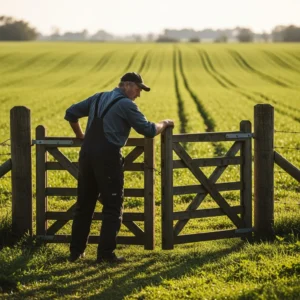
Below is an example output generated from the prompt “A photograph of a farmer opening a gate to walk into a field.”
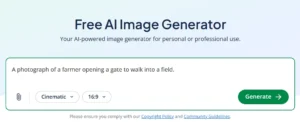
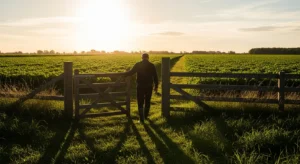
Here’s a generation from the same prompt, but with QuillBot’s Cinematic style selected and the aspect ratio set to 16:9 (a widescreen format). These small adjustments immediately influence the tone, composition, and visual impact of the final image.
To achieve a more specific result, you can gradually expand your prompt. For instance, here is one of QuillBot’s outputs generated using this more detailed version of the same prompt:
A photograph of a female farmer opening a gate to walk into a field of sunflowers, the flowers are pointing away from the camera and behind a wooden fence, beautiful summer morning, hair tied back, happy facial expression, side view of face, sharp, detailed, professional analogue photograph
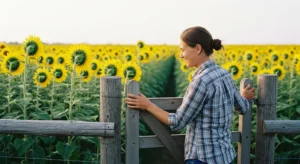
This final prompt was created through a step-by-step iterative process, adding clarity and detail one layer at a time. Here are the intermediate prompts used to reach it:
- A photograph of a female farmer opening a gate to walk into a field of sunflowers
- A photograph of a female farmer opening a gate to walk into a field of sunflowers, the flowers are pointing away from the camera and behind a fence
- A photograph of a female farmer opening a gate to walk into a field of sunflowers, the flowers are pointing away from the camera and behind a fence, beautiful summer morning
- A photograph of a female farmer opening a gate to walk into a field of sunflowers, the flowers are pointing away from the camera and behind a wooden fence, beautiful summer morning
- A photograph of a female farmer opening a gate to walk into a field of sunflowers, the flowers are pointing away from the camera and behind a wooden fence, beautiful summer morning, hair tied back
- A photograph of a female farmer opening a gate to walk into a field of sunflowers, the flowers are pointing away from the camera and behind a wooden fence, beautiful summer morning, hair tied back, happy facial expression, sharp, detailed, professional analogue photography
- A photograph of a female farmer opening a gate to walk into a field of sunflowers, the flowers are pointing away from the camera and behind a wooden fence, beautiful summer morning, hair tied back, happy facial expression, side view of face, sharp, detailed, professional analogue photography
This kind of incremental refinement—adding specifics, adjusting attributes, and clarifying important visual details—is how you can guide QuillBot’s AI to generate the visual you imagined.
Frequently asked questions about how to create an AI image
- How long should an AI image prompt be?
-
There’s no fixed length for AI generator image prompts. Start with a simple prompt that captures the core idea, then gradually add details until the AI produces the image you want. If your prompt becomes too long or includes unnecessary specifics, the model is more likely to misinterpret your intent—so include only the details that matter to the final result.
- Can AI generate photos?
-
Yes. An AI photo generator can create highly realistic, photo-like images. To get photographic results, you can select a photography style within the tool or include terms like “photograph” or “photo” in your prompt. Adding details about lighting, camera angle, or lens style can make the image look even more lifelike.
Cite this QuillBot article
We encourage the use of reliable sources in all types of writing. You can copy and paste the citation or click the "Cite this article" button to automatically add it to our free Citation Generator.
QuillBot. (2026, March 13). How to create an AI Image | Iterative Text Prompts. Quillbot. Retrieved March 18, 2026, from https://quillbot.com/blog/image-tools/how-to-create-an-ai-image/