How to Make Pixel Art Using AI Tools
Pixel art has evolved from a technical limitation of early computing into a distinctive aesthetic embraced by indie game developers, content creators, and digital artists. While its retro, 8-bit and 16-bit-inspired charm remains popular, creating pixel art from scratch is time-intensive and requires specialized skills.
AI pixel art generators speed up the process by turning simple text prompts into pixelated visuals in seconds. Developers can quickly create character and object graphics for games, creators can produce unique visuals for their channels, and hobbyists can bring ideas to life without learning complex techniques.
Keep reading to learn how to make retro game art with AI, write effective text prompts, and use a beginner-friendly AI pixel art maker like QuillBot’s pixel art generator to generate pixel art characters and other game assets directly from text.
How to create pixel art using AI tools
Creating pixel art with AI involves a few key steps, from selecting the right tool to refining your results. Follow this practical guide to get started quickly and improve your pixel art creations over time.
1. Getting started
Before you begin generating, familiarize yourself with the basics and make some key decisions about your project.
- Choose an AI pixel art generator designed specifically for pixel art (like QuillBot’s) rather than a general image generator.
- Start with simple subjects, such as single characters or objects, before moving on to complex scenes.
- Decide on your desired style upfront: use “8-bit pixel art” for simple, chunky visuals or “16-bit pixel art” for more detailed designs.
2. Writing effective prompts
Your prompt is the foundation of your pixel art; the more specific and clear you are, the better your results will be.
- Be specific about the subject—for example, “a knight holding a sword” rather than just “knight.”
- Include style keywords like “8-bit pixel art,” “16-bit pixel art style,” “retro game sprite,” or “vintage video game aesthetic.”
- Specify color palettes if needed: “4-color palette,” “black and white,” or “NES color palette.”
- Mention the perspective, such as “side view,” “front-facing,” “top-down,” or “isometric.”
- Keep prompts concise; overly complex descriptions may confuse the AI.
3. Customization tips
Once you’ve generated your base image, these customization options can help you fine-tune the final result.
- Generate multiple variations of the same prompt to compare different styles and details.
- Adjust resolution or pixel density if the tool allows—a lower resolution creates a chunkier, more retro look.
- Experiment with color palettes after generation using the tool’s customization features.
- Remove backgrounds to create transparent sprites, which are useful for game development.
4. Refining your prompt
If the initial output isn’t quite right, these prompt adjustments can help you get closer to your vision.
- Add artistic direction terms like “vibrant colors,” “muted palette,” or “high contrast” to your prompts to guide the AI’s style and mood.
- If the output looks too detailed, simplify your prompt or ask for a “simpler 8-bit pixel art style.”
- If it’s too basic, add descriptive details or request a “detailed 16-bit pixel art style.”
- Describe action using words and phrases like “jumping,” “attacking,” “idle pose,” or “walking animation.”
- Specify dimensions for tiles or icons, like “32×32 pixel tile” or “64×64 character sprite,” to fit your project needs.
- Don’t mix realistic and pixel art terms in the same prompt (e.g., “photorealistic pixel art”)
- Avoid requesting too many elements in one image; pixel art works best with focused subjects
- Don’t expect perfect animation frames on first try. Instead, generate individual poses separately
- Remember that extremely complex scenes may lose the pixel art aesthetic
Using an AI pixel art generator
QuillBot’s AI pixel art generator makes it easy to turn text prompts into pixel art in just a few steps. Whether you’re creating retro game graphics or designing custom sprites for your project, the process is straightforward and fast.

Step 1: Access the generator
Navigate to QuillBot’s AI Pixel Art Generator tool. No account or download is required to get started—simply open the tool in your web browser.
Step 2: Write your prompt and choose your settings
This is where you describe what you want to create. The key to turning prompts into pixel art successfully is being specific about your subject and style. For example, instead of writing “dragon,” try “red dragon breathing fire, 16-bit pixel art, side view.” Include style keywords like “vintage video game aesthetic” or “retro sprite” to guide the tool toward the look you want.
Before generating, select your preferred aspect ratio (square, portrait, or landscape, depending on your use case) and choose a style setting that matches your vision. These settings work together with your prompt to shape the final output.
Step 3: Generate your pixel art
Click the generate button and wait a few seconds while the text-to-image pixel art tool processes your request. The AI will interpret your description and create a pixel art image that matches your specifications.
Step 4: Refine your results
If the result isn’t what you expected, you can tweak your text prompt by adding more specific details, changing descriptive words, or adjusting style terms. For example, if the result looks too modern, add “8-bit” or “Game Boy aesthetic” to your prompt. If it’s too simple, include more details about colors, poses, or features. This iterative approach—generate, evaluate, refine prompt, regenerate—is the key to getting exactly what you want.
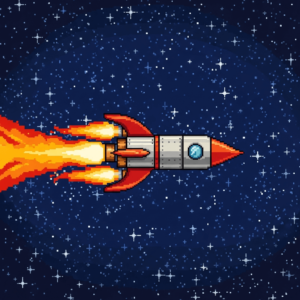
- Rocket launching into space
“Rocket ship launching into starry space, 8-bit pixel art, side view, orange flames from engines, dark blue space background with white stars, vintage video game aesthetic.”
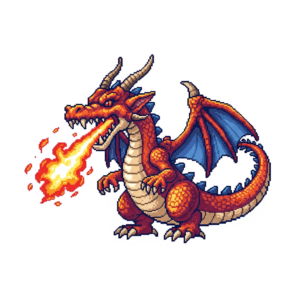
- Fire-breathing dragon
“Red dragon breathing orange fire, 16-bit pixel art, side profile, large wings spread, detailed scales, vintage video game style.”
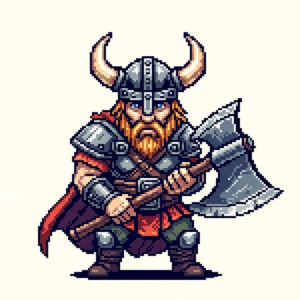
- Viking warrior
“Viking warrior with horned helmet and battle axe, 16-bit pixel art, front-facing pose, retro game sprite style.”
Frequently asked questions about pixel art generators
- What is pixel art?
-
Pixel art is a digital art style where images are created using individual square pixels, giving them a distinctive blocky, retro look. It became popular in early video games because consoles of the time had limited graphics capabilities. Classic titles like Super Mario Bros., The Legend of Zelda, and Sonic the Hedgehog all used pixel art to create characters, worlds, and animations. Today, it remains a beloved style in indie games, mobile apps, and nostalgic design projects.
If you’re drawn to that raw, early computer/arcade era charm, you can try creating your own pixel art using QuillBot’s AI pixel art generator.
- Can beginners use an AI pixel art generator?
-
Yes, AI pixel art generators are designed to be beginner-friendly and require no artistic or technical skills. Simply describe what you want in plain text, and the AI will create the pixel art for you. This makes it an ideal starting point for anyone interested in game development, digital art, or retro design, without needing to learn traditional pixel art techniques or specialized software.
If you’re ready to create pixel art inspired by classic games, try QuillBot’s beginner-friendly AI pixel art generator and bring your ideas to life.
Cite this QuillBot article
We encourage the use of reliable sources in all types of writing. You can copy and paste the citation or click the "Cite this article" button to automatically add it to our free Citation Generator.
QuillBot. (2025, December 12). How to Make Pixel Art Using AI Tools. Quillbot. Retrieved March 19, 2026, from https://quillbot.com/blog/image-tools/ai-pixel-art-generator/