How to Use a Color Palette Generator With an Image
Choosing the right colors for a project can be tricky—whether you’re designing a brand or website, decorating a room, or planning an event. Color palette generators, like QuillBot’s free AI-powered color palette generator, can help by analyzing an image or photo containing color combinations you like and extracting a balanced four-color palette based on its key tones. In the examples below, you’ll discover how a color palette generator can help you create cohesive color schemes for your projects.
Color palette generator from a photo
You’re redoing your bathroom but need some inspiration for the color scheme. While scrolling through some holiday pics on your phone, a photo of a tropical beach instantly puts you in the calm, relaxed mindset you want your bathroom to evoke.

So you upload the photo to QuillBot’s free color palette generator, which analyzes the image and distills the beach scene into four colors: a sky blue, a misty light blue, a golden sand tone, and a peachy sand tone.
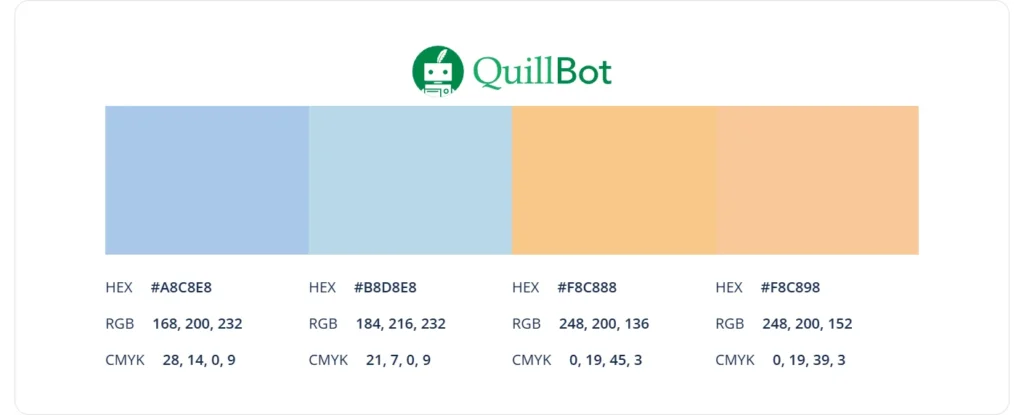
You love the idea of a sky or light blue as your main wall color, with wooden furniture that echoes the warmth of the sand tones. The remaining blue and sandy shades could serve as accent colors—showing up in details like towels, baskets, bath mats, and small decor—so the whole look feels cohesive without being overwhelming. In just a few clicks, QuillBot’s color palette generator has turned your travel photo into color-scheme inspiration for your new bathroom.

Color palette generator from an image
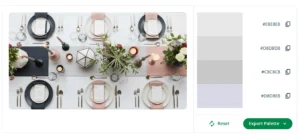
Imagine you’re designing a flyer for a restaurant’s Sunday brunch buffet. You already have the perfect hero image, so you upload it to QuillBot’s free color palette generator.

It extracts a harmonious palette of four prominent hues in the image—a soft lavender-mauve, a crisp white, a light cool gray, and a pale dove gray.
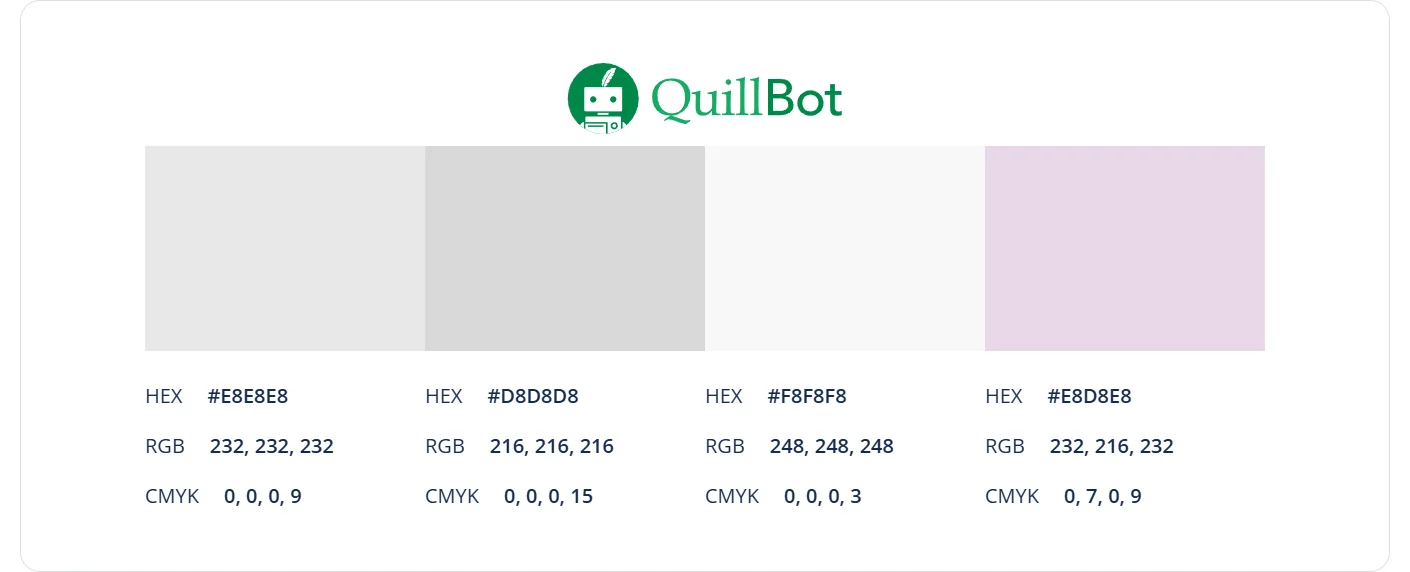
Now you have a color scheme for a cohesive, professional-looking flyer: the crisp white can create a clean, airy background; the lavender-mauve can bring warmth to standout elements like the headline or a callout box; and the two grays can help organize the layout in supporting details such as text blocks, price boxes, dividers, borders, and small icons.
Brand color palette generator
Your new podcast is taking off, so you decide it’s time to set up a simple website and sell some merchandise—which means you need to settle on a brand color palette. You like the vibes of the colors in the cover art for your podcast, which is all about castles.
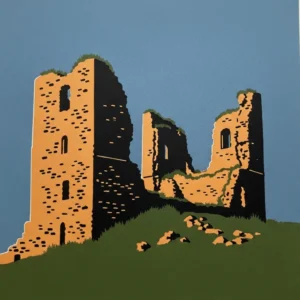
So you upload the cover image to QuillBot’s free color palette generator. It analyzes the artwork and extracts a four-color palette: a soft gray-beige, a muted slate blue, a pale blush, and a deep mossy green.
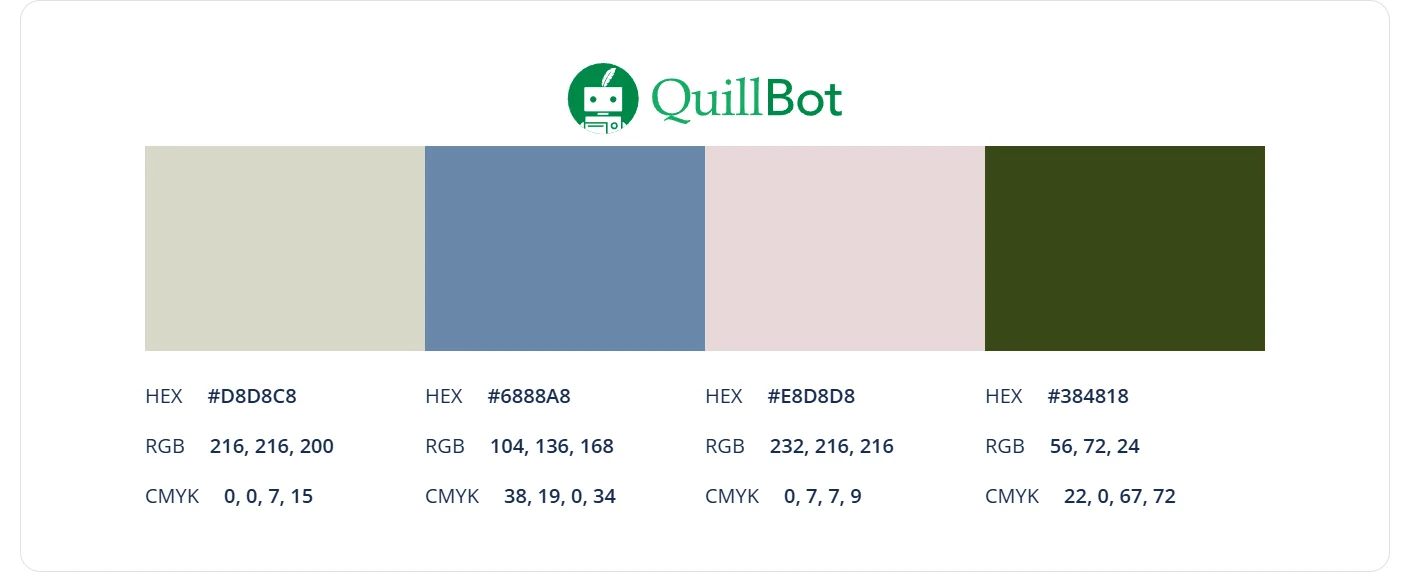
Now you have a balanced set of brand colors for your website and merchandise, all based on the artwork your listeners already recognize.
Wedding color palette generator
You’re working with a wedding planner, and they’ve asked you to bring a few ideas for your wedding color palette to your next meeting. You start saving inspiration images you find online—tablescapes, bouquets, invitation suites—but you realize you don’t quite have the words to describe the color schemes in the images. Is that “pink” actually blush, dusty rose, or mauve? Is that “green” sage, olive, or eucalyptus?
So you upload a few of your favorite images to QuillBot’s color palette generator. It extracts a four-color palette from each one and gives you the exact hex codes. Then you paste those codes into QuillBot’s free AI Chat and ask it to describe the colors. With QuillBot’s help, you’re now well prepared to talk through your wedding color palette with your planner.
How to use a color palette generator
Using an online color palette generator like QuillBot’s free color palette generator is easy.
- Upload your image. QuillBot’s tool supports JPG/JPEG, PNG, and WEBP file formats, and it accepts files up to 5 MB.
- Let the tool analyze the image. Once uploaded, the generator interprets the image and identifies the colors to build a balanced palette.
Save your palette. Choose the format that works best for you—QuillBot’s tool lets you export the palette as an image, a PDF, a text file, or a CSS file.
Frequently asked questions about color palette generators
- What tool can I use to generate a color palette from a hex code?
-
You can use a color wheel tool like QuillBot’s color wheel to generate a color palette from a hex code.
Just enter your hex code, and the tool will suggest matching color harmonies—such as complementary, analogous, triadic, tetradic, or square—that you can use as a starting point for your palette.
If you have an image containing color combinations that you think might suit your project, upload it to QuillBot’s free color palette generator to extract a balanced four-color palette based on the image.
- What tool can I use as a website color palette generator?
-
You can use an online color palette generator like QuillBot’s free color palette generator as a website color palette generator.
Just upload a photo or image with the color combinations you like, and the tool will extract a balanced four-color palette you can use for your website.
Cite this QuillBot article
We encourage the use of reliable sources in all types of writing. You can copy and paste the citation or click the "Cite this article" button to automatically add it to our free Citation Generator.
QuillBot. (2026, March 08). How to Use a Color Palette Generator With an Image. Quillbot. Retrieved March 19, 2026, from https://quillbot.com/blog/image-tools/how-to-use-a-color-palette-generator/