Using an AI Design Generator | Tips & Free Tools
Creating professional-looking visuals used to require a steep learning curve and hard-to-use tools. But today, whether you’re looking to create a bespoke website, customize merch for an upcoming event, or wow your audience with a stunning presentation, there’s a solution out there to help you realize your vision.
With QuillBot’s AI design generator, creating your own visuals is now as fast as typing a prompt. In this guide, we’ll show you how to move past the basics and use AI to generate beautiful, professional designs.
How to create designs with AI
Using an AI generator can save you time and effort, but there’s an art to getting images that are perfect versus good enough. To get the most out of a design tool, follow the three steps below.
1. Craft the perfect prompt
When using AI design tools, the power is truly in the prompt. Generic inputs will lead to generic outputs, so it’s important to provide as much detail as possible to increase the odds that you’re happy with the results.
There’s really no limit to the details you can provide with a prompt. Consider following a step-by-step guide to fully master the art of prompt writing, or at the very least, consider the following elements as you start writing.
- Core subject
- Use case
- Color
- Composition
- Overall image mood
- Intended audience
2. Choose your image style
Specifying different image styles is an effective way to control the overall “vibe” of your output. Advanced tools, like QuillBot’s AI design generator, often have preset options that act as a professional filter, allowing you to create intentional outputs.
Different image styles will work best for different contexts. A few examples are outlined below:
- Prototyping and Mockup: Choose this when you need a clean, technical visual to ground a concept. It’s perfect for seeing how a logo might look on a physical product or how a landing page feels before you start coding.
- Educational: Use this style to create clear, diagrammatic visuals that simplify complex ideas. It’s ideal for blog posts, textbooks, or instructional guides where clarity and readability are more important than artistic flair.
- Cinematic: This is your go-to for drama and storytelling. It uses sophisticated lighting and camera angles to create images that feel like a still from a big-budget movie—perfect for hero images on a website or a presentation slide that needs to make a big impact.
These are only some of the style options available; try playing with the tool yourself to see which image style works best for you!
3. Refine!
As careful as you may be with your prompt writing and style selection, it’s still somewhat rare to get the perfect image on your first try. An often-overlooked benefit of AI tools is how easy it is to adjust and refine the outputs by making changes to your original prompt.
By considering what does and doesn’t work from the first iterations of a design tool output, you can update your prompt or select a different style to ensure that the final product really matches what you’re trying to create.
Using an AI design generator
QuillBot’s AI design generator couldn’t be easier to use. To start, you simply need to add in your prompt, describing what you’re looking for, and select an image style and aspect ratio for the final product.
The user interface of QuillBot’s design generator
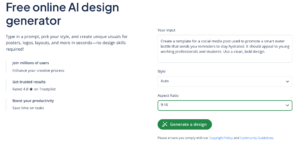
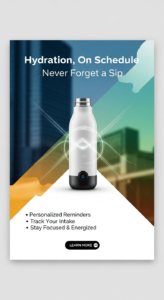
The tool will generate two options for you to choose from. If you’re happy with one of the outputs, you can download it right away. If you’d like to see something different, you can revise your prompt and regenerate image options until you’ve created the perfect design.
An output from QuillBot’s AI design generator
Frequently asked questions about using AI design generators
- How long should an AI image prompt be?
-
There’s no fixed length for AI generator image prompts. Start with a simple prompt that captures the core idea, then gradually add details until the AI produces the image you want. If your prompt becomes too long or includes unnecessary specifics, the model is more likely to misinterpret your intent—so include only the details that matter to the final result.
- Can AI generate photos?
-
Yes. An AI photo generator can create highly realistic, photo-like images. To get photographic results, you can select a photography style within the tool or include terms like “photograph” or “photo” in your prompt. Adding details about lighting, camera angle, or lens style can make the image look even more lifelike.
- How do AI art generators work?
-
AI art generators create images by analyzing your prompt and converting it into visual elements—shapes, colors, textures, and styles—based on patterns learned from large datasets. The model interprets your description, predicts what the image should look like, and renders it from scratch rather than copying existing artwork.
The clearer your prompt, the more accurately the AI can match your vision. If you want to see this in action, try creating an image with QuillBot’s AI art generator and adjust your prompt to explore different results.
- What styles can AI art generators create?
-
Most AI art generators can produce a wide range of styles—from realistic and cinematic to watercolor, anime, pixel art, impressionist, and minimalist line art. You can usually combine styles directly in your text prompt, such as “watercolor with ink outlines” or “cinematic lighting in a painterly style,” to create a more tailored look.
If you’re unsure which style fits your idea, try experimenting with a few variations in QuillBot’s AI art generator to see how each one changes the mood and feel of your image.
Cite this QuillBot article
We encourage the use of reliable sources in all types of writing. You can copy and paste the citation or click the "Cite this article" button to automatically add it to our free Citation Generator.
QuillBot. (2026, March 08). Using an AI Design Generator | Tips & Free Tools. Quillbot. Retrieved March 19, 2026, from https://quillbot.com/blog/image-tools/using-ai-design-generator/