AI Emoji Generator | How to Use, Tips & Examples
Over the last decade, emojis have transformed from a fun part of texting into an essential part of digital communication. They can add personality and emotion to your message, clarify tone, and visually organize your text.
There are over 1,000 emojis, each with its own meaning. But despite this abundance of options, have you ever found yourself wishing for an emoji that doesn’t exist? Maybe you’d like to add a rainbow heart emoji, a capybara, or an emoji version of a chicken nugget to your messages?
QuillBot’s emoji generator lets you create these emojis. Whether you want playful reactions or custom emojis that fit your brand identity, this generator lets you create custom emojis to enhance your messages, marketing, and online presence.
In this guide, you’ll learn all about creating custom emojis, how to use QuillBot’s emoji generator effectively, and how to structure your emoji prompts for optimal results. You’ll also find 60 example prompts to inspire you to start creating your own emojis today. Don’t settle for generic emojis any longer; the emoji world is now at your fingertips!
Why create a custom emoji?
Custom emojis go beyond the standard library of symbols that come preloaded on your phone or computer. They allow you to express ideas, emotions, and branding in a uniquely personal way that generic emojis can’t match.
Some reasons to create a custom emoji are:
- Stand out online: Personalized emojis make your posts, messages, and marketing instantly recognizable. Fun, themed, or expressive emojis make conversations and digital content more memorable.
- Express language visually: Custom emojis let people communicate with a unique visual dictionary—like visual slang—giving text-based interactions more nuance and personality.
- Jazz up educational materials: Teachers can use emojis to highlight key concepts, reinforce lessons, and make learning more interactive and enjoyable.
- Reflect your brand or personality: Emojis add a playful, distinctive touch to branding design while making sure designs align with your brand guidelines.
- Increase engagement: Eye-catching, custom visuals encourage reactions, comments, and shares, boosting interaction across social media and digital content.
- Boost creativity and fun: Designing your own emojis opens up endless creative possibilities, from whimsical characters to humorous mash-ups.
By using custom emojis, you can make messages, content, and branding more expressive, memorable, and uniquely yours.
- Use emojis to enhance engagement, not replace critical keywords.
- Keep emoji use minimal in meta titles/descriptions to avoid clutter.
- Test how emojis render in SERPs.
How to make your own emoji
Making your own emoji doesn’t require design software or advanced technical skills. With an emoji generator, you can create a new emoji in seconds. The key is knowing what you want to communicate and how to describe it clearly.
Here’s how to make your own emoji using an emoji generator:
- Think about what you want to communicate. Before writing your prompt, define the purpose of your emoji. Who’s the audience? Is it meant to express an emotion, like excitement or gratitude? Should it function like a figure of speech, perhaps to express verbal irony or sarcasm? Is it tied to a brand, event, or campaign? Or is the emotion purely decorative?
- Look up existing meanings for similar emojis. If your new emoji is similar to one that already exists, your audience may interpret it to have a similar meaning. So do a quick check to make sure you don’t put your foot in your mouth. For example, the meaning of the peach emoji 🍑 is often unrelated to fruit.
- Write a prompt. Once you know your goal and understand existing emoji meanings, write a prompt that includes the subject (e.g., a face or animal), any emotions or actions, visual details (e.g., colors or accessories), and the desired style (e.g., flat, 3D). The more intentional your prompt, the more accurate and expressive your custom emoji will be.
How to use QuillBot’s emoji generator
QuillBot’s free AI emoji generator gives you three different ways to create custom emojis:
- From a text prompt
- From a combination of two emojis of your choice
- From a combination of two random emojis
Below, see how to make your own emoji using each of these three features.
Text to emoji generator
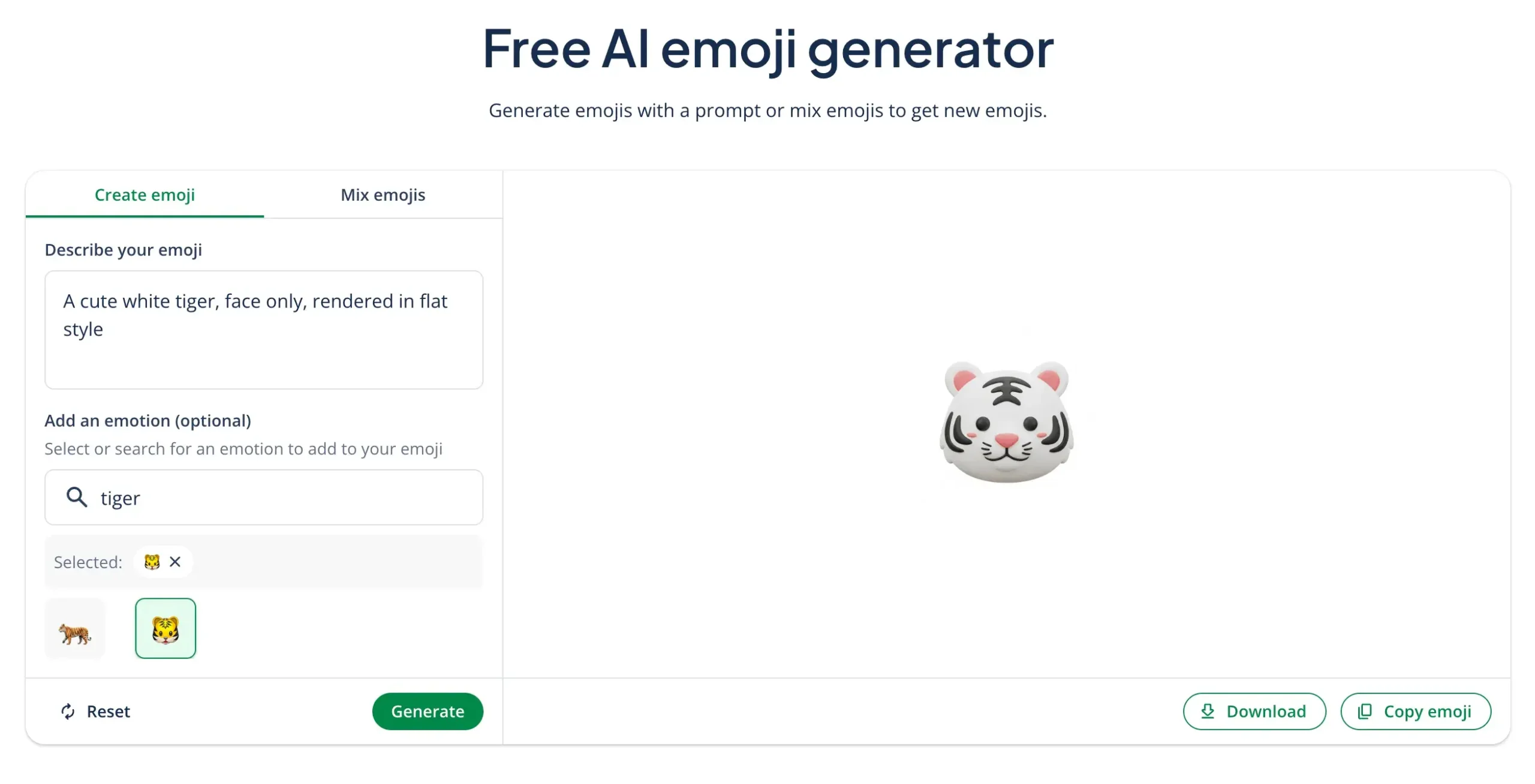
QuillBot’s free AI emoji generator functions as a text-to-emoji generator. Create your own emoji in three simple steps:
- Write a text prompt describing the emoji you want.
- Optionally, choose an existing emoji as a reference.
- Click “Generate” and your new emoji will appear.
You can then download your emoji as a PNG file or copy it directly from the generator. In the example below, the prompt was “A cute white tiger, face only, rendered in flat style.”
Emoji combo generator
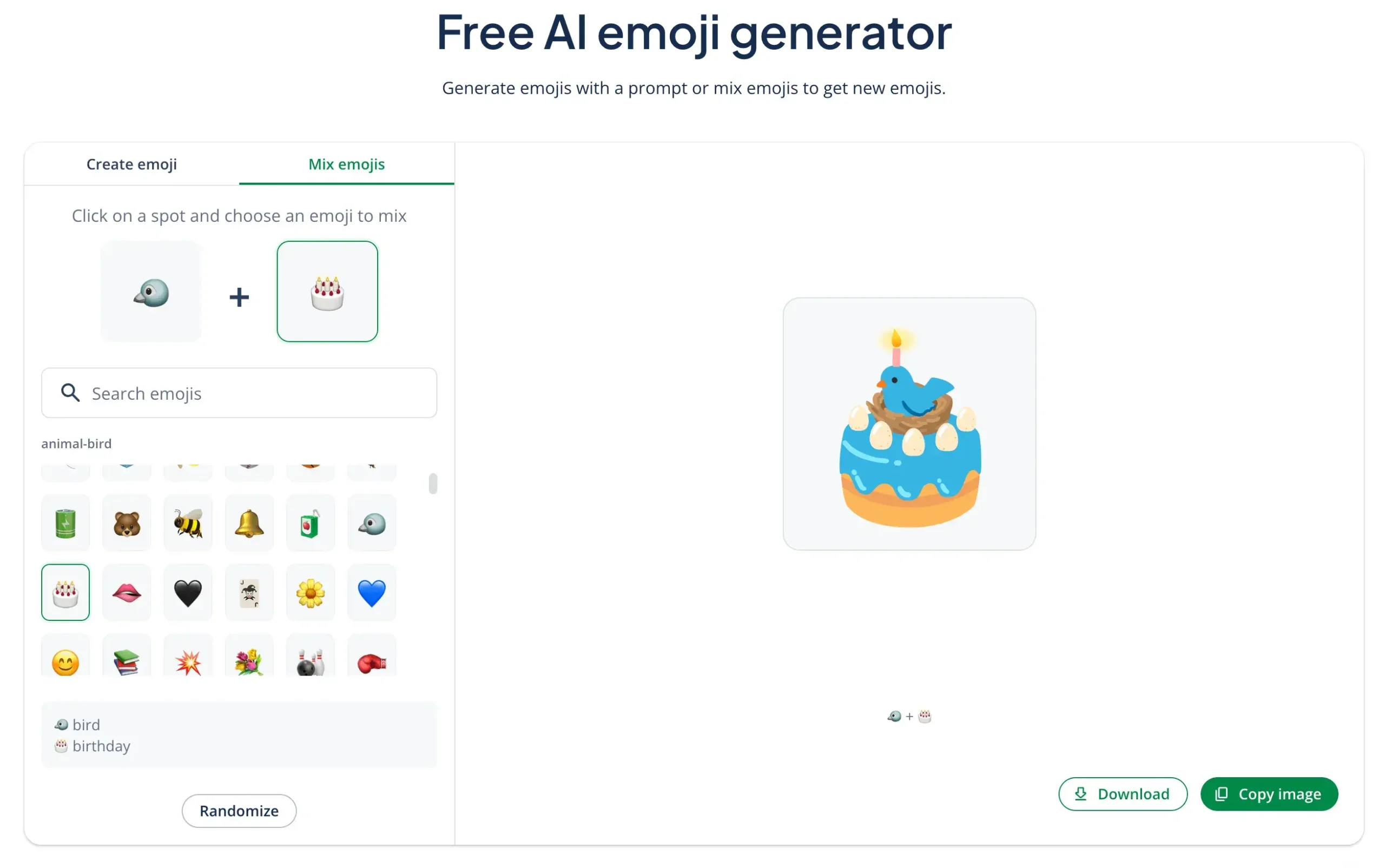
You can also use QuillBot’s emoji generator as an emoji combo generator. To do so:
- Click on the “Mix Emojis” tab.
- Choose the first emoji for your combo.
- Choose the second emoji for your combo.
Then simply download or copy. Below, see an example combining the bird emoji 🐦 and the birthday cake emoji 🎂.
Random emoji generator
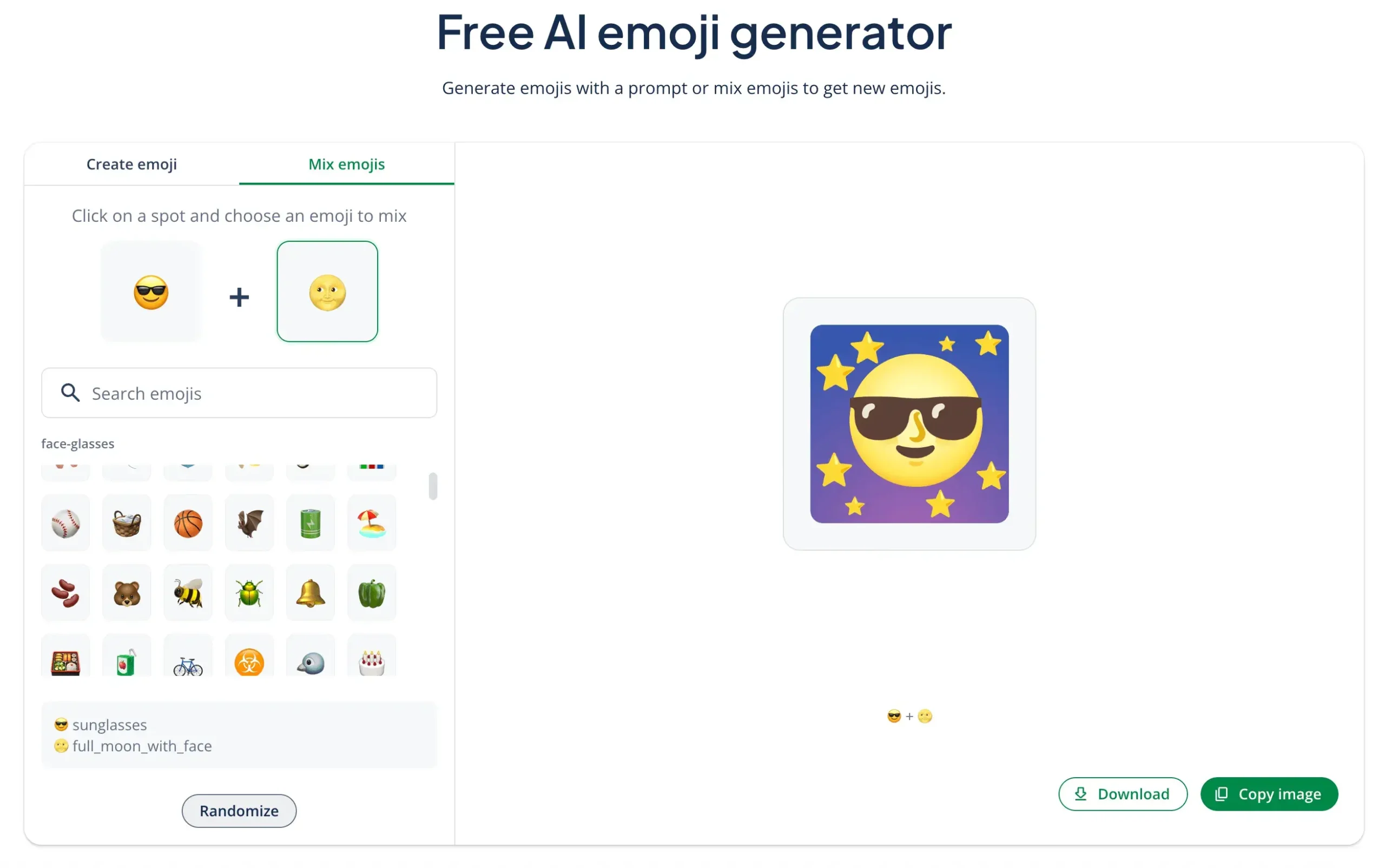
Another function of QuillBot’s emoji generator is the random emoji generator. This randomizes two emojis and combines them into a new one. To use it:
- Click on the “Mix Emojis” tab.
- Click the “Randomize” button at the bottom.
- Randomize until you get an emoji combo that you like.
The random emoji generator can create some fun, surprising emojis or serve as inspiration for the custom emojis you create via text prompts.
Keeping your custom emojis organized ensures they’re always ready for social posts, marketing materials, presentations, and everyday conversations.
Tips for getting the best results from the emoji generator
To get the best possible results from QuillBot’s emoji generator, follow these tips:
- Write a clear, structured prompt. Avoid long, confusing descriptions. Short, structured prompts work best. A simple formula is: [subject] + [emotion/action] + [details] + [style] (e.g., “Robot emoji waving hello with blue eyes and metallic shine in 3D style”).
- Design with purpose. Think about how and where you’ll use the emoji. Is it for social media content, branding or marketing visuals, educational materials, or reactions on community platforms like Slack or Discord? When you design with a clear purpose, your emoji will feel intentional rather than random.
- Be specific about emotion. Instead of writing a broad prompt like “happy emoji,” describe the exact feeling and intensity (e.g., “excited emoji with wide eyes, open smile, and confetti”). Detailing facial features (e.g., eyebrows), gestures (e.g., waving), and context (e.g., celebration) improves accuracy.
- Include visual details. Small details make a big difference. Consider colors (e.g., midnight blue), props (e.g., balloon), accessories (e.g., graduation cap), and effects (e.g., motion lines). These specific details help the AI emoji generator better understand what you’re looking for.
- Specify the style. Emojis render differently on different devices, with some looking more 3D and others flatter. Therefore, the emoji generator doesn’t know exactly what style you’re looking for. If you want a certain look, say so. Style descriptors—like “3D,” “flat minimalist,” “glossy IOS-style,” “retro cartoon,” or “pixel art”—help shape the final design.
- Experiment and iterate. If the first result isn’t what you expected, adjust the prompt. Try removing unnecessary details, changing the style, or placing more emphasis on the main subject. Like with any generative AI, iterative prompting often produces better, more polished results.
By combining specificity, structure, and experimentation, you can generate expressive custom emojis that meet your expectations.
Prompt examples for custom emojis
Below are some prompt examples for custom emojis, which you can use as inspiration or starting points when working with an emoji generator:
- Emotions and moods
- Holidays and celebrations
- Animals and plants
- Food and drink
- Everyday objects
- Business and marketing
🎭 Emotions and moods
- Smiling face emoji with heart eyes and confetti
- Laughing emoji with sunglasses and a thumbs-up gesture 😎
- A sassy-looking drag queen with exaggerated makeup 💁♀️
- A tired face framed inside a video call window
- A sweating face with a tiny flaming chili 😥
- Hopeful face surrounded by sparkly “manifestation” intention lines
- A makeover emoji with a split face showing before and after transformation
- Person in pajamas lying in bed working on a laptop
- A confused face with swirling planets and astrological symbols 🪐 💫
- A smiling alien face in green 👽
Output:

🎉 Holidays and celebrations
- Halloween pumpkin emoji with spooky, devious face 🎃
- Pink Christmas tree emoji rendered in retro cartoon style with silver tinsel 🎄
- A sports trophy showing a person running with 3D style and gold shine 🏆
- Melted snowman emoji in minimalist style ⛄
- “New job” celebration emoji with briefcase and confetti 💼
- Piñata mid-swing with candy flying 🪅
- Chinese New Year lantern with gold details and red glow 🏮
- St. Patrick’s Day leprechaun hat with shamrock ☘️
- Eid crescent moon with lanterns 🌙
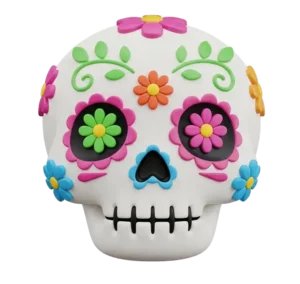
- Carnival mask with bright feathers rendered in 3D vibrant style
Output:
🐶 Animals and plants
- Cat emoji wearing a monocle and bowler hat in cute, 3D style
- Happy bulldog emoji holding balloons in a retro cartoon style
- A weasel sitting in an upright position
- A confused-looking cute fish with a plastic bottle inside its body in flat style
- Cute, smiling capybara relaxing in hot spring
- A smiling cow, eyes closed, wearing a flower crown rendered in 3D 🐮
- Squirrel, seen in profile, holding an oversized acorn 🐿️🌰
- A baby monkey holding a plush monkey toy 🐒
- Pigeon holding a french fry 🐦
- A green dragonfly with iridescent wings
Output:

🍔 Food and drink
- Cute pizza emoji with sparkle effect 🍕
- A jar of peanut butter with a peanut on its label, no text 🥜
- An avocado toast emoji in three-dimensional iOS style 🥑
- Chocolate-covered strawberry in flat style with pink sparkle 🍓
- Smiling rainbow birthday cake emoji with candles and confetti
- Chicken nugget emoji shaped like a dinosaur in pixel art style
- A pretzel half-dipped in chocolate 🥨
- Coconut water in cracked coconut in IOS emoji style 🥥
- Tiramisu slice with cocoa dusting in vintage Italian style
- Iced coffee in clear plastic cup with straw in minimalist style 🥤
Output:

⚽ Everyday objects
- Laptop covered in stickers in flat style 💻
- Overpacked tote bag spilling items in 3D
- A pastel purple claw clip for hair in cute anime style
- A row of books held up by bookends on either side in minimalist style 📚
- Picnic blanket with food spread rendered in flat style
- A white plastic laundry basket filled with clothes in IOS emoji style
- A comic book open with small colorful panels visible 📖
- A phone with no case face-down on table with a “no notifications” icon
- Houseplant with drooping leaves because it needs water 🪴
- Rain hitting window with a blurry city in the background 🪟
Output:

💼 Business and marketing
- An emoji reaction heart rendered in IOS style in this color: [insert brand color]
- A thumbs-up “like” emoji rendered in flat style in this color: [insert brand color]
- Emoji of product box opening with sparkles coming out
- Phone with social media apps icons rendered in flat style
- Smartphone with floating heart, comment, and share icons, vibrant cartoon style
- Startup rocket launching from briefcase, glossy emoji style 🚀
- Team collaboration emoji with diverse hands stacked in center ✋
- “SALE” sign emoji with white letters on a bright red sign
- Brand launch emoji with ribbon-cutting scissors and sparkle 🎀✂️✨
- Expense tracking emoji with receipt and magnifying glass 🧾🔍
Output:

Frequently asked questions about emoji generator
- How do you use a Slack emoji generator?
-
There is no official Slack emoji generator. Instead, use an online emoji generator—like QuillBot’s free emoji generator—to create a custom emoji and then add it to Slack.
After creating your emoji, download the image file. In Slack, click the smiley face icon and then “Add Emoji.” Upload your image file, give it a name in Slack, and click “Save.”
To use it in Slack messages, select it from the emoji panel or type :emoji-name: to find it immediately.
- How do you make a custom Discord emoji?
-
To make a custom Discord emoji, use an online emoji generator like QuillBot’s free emoji generator to create your custom emoji. Write a text prompt describing the emoji you want.
Download the image file, and in Discord, go to “Server Settings.” Select the “Emoji” tab and upload your custom emoji. Give it a name, and your emoji will be shared with your whole server.
Remember that custom Discord emojis only work on the server you upload them to, so if you want to use a custom emoji on multiple servers, upload it to all of them.
- How do you make a Teams custom emoji?
-
To create a Microsoft Teams custom emoji, create the emoji using QuillBot’s free emoji generator and download it as a PNG.
Then, in Teams, make sure your workspace has permission to use custom emojis. If not, an admin can turn this feature on in “Messaging Settings.”
Users should then access the emoji panel by clicking the emoji icon near the message input box. Upload your image file and give it a short and memorable name. Click “Add Emoji” to save it.
Cite this QuillBot article
We encourage the use of reliable sources in all types of writing. You can copy and paste the citation or click the "Cite this article" button to automatically add it to our free Citation Generator.
Santoro, K. (2026, March 09). AI Emoji Generator | How to Use, Tips & Examples. Quillbot. Retrieved March 10, 2026, from https://quillbot.com/blog/image-tools/ai-emoji-generator/