How to Remove People From Photos (Online for Free)
You’ve just captured the perfect photograph, but then you notice it: a stranger walking through the frame, a random tourist in the background, or perhaps even a child you don’t have permission to include in your image. Suddenly, your photo feels less personal, less shareable, and less perfect.
Until recently, removing people from photos required advanced editing skills and expensive software. For everyday users, that meant settling for a flawed image or awkwardly cropping out parts of the photo to hide distractions.
Today, it’s faster and easier than ever to remove people from photos. Whether you need to remove someone from a photo to protect privacy or clean up your vacation pictures, QuillBot’s free photo editor makes the process effortless. In just a few clicks, you can transform a cluttered scene into a polished image that looks exactly how you want.
When to remove people from photos
There are many valid reasons why you might want to remove people from photos, and they’re not only about aesthetics. Whether you’re editing personal memories, making professional content, or maintaining privacy online, learning when and why to remove someone from a photo can make a big difference in the quality and impact of your images.
1. Protect privacy and safety
If your photo includes strangers, minors, or anyone who hasn’t given consent to appear online, it’s best to remove people from photos before sharing them. This simple step helps you respect others’ privacy, maintain ethical standards, and avoid potential legal issues. Some of the many contexts when you should protect others’ privacy include social media posts, presentations, marketing materials, and websites.
2. Eliminate background distractions
A great composition can easily be spoiled by random passersby or photobombers. Removing them helps your image look cleaner, more professional, and visually focused. Whether it’s a travel photo, wedding or birthday party shot, or product image, tools that remove someone from a photo help your subject stand out.
3. Create polished, professional content
In industries like real estate, marketing, or social media, clean visuals can make a lasting impression. By using AI tools to remove people from photos, you can instantly enhance the professionalism of your content without needing expert editing skills.
Susanna uses QuillBot’s online photo editor to remove the children from the photograph before adding it to her LinkedIn profile.
How to use an online photo editor
The simplest way to remove someone from a photo is with a free, AI-powered photo editor like QuillBot’s. You just need to follow a few simple steps.
1. Upload your image
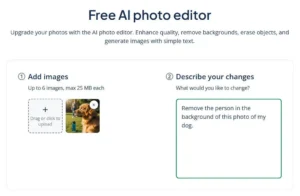
On the landing page for QuillBot’s online photo editor, upload the image you want to edit in the panel on the right. You can select your photo from a folder or drag and drop.
QuillBot’s free online photo editor
2. Type a prompt
After you upload your photo, type a prompt in the panel on the right, where it says “Describe your changes.” You can prompt the tool to remove all of the people or only certain people. In your prompt, specify where the people you want to remove are located in the frame (e.g., “on the left” or “in the background”). For example, you might prompt QuillBot to:
- Remove all of the people from this photograph. Reconstruct missing areas so that the scene looks natural and realistic.
- Remove the people on the right and left side of this photo, but keep the person in the middle.
3. Edit your photo
After you type your prompt, click “Edit Photos.” Then, QuillBot will generate a new PNG image and a description of the changes.
4. Review and download
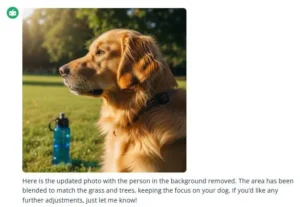
Review the changes, and prompt the tool for any further adjustments, if applicable. For example, the QuillBot-edited image below could be downloaded as-is or further adjusted to remove the water bottle to the left of the golden retriever.
Edited photo from QuillBot’s photo editor
Frequently asked questions about how to remove people from photos
- How do I remove an object from a photo?
-
You can remove an object from a photo with an AI photo editor. To use QuillBot’s free AI photo editor, follow these steps:
- Upload your photo.
- Type a prompt about the object you want to remove (e.g., “Remove the water bottle from this photograph of a dog”).
- Download the edited image.
The process is quick and easy, and you can edit any photo up to 25 MB.
Cite this QuillBot article
We encourage the use of reliable sources in all types of writing. You can copy and paste the citation or click the "Cite this article" button to automatically add it to our free Citation Generator.
QuillBot. (2025, December 29). How to Remove People From Photos (Online for Free). Quillbot. Retrieved April 1, 2026, from https://quillbot.com/blog/image-tools/how-to-remove-people-from-photos/