How to Use an Icon Generator
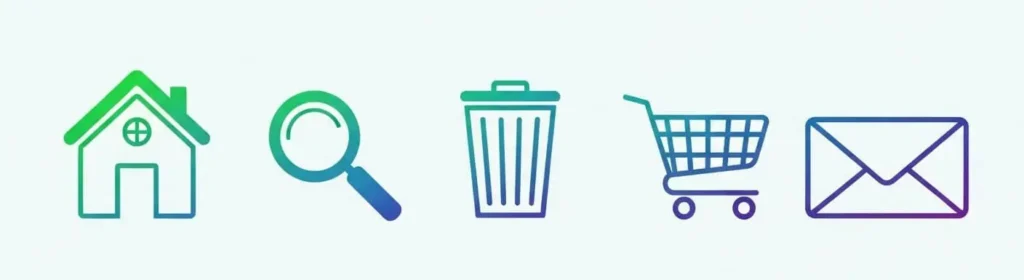
Icons are the small but mighty symbols for the actions, settings, or categories that an app or website offers. Whether it’s a magnifying glass for a search bar, a shopping cart for an e-commerce store, or a gear icon for a settings menu, these graphics help people navigate your digital space and improve their overall experience.
In the past, adding icons to a website or app involved choosing from stock images in an icon library, which might not have matched your brand, or hiring a professional designer, which wasn’t always in the budget.
Now, an AI icon generator offers a convenient and cost-effective alternative. Instead of spending hours filtering through static libraries or settling for “close enough,” you can now enjoy total creative control. This technology allows you to generate custom icons that match your branding design and make your digital content truly stand out.
QuillBot’s Icon Generator is completely free to try and available on a convenient platform that covers all of your design and writing needs.
Icon designs from QuillBot’s Icon Generator
What is an icon generator?
An icon generator is a specialized tool that turns your AI prompts into digital icons that show your users where to click for different types of information. It allows you to co-create unique visuals by simply describing what you need, moving beyond the limits of pre-made databases.
In short, it acts as a bridge between your creative vision and a professional-quality icon. It handles the technical details of geometry, lighting, and styling, allowing you to focus on the concept and the final aesthetic.
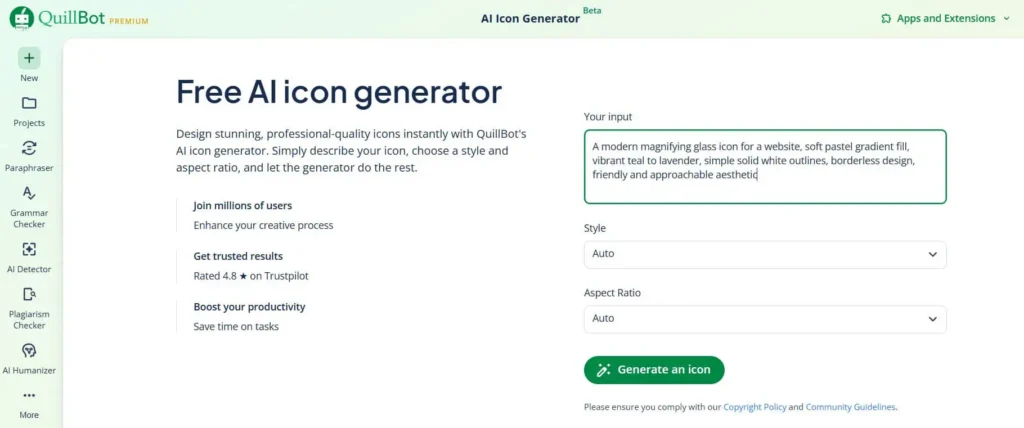
QuillBot’s Icon Generator includes a chat interface for your prompt and drop-down menus for the different style and aspect ratio choices.
Types of icons for websites and apps
Most successful websites and apps use a standard set of functional icons that users recognize instantly. Using a generator allows you to create these familiar symbols while ensuring they match your unique brand style. If you’re new to digital design or in the early stages of a project, review the chart below to decide which icons your website or app will need.
| Icon | Purpose |
|---|---|
| House | Navigate to the homepage |
| Magnifying glass | Search the site or the web |
| Three horizontal lines | Open the menu |
| Checkmark or floppy disk | Save |
| Trash can | Delete/remove |
| Envelope | Contact |
| Shopping cart or bag | Review selections and check out |
| Lock | Secure checkout |
| Credit card | Enter a credit card number |
| Speech bubble | Add a comment or read comments |
| Arrow | Share |
| Gear or wrench | Settings |
| User silhouette or key | Login |
How to write an icon generator prompt
A great prompt acts as a set of instructions for the icon generator. To ensure your icons look consistent and professional, include these elements in every description:
- Type of icon: Clearly state the primary subject (e.g., a “magnifying glass” or “shopping cart”).
- Style and aesthetic: Define the overall look, such as “flat design,” “3D render,” “isometric,” or “line art.”
- Line thickness and detail: Specify if you want “thick, bold outlines,” “delicate thin lines,” or a “borderless, solid shape.”
- Colors and shades: Use specific color names like “navy blue,” “soft mint,” or “vibrant sunset orange.” You can also describe the palette as “monochrome” or “duotone.”
- Texture and finish: Add a final polish by describing the surface, such as “matte,” “glossy,” “metallic,” or “hand-drawn pencil texture.”
| Prompt | Output |
|---|---|
| A simple house silhouette for a website icon, flat vector design, minimalist icon, single slate grey color, simple geometry, solid outlines |  |
| A modern magnifying glass icon for a website, soft pastel gradient fill, vibrant teal to lavender, simple solid white outlines, borderless design, friendly and approachable aesthetic |  |
| A basic trash can shape for an icon on an app, muted forest green and warm terracotta, eco-friendly feel, minimalist icon, isolated on white |  |
How to create icons with AI
Using QuillBot’s Icon Generator only involves a few simple steps:
- Type a detailed prompt.
- Select a style from the drop-down menu (e.g., “Digital Art” or “Educational”). You can also leave the style selection at “Auto.”
- Select an aspect ratio from the drop-down menu. The icons on most apps and websites have a 1:1 aspect ratio.
- Hit “Generate an icon.” The tool will generate a PNG for you to download.
- Use QuillBot’s PNG to ICO Converter to turn your high-quality PNG into a functional ICO file for your website.
QuillBot’s Icon Generator interface
Frequently asked questions about AI icon generators
- How can I create a matching set of custom icons for my website?
-
Creating a matching set of custom icons is the secret sauce of professional web design. While traditional libraries often leave you with mismatched styles—where a Search icon might have thicker lines than your Home button—an AI icon generator allows you to build a unified ecosystem from scratch.
Use a consistent style string in each prompt (such as “flat vector, navy blue, 2px stroke”) to generate icons that share the same DNA. This ensures your website or app looks polished and intentional, rather than a collection of scattered stock images.
QuillBot’s Icon Generator is completely free to use, and it’s part of the same platform as an image editor and other tools for your web design needs.
- What is the best way to generate high-quality icons without a designer?
-
For entrepreneurs and developers on a budget, the most efficient alternative to a graphic designer is an icon generator. Unlike static stock libraries that limit you to pre-made designs, an AI generator translates your vision into a high-quality icon.
Whether you need a niche symbol like a lotus or a standard shopping cart, QuillBot’s Icon Generator, you have total creative control over the colors, thickness, and aesthetic. Simply describe your icon, select your preferred style, and download an icon that makes your digital content truly stand out.
Cite this QuillBot article
We encourage the use of reliable sources in all types of writing. You can copy and paste the citation or click the "Cite this article" button to automatically add it to our free Citation Generator.
QuillBot. (2026, April 08). How to Use an Icon Generator. Quillbot. Retrieved April 10, 2026, from https://quillbot.com/blog/image-tools/how-to-use-an-icon-generator/