Yes. An online case converter can quickly change text to Title Case, UPPERCASE, sentence case, and more.
Simply paste or type your text, select the desired format, and it updates instantly. You can test this with Quillbot’s online case converter.
Read this FAQ: Is there a way to capitalize text without retyping?
To convert uppercase text to lowercase, paste or type your text into an online case converter and select the lowercase option. The text updates instantly, and you avoid manual editing.
One easy-to-use option is Quillbot’s Case Converter tool. It allows you to convert large blocks of text in seconds, switch between multiple case formats, and copy or export the result with just a few clicks.
Read this FAQ: How do I convert uppercase to lowercase?
The difference between title case and sentence case comes down to which words are capitalized.
- Title case capitalizes the main words in a headline or title. Verbs, nouns, adjectives, and adverbs are all capitalized. Short words, like “and,” “the,” or “of,” may or may not be capitalized depending on the style guide (APA, AP, Chicago, etc.). For example, “How to Format Text Like a Pro”
- Sentence case capitalizes only the first word of the sentence and any proper nouns. It is common in casual writing, such as blog titles. For example, “How to format text like a pro.”
Need help with capitalization? Try Quillbot’s case converter and switch between different formatting styles like title case and sentence case in seconds.
Read this FAQ: What is the difference between title Case and sentence case?
Agentic AI examples can be found across industries and sectors. As an example, imagine you have a smart home system.
Agentic AI enables it to continually monitor the conditions in your home such as temperature and security status.
The same system could automatically adjust your heating system to maintain an optimal temperature while also scanning for break-in threats and locking your door behind you.
Read this FAQ: What are real-world agentic AI examples?
Agentic AI definition: A type of artificial intelligence that can autonomously solve multi-step tasks.
Its use cases include facilities management, solving complex customer support queries, resolving IT issues, and even negotiating contracts.
It differs from generative AI, which is known for creating new and personalized content when prompted. For example, Quillbot’s AI image generator allows you to make custom images.
Read this FAQ: What is an agentic AI definition in simple terms?
AI agents are expected to take on more autonomous, multi-step tasks within the scope of generative AI in the workplace, such as managing workflows, coordinating tools, and executing routine knowledge work with minimal supervision.
Instead of replacing professionals outright, AI agents will likely handle task orchestration while humans focus on oversight, strategy, and decision-making. Tools like Quillbot’s AI Chat already demonstrate early forms of AI-assisted task support.
Read this FAQ: What’s the future of work with AI agents?
The future of remote work is expected to be long-term thanks in large part to hybrid models that combine in-office and remote collaboration.
Advances in generative AI in the workplace are supporting this shift by helping distributed teams communicate, manage tasks, and access knowledge more efficiently.
Tools like Quillbot’s AI Chat can assist with drafting, summarizing, and refining communication across time zones.
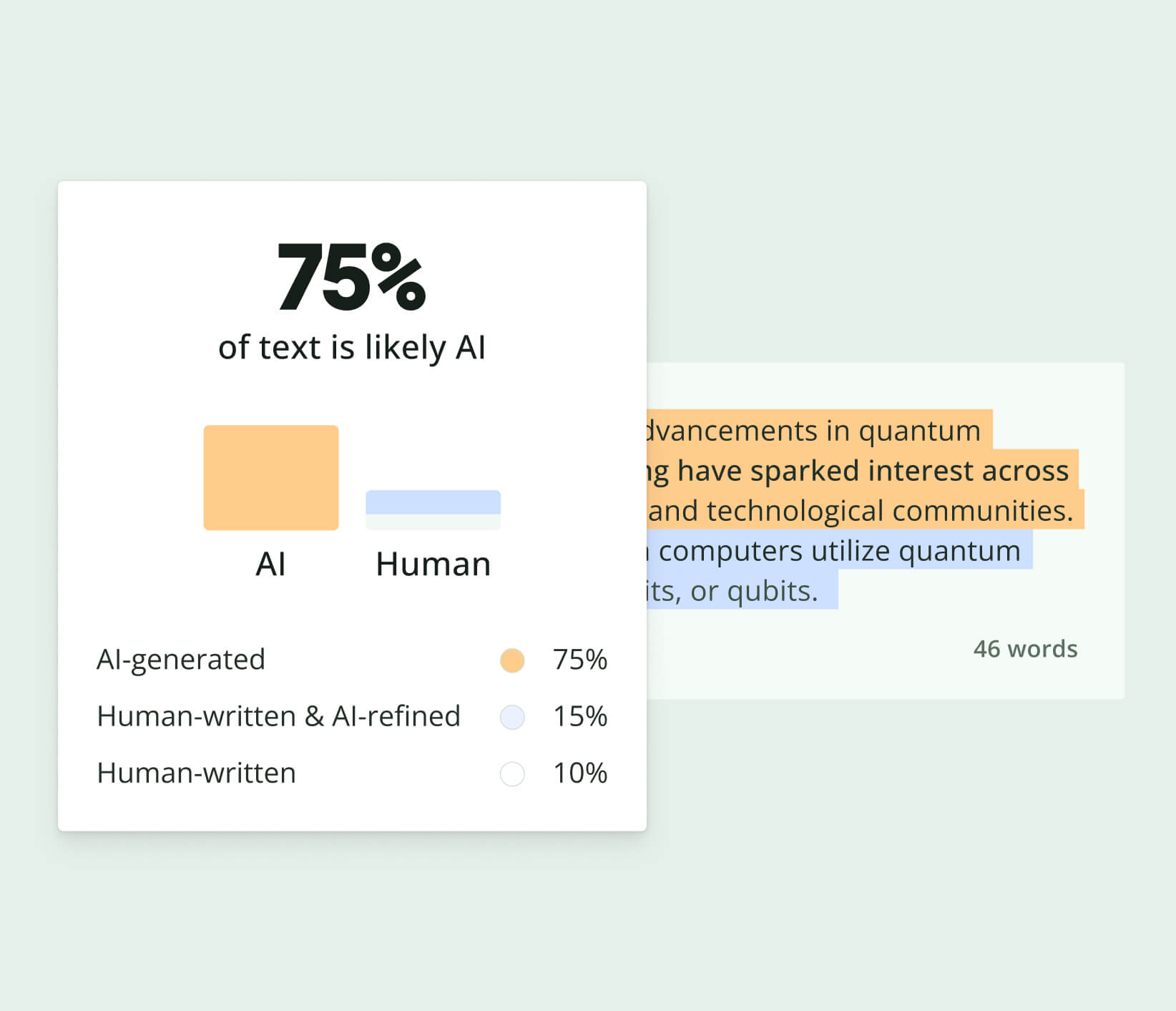
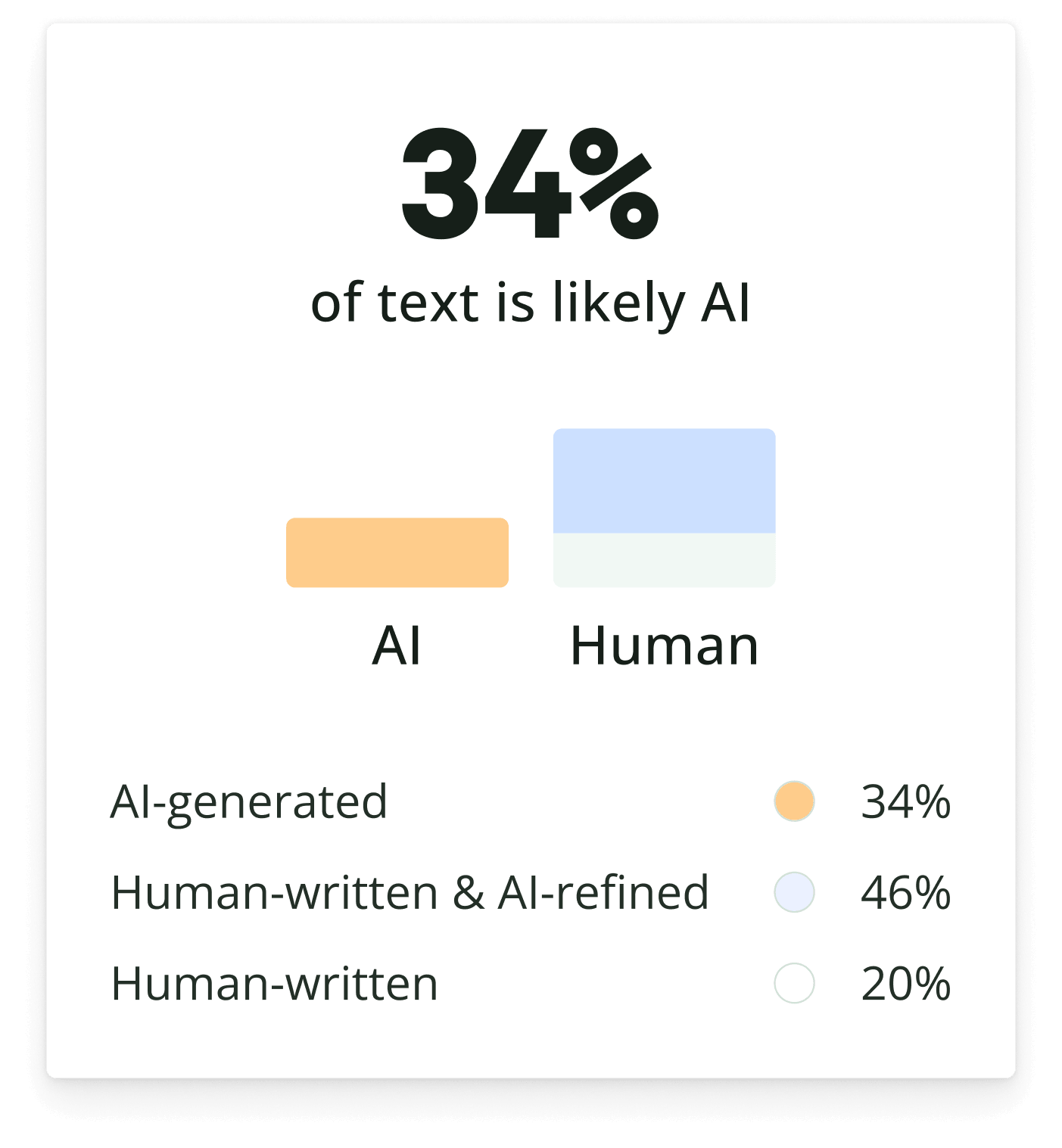
As AI becomes more integrated into remote work, knowing whether content is AI-generated or human-written is becoming increasingly important, especially for maintaining trust, originality, and quality. Quillbot’s AI Detector helps you analyze text and understand how it was likely created, giving you greater confidence in the content you share, review, or publish in a remote-first environment.
Read this FAQ: What’s the future of remote work?
The term “artificial intelligence,” or AI, was first used by John McCarthy to propose a 1956 workshop on thinking machines. McCarthy and his fellow workshop organizers, Claude Shannon, Nathaniel Rochester, and Marvin Minsky, are considered some of the founding fathers of AI.
Other important figures in the field of AI include Alan Turing, whose famous Turing Test provided a framework for considering whether machines think; Allan Newell and Herbert Simon, who developed the first “reasoning” computer program (the Logic Theorist); Geoffrey Hinton (the “godfather of AI”), who conducted formative research on deep learning and neural networks; and Fei Fei Li (the “godmother of AI”), whose creation of the database ImageNet transformed how AI models are trained and evaluated.
Thanks to the efforts of early pioneers, today AI and AI-generated content feel unavoidable. Thankfully, tools like Quillbot’s AI Detector can help you determine whether content is human- or AI-generated.
Read this FAQ: Who is the father of AI?
The idea of artificial intelligence (AI) has existed in fiction for millennia—”automatons,” or machines with agency and free will, can be traced back to Greek mythology.
However, AI as we now know it began to take off in the 1950s. The term “AI” was first used at a workshop in Dartmouth in 1956. John McCarthy, who helped organize this workshop, is often considered the father of AI.
The work of McCarthy and many other innovators has led to the AI capabilities we see today. Generative AI tools like Quillbot’s AI Image Generator are revolutionizing the way we work and create.
Read this FAQ: When did AI start?
API (application programming interface) documentation is an instruction manual for software developers using an API. It explains how to “talk” to a software system, providing information on what questions can be asked, how to format them, and what kind of data to expect in return.
It’s critical to create API documentation that is clear and comprehensive. Simplify this process with Quillbot’s free AI API Documentation Generator.
Read this FAQ: What is API documentation?