
How to Flatten a PDF
Flattening a PDF is when you merge all interactive elements—like signatures, form fields, and annotations—into a single layer. This way, the document appears correctly when you print or share the file with others. It also means that the document will no longer be editable.
This guide shows you how to flatten a PDF with ease using Quillbot’s free Flatten PDF tool.
Key takeaways
- Flattening a PDF locks signatures, form fields, annotations, and other interactive elements into a single non-editable layer. It preserves formatting and prevents unwanted changes when sharing or printing documents.
- In this guide, you’ll learn how to quickly flatten a PDF using Quillbot’s free Flatten PDF tool in just three simple steps: upload, flatten, and download.
- You’ll also discover practical tips for avoiding common issues like large file sizes, distorted text, missing content, and unsearchable PDFs.
How to flatten a PDF
Flatten PDF is a tool that enables you to easily convert editable PDFs into locked files by merging layers and form fields. It’s as simple as following these three steps:
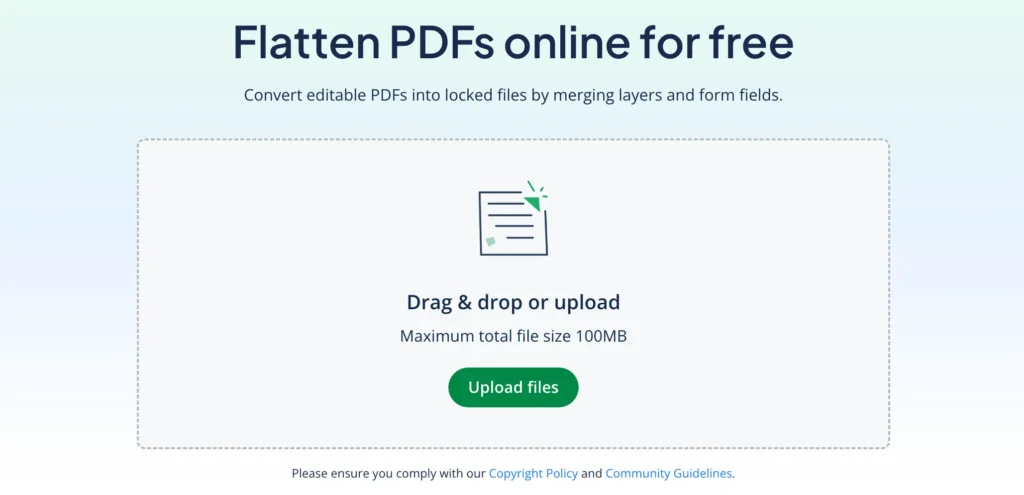
1. Upload your file.
Locate the PDF that you want to flatten. Open Quillbot’s Flatten PDF tool in your browser, click “Upload Files,” and upload it.
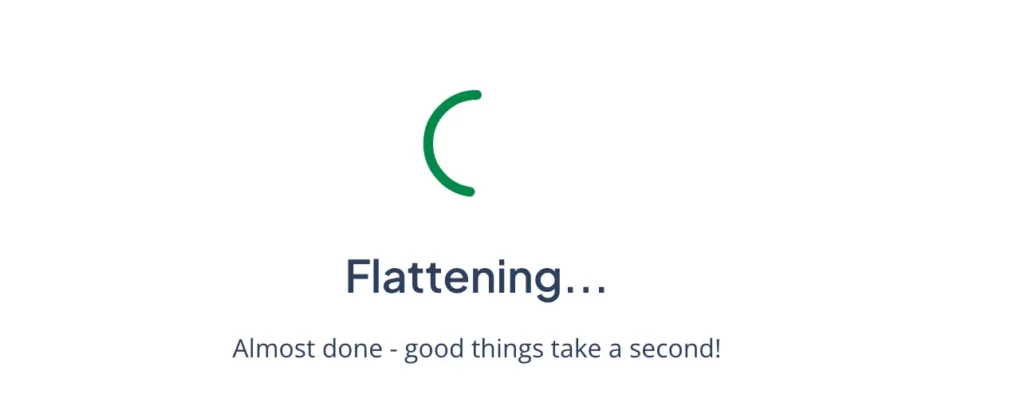
2. Flatten the document.
Sit back and let our AI-powered Flatten PDF tool quickly and securely merge all layers into a single static, non-editable PDF.
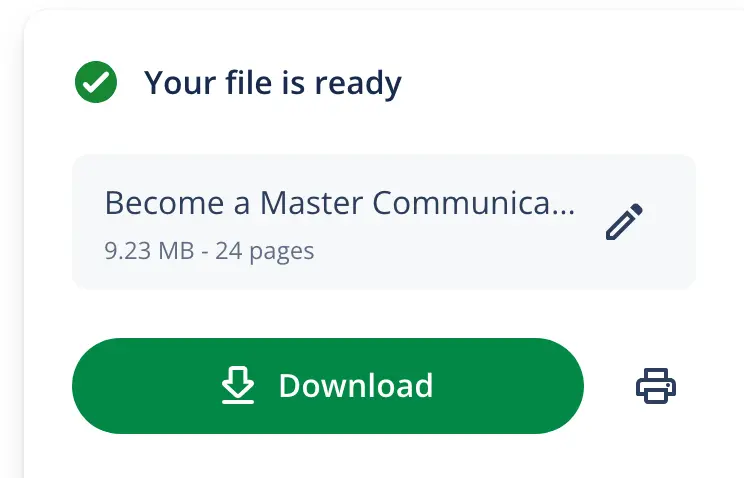
3. Download your PDF.
Next, all you have to do is click “Download” on the right side of the screen, and your updated PDF is ready.
Why flatten a PDF?
Flattening a PDF helps ensure all elements get locked into a single, secure layer that can’t be changed.
Here are some common situations where it can be useful:
- Prevent accidental edits. Lock everything in place once you’ve made any changes, and prevent others from editing the document if you need to share it.
- Securely share the document with others. Flattening a PDF means you can protect your document from edits or other tampering by third parties.
- Preserve formatting across all devices. Ensure your PDF looks the same whether you access it on mobile or desktop.
- Guarantee your document displays consistently. If you’re planning to share or print the document, flattening will seal everything in place.
Flatten PDF: Helpful Tips
With the right tools, flattening PDFs is simple, but a few small issues can sometimes come up. Here’s how to solve them.
Flattening increases file size
Sometimes flattening files converts graphics into high resolution, which can significantly increase the file size.
Jumbled or distorted text
Flattening a PDF can sometimes lead to blurry content or strange characters appearing.
Missing content or clipped margins
Sometimes features like annotations or page margins disappear when you flatten.
Digital signatures turn black
In some cases, when signatures are added digitally, flattening the document can cause them to go black.
The PDF is no longer searchable
Because flattening a PDF essentially converts the text into an image format, standard search functions in PDF readers may no longer be possible.
Frequently asked questions about how to flatten a PDF
- What does flatten PDF mean?
-
Flattening a PDF means merging all interactive elements of a PDF—such as signatures, annotations, and form fields—into one static layer that can no longer be edited.
Flattening a PDF is useful when you want to:
- Prevent accidental edits
- Preserve formatting across all devices
- Securely share the document with others
- Guarantee your document displays consistently
Flatten any PDF quickly and securely with Quillbot’s free Flatten PDF tool.
Other interesting articles
If you want to know more about colors, letters, or the meaning of emojis, make sure to check out some of our other articles with explanations and examples.