
How to Annotate a PDF
Annotating a PDF is when you add notes, comments, highlights, or drawings to a PDF document. This is useful for studying or when giving feedback at work.
This guide shows you how to annotate a PDF in three simple steps using Quillbot’s free Annotate PDF tool.
Key takeaways
- Annotating a PDF is when you add comments, drawings, notes, images, or highlights to a PDF document.
- This article walks you through how to use Quillbot’s Annotate PDF tool in three easy steps: Upload, adjust, and download.
- You’ll also find useful tips for making the most out of the Annotate PDF tool and resolving common issues like removing annotations or adjusting your document’s formatting.
How to annotate a PDF
Annotate PDF is a tool that enables you to easily add comments, drawings, notes, and highlights to any PDF document.
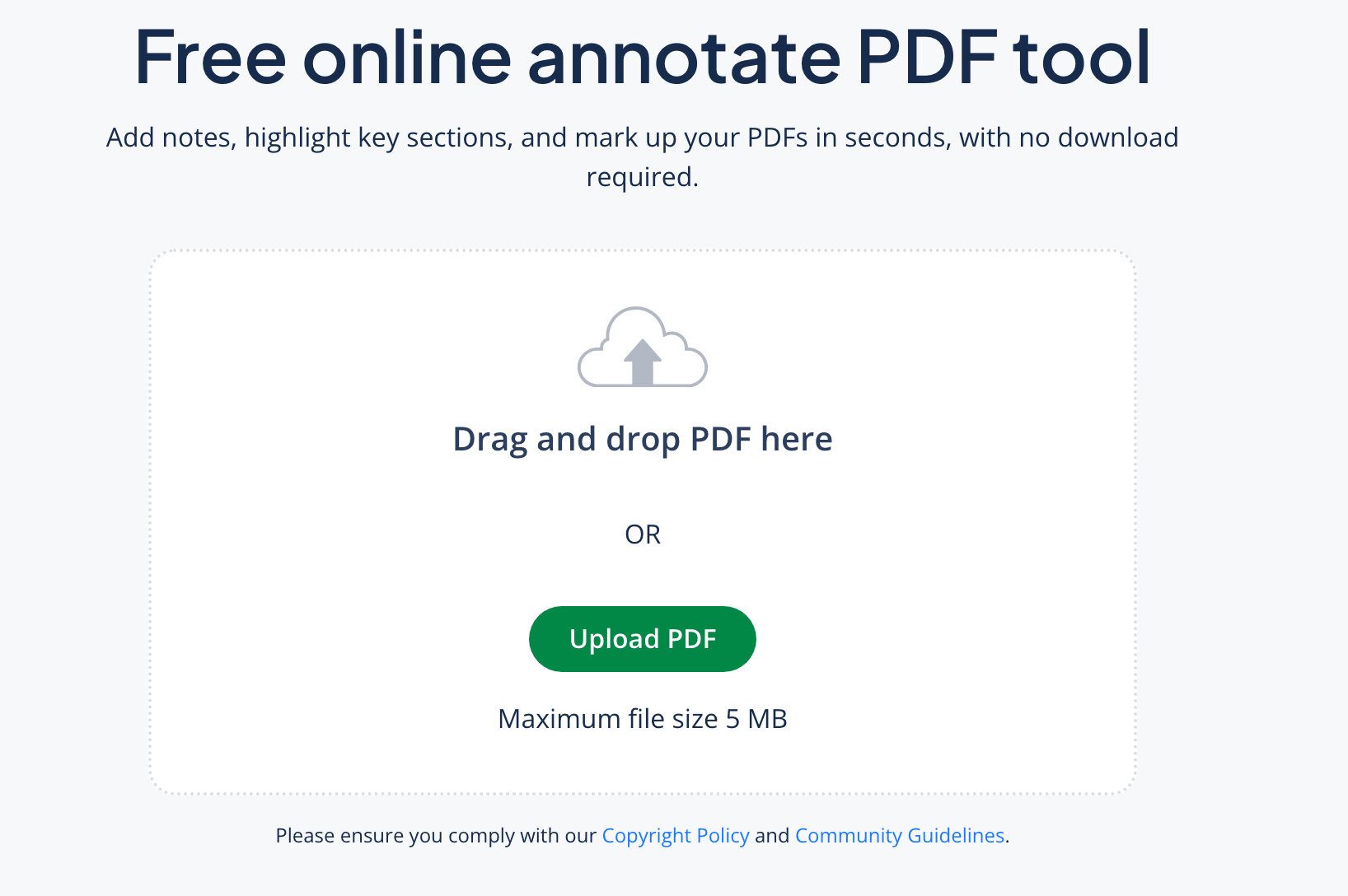
1. Upload your file
Locate the PDF that you want to annotate. Open QuillBot’s Annotate PDF tool in your browser, click “Upload PDF,” and upload it.
2. Preview and adjust
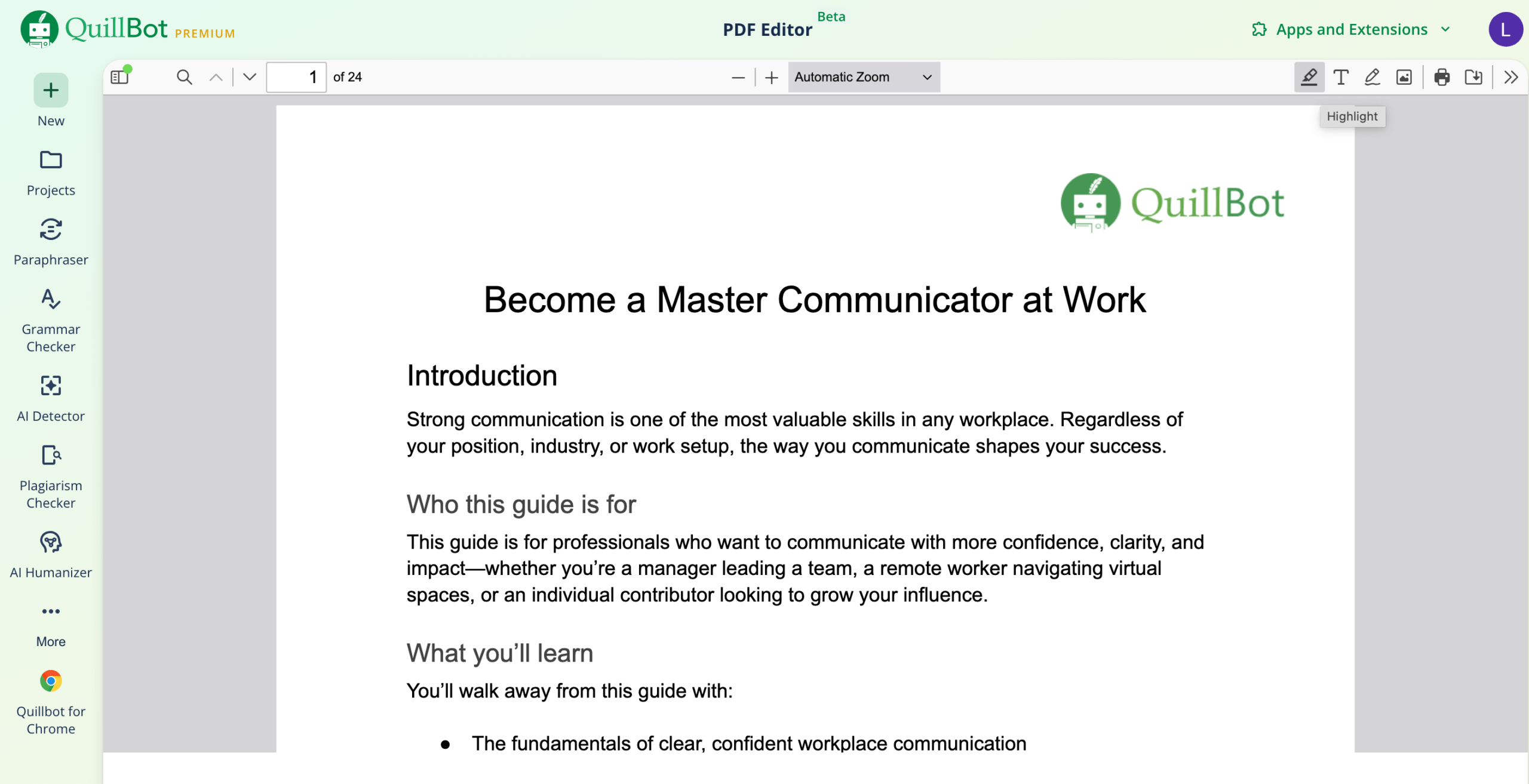
Once you’ve uploaded your document, you can add highlights, text, images, or lines by clicking the icons in the top right of the screen.
3. Download your PDF.
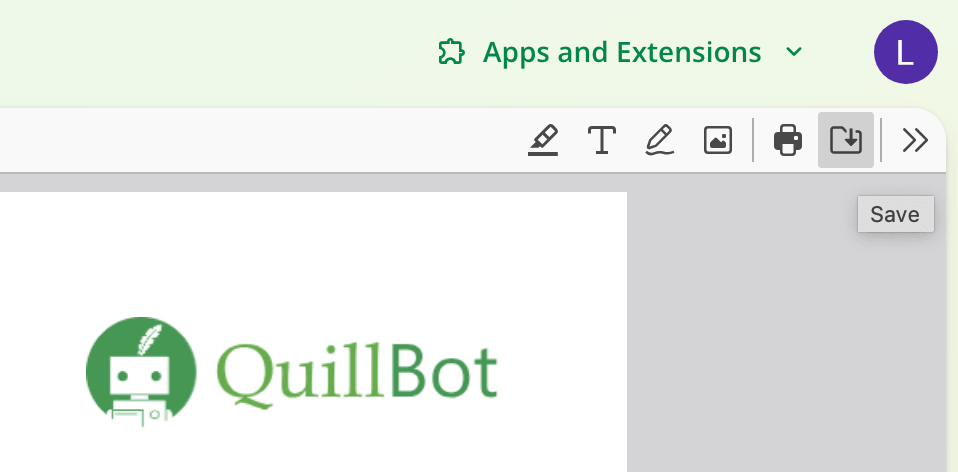
Once you’ve finished adding your annotations, simply click the “Save” button in the top right corner of the screen.
Why annotate a PDF?
Annotating a PDF is useful for students, teachers, researchers, and business professionals. It allows you to add notes, make markups, and provide feedback quickly and easily.
Here are some circumstances where it can be especially helpful:
- Edit without distractions. Make your annotations in a clean, intuitive interface that’s simple and easy to navigate.
- Instantly add comments and notes. Write feedback and reminders directly on the document without hassle.
- Underline and highlight important information. Make note of key passages you want to remember or reference in your notes.
- Add signatures. Sign documents using the draw feature without needing to print or scan anything.
- Incorporate images or drawings. Include custom shapes or sketches, and upload image files directly onto your PDF.
- Collaborate more easily. Enable faster feedback and share marked-up documents for more efficient team workflows.
Annotate PDF: Helpful tips
The Annotate PDF tool is simple and easy to use, but it helps to know the following tips for getting the most out of it.
You want to remove an annotation
Sometimes after you add a highlight, note, or drawing, you might change your mind. If this happens, you can easily fix it within the Annotate PDF tool.
You need to change the page formatting
If the file uploads in a wonky way, you may want to rotate it to landscape view to leave an annotation on a chart.
You’re unable to highlight or mark certain text
This can happen if you’re working with a flattened PDF document, which essentially saves the document layers—such as images or text—as an image.
The document is locked
If you are having trouble viewing the PDF or adding annotations, it may be because it’s password protected. Some PDFs have “view-only” restrictions, and these must be removed in order to make edits.
Frequently asked questions about how to annotate a PDF
- What is a PDF annotator?
-
A PDF annotator is a tool that allows you to add notes, drawings, highlights, images, and more to a PDF document.
This is useful in academic and professional settings. It can help with reading comprehension, providing feedback, and editing documents.
Try Quillbot’s Annotate PDF tool for a simple and hassle-free experience.
Other interesting articles
If you want to know more about colors, letters, or the meaning of emojis, make sure to check out some of our other articles with explanations and examples.