YouTube Banner | Size, How To & Examples
A YouTube banner, also called a YouTube channel banner or a YouTube cover photo, is the large image that sits at the top of your YouTube channel homepage. Stretching from end to end of your channel, it acts like a type of billboard and is a great space to show off your brand identity.
This guide walks through the key information you need to know about a YouTube banner, like recommended size, what makes a good one, and how to create one of your own. When you’re ready to do so, Quillbot’s YouTube Templates can help you get started.
Key takeaways
- A YouTube banner is a prominent part of your channel’s visual identity, helping viewers quickly understand what your channel is about and what they can expect.
- To make sure your banner displays correctly across devices, use the recommended 2560 × 1440 px size and keep important text and visuals within the 1546 × 423 px safe area.
- An effective banner uses clear branding, readable text, a simple design, and a strong visual hierarchy to communicate your channel’s purpose and personality.
- This guide explains the key specifications, best practices, examples, and step-by-step process for creating a professional-looking YouTube banner.
YouTube banner size
The recommended YouTube banner size is 2560 x 1440 pixels with a 16:9 aspect ratio. The “safe area” is the central 1546 x 423 pixels of the image. You should keep all important elements (like text or logos) within this area to prevent them from being cropped on desktop or mobile.
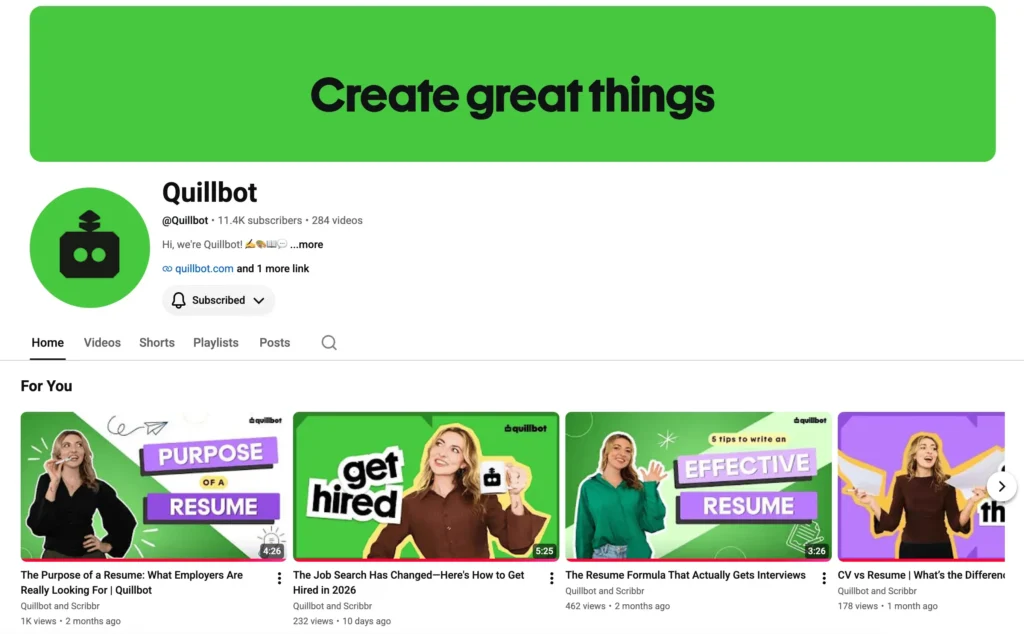
In the image below, you can see the channel banner for the Quillbot YouTube channel. The banner text “Create great things” is within the safe zone.
This table summarizes the key information to keep in mind when creating a YouTube channel banner.
| Category | Key information |
|---|---|
| Recommended size | 2560 × 1440 px |
| Aspect ratio | 16:9 |
| Safe area | 1546 × 423 px (Keep text, logos, and key elements here.) |
| Minimum size | 2048 × 1152 px |
| Maximum file size | 6 MB |
| Supported formats | JPG, PNG, GIF, BMP |
YouTube banner best practices
A good YouTube banner immediately communicates to viewers what the channel is about and gives them a reason to stick around. Best practices for creating good YouTube channel banners are:
- Communicate purpose and personality: The banner should tell viewers what your channel’s topic or niche is at a glance. It should also communicate your channel’s personality and tone (e.g., playful or educational) so viewers know what to expect.
- Respect the safe zone: Keep all important elements in the center of your banner. YouTube typically displays full banners on TVs, but on computers and mobile phones, they’re likely to get cropped.
- Apply your branding design: Your banner should convey your brand identity, so use the same logo, colors, typography, and visual style you use elsewhere. A consistent presence across channels is a key principle of digital branding.
- Keep the design simple: Avoid overcrowding. One strong visual idea is usually better than lots of competing elements.
- Ensure text is readable: Use high-contrast text that remains legible on smaller screens. Write concisely so viewers can understand your banner instantly.
- Maintain visual hierarchy: Make the most important visual information, such as the channel name or tagline, immediately noticeable. Less important elements should appear less important.
- Only use relevant images: Use images, illustrations, or graphics that reinforce the channel’s subject. Don’t just decorate the banner. All images should tie into your branding strategy.
- Offer a clear value proposition: Why should people watch your channel over the many other options out there? Your value proposition explains what your channel does and why viewers should choose you. This may be communicated in your channel name, a tagline, or an image.
- Keep it updated: If you change the focus of your channel or perform a rebranding, update your banner accordingly.
YouTube banner examples
Checking out some YouTube banner examples can give you an idea of how to create your own. These examples were all made with Quillbot’s YouTube Banner Templates for fictional YouTube channels.
Fitness banner
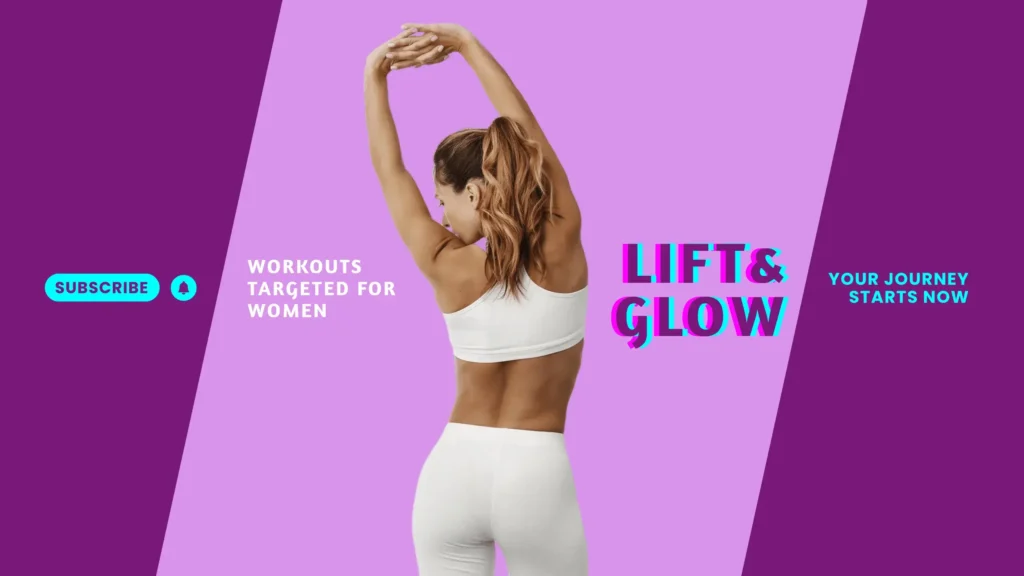
The YouTube channel “Lift & Glow” provides workouts targeted to women. It serves as a good example of a YouTube channel banner because:
- It applies the channel’s modern branding, which includes bold colors like fuchsia and cyan and fun sans serif fonts.
- The brand’s personality—inspiring and fun—comes through via the colors and the motivational message “your journey starts now.”
- Important information is within the safe zone. In the event that the banner gets cropped, the top and bottom of the model will be cropped, but viewers will still understand the purpose of the channel.
- There is a clear visual hierarchy. The channel name is the most important element, and it’s supported by the value proposition “workouts targeted for women” and other elements.
News banner
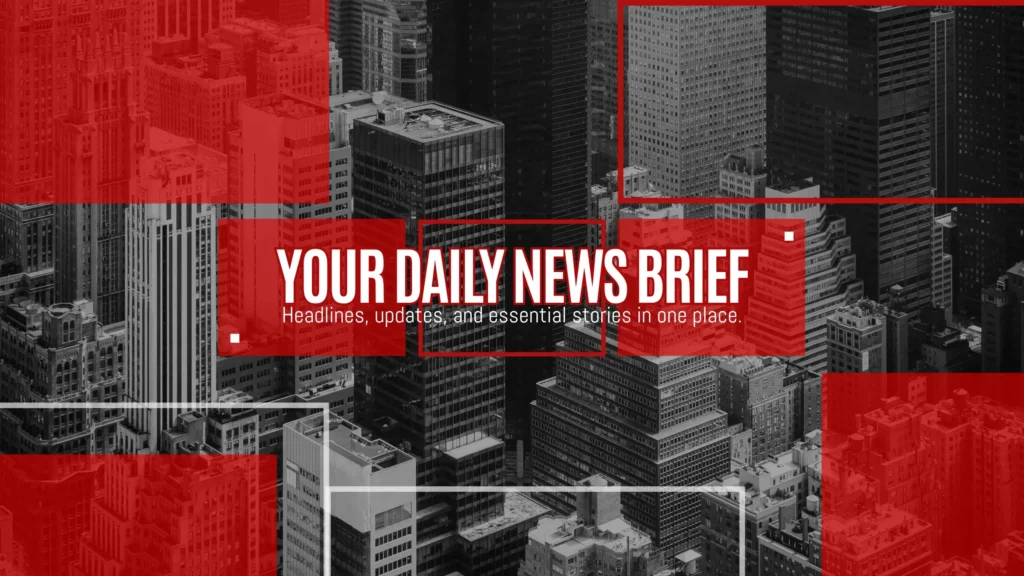
“News Today” is a YouTube channel that reports daily news from around the world. Its banner works because:
- The purpose (getting daily news) and personality (serious and informative) are immediately understood.
- The design hints at the many news stories the channel reports on each day but keeps the key text high-contrast so viewers can read it at a glance.
- The subheading “Headlines, updates, and essential stories in one place” gives more detail about what viewers can expect from the channel. This may be helpful for new viewers.
Food banner
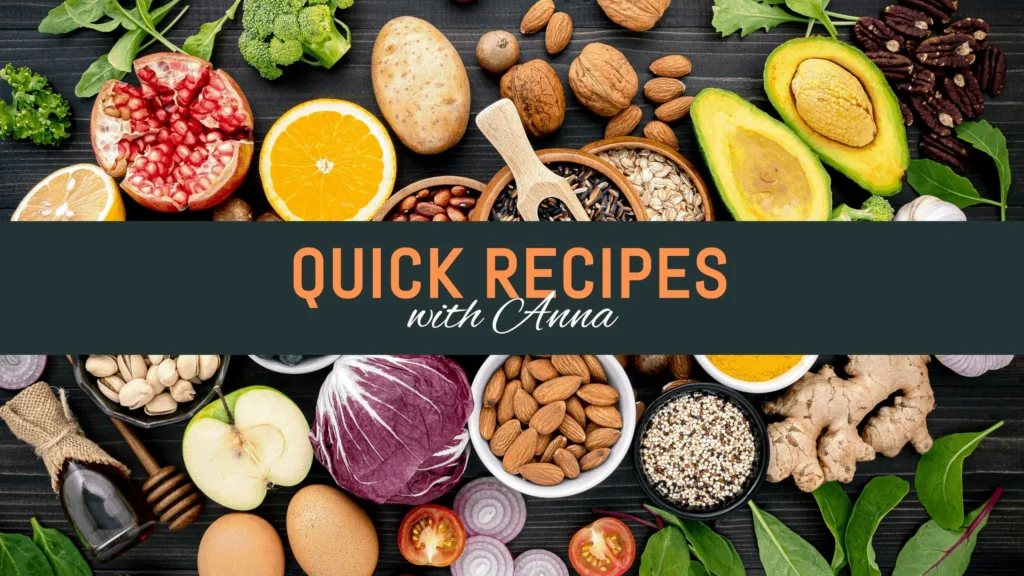
Fictional YouTuber Anna runs a food channel that focuses on quick, healthy recipes. Her banner is great because:
- It shares her value proposition. Her recipes are quick (communicated via text) and healthy (communicated via imagery).
- The greenish–black stripe creates enough contrast for the text to be legible, and the text is short and to the point.
- She applied the same branding (namely colors and fonts) as she uses on her food blog and Instagram page.
How to make a YouTube banner
If you’re ready to make your own YouTube channel banner, follow these steps.
1. Define your channel identity
What is your channel about? Who do you want to watch your videos? Take some notes or create a mind map to outline your core topics, target audience, key message, and the overall personality and tone of your videos.
2. Start with a template or blank document
A YouTube channel banner template can help you get started, especially if you’re not skilled at design. Templates will need to be edited, but they can show you how to arrange elements or apply contrast. If you choose to start with a blank document, make sure the canvas is the right size: 2560 x 1440 px.
3. Mark out the safe area
Remember that your banner probably won’t display in its entirety on desktop computers and mobile phones. Use your design tool to identify or place a temporary frame around the center 1546 x 423 pixels in your banner. This is the safe area, where all important information should go.
4. Apply your visual style
A consistent visual identity helps viewers recognize your different videos across YouTube; it also helps them recognize you across digital channels. Even if you don’t think of yourself as a “brand,” applying personal branding strategies to your content makes it seem more professional and credible.
To get started creating a visual identity, choose 1–3 brand colors, 1–2 fonts that are easy to read, and images and/or graphics that relate to your channel. Once you have this identity pinned down, apply the colors, fonts, etc. to your banner.
5. Add essential information
Don’t fill your YouTube banner with too much text, images, graphics, buttons, or the like. The design should be simple and clean. Choose a few essential elements that communicate the purpose and personality of your channel. These may be your channel name, a short tagline or description, the type of content you create, your upload schedule (if it’s relevant), or a logo. Remember to make sure all this essential info sits within the safe area.
6. Check your banner at different sizes
YouTube viewers watch videos on all types of devices, so make sure your banner looks good at many different sizes. If possible, preview it on mobile, desktop, and TV-sized screens. Check that the text remains readable and that no important information gets cut off.
7. Export your banner
When you’re happy with your banner, download it as a JPG, PNG, GIF, or BMP. The image size must be at least 2048 x 1152 pixels and the file size must be 6 MB or smaller to upload correctly to YouTube.
8. Upload it to YouTube
In YouTube Studio, go to your channel’s “Customization” area, select the “Branding” tab, and upload the image as your channel banner. Before you publish it, preview it on different screens, and when you’re satisfied, click “Publish.”
Frequently asked questions about YouTube banner
- What is a YouTube background?
-
A “YouTube background” most likely refers to a YouTube banner, or the large image that appears at the top of a YouTube channel. This same image is sometimes called a “YouTube channel banner” or “YouTube cover photo.”
In some contexts, “YouTube background” may also refer to playing YouTube in the background while you do something else or setting up a background to film YouTube videos in front of.
If you’re looking for channel banners, try Quillbot’s YouTube Templates to create a professional-looking YouTube background today.
Other interesting articles
If you want to know more about colors, letters, or the meaning of emojis, make sure to check out some of our other articles with explanations and examples.