How to Make a Thumbnail for YouTube | Beginner’s Guide
Most NewTubers can relate: You made a video, you know exactly what it’s about, but turning that idea into a professional and eye-catching thumbnail feels like a whole different skillset.
Fortunately, you don’t need to be a graphic designer to make a YouTube thumbnail that drives clicks and stands out. You just need to know the right steps:
- Decide what your thumbnail should communicate.
- Choose an image and a simple layout.
- Add text, color, and branding.
- Check your thumbnail at a small size.
You can create a thumbnail from scratch, customize a ready-made design, or use AI to generate and edit. This guide explains how to make a thumbnail for YouTube, with practical tips for each step and tools to help you create a professional design.
Need a thumbnail right away? Try Quillbot’s YouTube Design Templates to jumpstart the process.
Key takeaways
- Learn the four essential steps for creating a YouTube thumbnail that grabs attention and communicates your video’s value at a glance.
- Explore six proven thumbnail styles and discover which ones work best for different types of videos.
- Get practical design tips for choosing images, layouts, text, colors, and branding—even if you’re not a designer.
- See how templates and AI tools can help you create and refine professional-looking thumbnails faster.
What is a YouTube thumbnail?
A YouTube thumbnail is the preview image that represents your video. Viewers see thumbnails throughout YouTube, especially in search results and alongside recommended videos. YouTube says that 90% of its best-performing videos have custom thumbnails. But a thumbnail isn’t just a pretty image.
Think of your thumbnail as part of your video’s packaging. Its job is to grab attention, communicate what the video is about, and give the right viewer a reason to click.
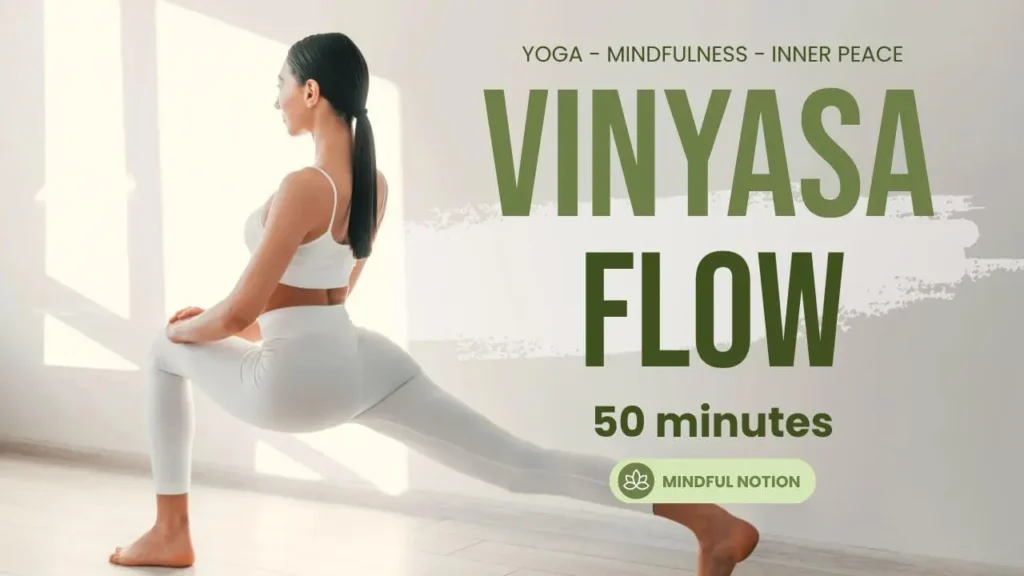
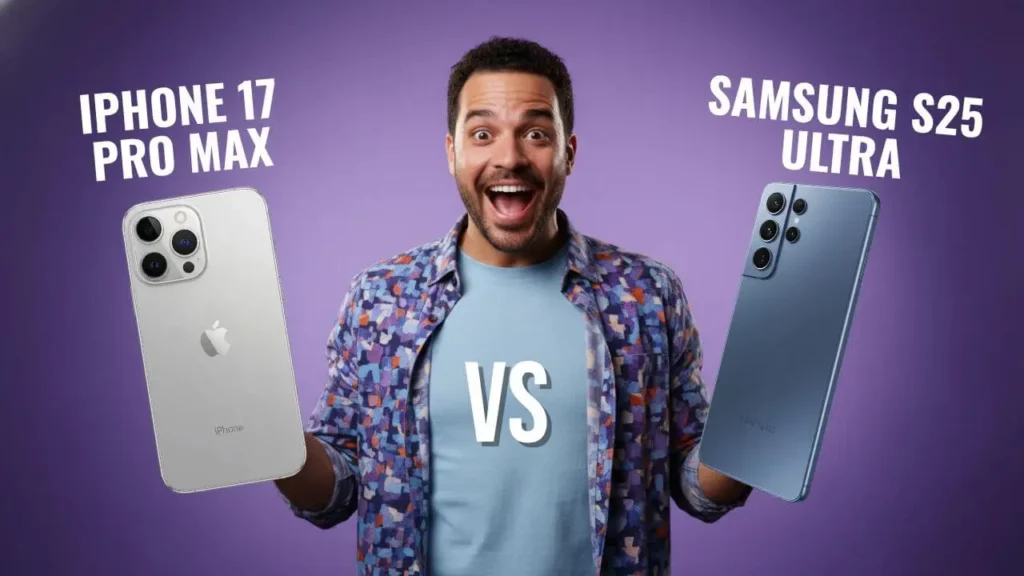
There are many different styles of YouTube thumbnails, but the chart below outlines six of the most common and includes some YouTube thumbnail examples to help you visualize the styles.
| Thumbnail style | What it looks like | Ideal for | Example |
|---|---|---|---|
| Face + reaction | A close-up face with a strong expression, usually paired with a simple visual | Reaction videos, commentary, listicles, entertainment, and vlogs | A creator making a shocked face while holding an extremely spicy dish for a video about trying hot sauces |
| Product or object close-up | One prominent object against a simple background | Product reviews, cooking videos, and tutorials | A close-up image of a makeup brush and eyeshadow palette for an eye makeup tutorial |
| Before and after | Two contrasting images showing a transformation | Videos that demonstrate change, such as fitness or home renovation vlogs | Before and after shots of kitchen cabinets for a painting tutorial |
| Big text + simple visual | A short, bold phrase paired with one clear image | Educational videos, commentary, news, and opinion videos | The words “0 → 10K” next to a YouTube analytics screen for a video about growing a channel |
| Story or curiosity | A visual that hints at an unexpected result or event without revealing the whole story | Challenges, travel videos, experiments, and storytelling videos | A creator standing beside a broken-down car with the words “WHAT NOW?” for a road-trip vlog |
| Dynamic still | A dramatic still that captures movement, action, or a memorable moment from the video | Fitness videos, action videos, and adventure content | A skateboarder frozen mid-jump for a video about learning a difficult new trick |
YouTube thumbnails can also combine two or more of these styles. For example, a cooking video might use a close-up of the finished dish, the creator’s reaction, and a few words of bold text.
How to make a thumbnail for YouTube in 4 steps
Whether you make your thumbnail from scratch, customize a template, or generate an image with AI, the process involves four main steps.
1. Decide what your thumbnail should communicate
Start by choosing a main idea for your thumbnail: the main message that the thumbnail communicates at a glance. Ask yourself:
- What is this video mainly about?
- Who is most likely to watch it?
- What do I want viewers to notice first?
Suppose your video is called “I Grew My Own Potatoes.” A main idea could be something like “the harvest surpassed my expectations.” To express that main idea, the thumbnail could show your surprised reaction while holding a fresh-out-of-the-ground Yukon Gold.
2. Choose an image and a simple layout
Next, decide what image and text you’re going to display and how you’re going to arrange these elements in the frame. To select an image, you could:
- Take a photograph specifically for your thumbnail
- Use a still from your video
- Generate a custom image with AI
Whatever you choose, prioritize a clear subject, sharp image, and strong contrast so that the image is “readable” across different devices.
Once you have the image, apply these principles to create a layout with a clear visual hierarchy.
- Keep one main focal point.
- Separate the subject from the background.
- Leave empty space around important elements.
- Use contrast to make elements stand out.
- Avoid unnecessary objects and decorations.
- Keep important text and visuals away from the edges.
The rule of thirds can also help. Imagine dividing your thumbnail into nine equal sections, and place your main subject near one of the intersections.
3. Add text, color, and branding
Once you have your image and layout, add the text and other visual elements that will complete your thumbnail. If your thumbnail will include text, apply these best practices:
- Short phrases: Keep your message to a few words that reinforce rather than repeat your video title. For example, a thumbnail for the video “How I Grew My Followers from 0 to 10K” could read “0 → 10K.”
- Large, simple lettering: Make sure the lettering is large enough to read on a mobile device, and opt for a plain sans-serif font.
- Strong contrast: Use light text on a dark background or vice versa so that the text stands out at a glance.
If you’re building a channel with multiple videos, create a consistent brand identity by using the same branding design (colors, typography, logo, etc.) across different thumbnails.
4. Check your thumbnail at a small size
Before you upload your thumbnail, shrink it. Look at it on your phone or next to other YouTube thumbnails and ask yourself, “Can I still tell what this video is about?” If the text disappears, the subject is difficult to see, or the image looks cluttered, simplify your design.

How to create a YouTube thumbnail with a template
Starting with a blank canvas isn’t your only option. Quillbot’s YouTube Thumbnail templates give you a ready-made layout that you can customize for your video. Here’s how to use them:
- Browse the collection: Look for the layout and style that best fit your video’s subject and message.
- Revise the text: Replace the template’s placeholder text with your own. Keep your message short, and make sure it complements your video title. You can also adjust the colors, font, and spacing.
- Download and save: Save the thumbnail to your device so that you can upload it to YouTube when you’re ready to post your video.
How to create a YouTube thumbnail with an AI prompt
AI can help you create a custom thumbnail image or edit an image you already have. Here’s how to create a custom thumbnail image with Quillbot’s Image Generator:
- Describe the image you want: Include the subject, setting, composition, lighting, colors, and mood in your prompt. If you need room for text, specify where you want the empty space.
- Select an aspect ratio: In the drop-down menu for aspect ratio, select 16:9 to create an image that fits the standard YouTube thumbnail format.
- Generate your image: Review the result and decide what works and what doesn’t.
- Keep iterating: Describe the changes you want to make to the image, such as moving the subject, changing the background, or adjusting the colors. Continue refining the image until it works for your thumbnail.
Already have an image you want to use? Quillbot’s Photo Editor can help you turn it into a YouTube thumbnail with a few simple edits:
- Upload your image and prompt the tool to make changes: Ask it to add text, adjust the composition, change the background, crop to a 16:9 aspect ratio, or make other edits.
- Review and refine: If the result isn’t quite right, adjust your prompt and try again. For example, you might prompt the tool to increase the font size or the contrast between the text and the background.
Frequently asked questions about how to make a YouTube thumbnail
- How do you change a thumbnail on YouTube?
-
To change a thumbnail on YouTube:
- Make sure your account is verified
- Go to the YouTube Studio
- Click “Content”
- Choose the video whose thumbnail you want to change
- Scroll to the “Thumbnail” section
- Upload the image
- Click “Save”
Not sure what type of thumbnail to upload? Get inspired by YouTube thumbnail examples or start with one of Quillbot’s YouTube Thumbnail Templates.
- What are the best fonts for YouTube thumbnails?
-
The best fonts for YouTube thumbnails are sans serif, bold typefaces that stand out in feeds and search results, such as:
- Impact
- Montserrat Extra Bold
- Roboto Bold
- Poppins Bold
- Bebas Neue
You can also experiment with outlines or shadows for contrast. If you’re using an AI thumbnail generator (like Quillbot’s YouTube thumbnail maker), include details about the font you want to use for your title or other text. Or, check out Quillbot’s range of editable YouTube thumbnail templates to give you a head start in the design process.
Other interesting articles
If you want to know more about colors, letters, or the meaning of emojis, make sure to check out some of our other articles with explanations and examples.