How to Reverse Image Search | Step-by-Step Guide
To do a reverse image search to identify an object, location, person, or product, look for the “Search by image” camera icon in the app you’re using.

Read on to learn how to reverse image search on different devices using a saved image, a photo from your gallery, or the camera on your phone or tablet.
Key takeaways
- A reverse image search lets you search the web using an image instead of text to identify objects, people, locations, products, or the source of an image.
- You can search using a saved image, an image on a webpage, or your phone or tablet’s camera, depending on your device and app.
- Google Lens lets you upload or drag and drop an image, paste an image URL, right-click an online image, or use your device’s camera to start a visual search.
- For more useful results, focus on the relevant part of the image and add a text query explaining what you want to find out.
How to do a reverse image search
Doing a reverse image search is like doing a regular Google or Bing search. But instead of typing in a search, you give the search engine an image.
The results typically include image thumbnails alongside links to webpages that contain the same or similar images, as well as other related content. You can also add a text search query to your image to provide context about what you want to know.
Selecting an image to search with
When doing a reverse image search, you can use:
- A saved image on your computer, phone, or tablet
- An image you find on a webpage
- The camera on your phone or tablet
Using a saved image
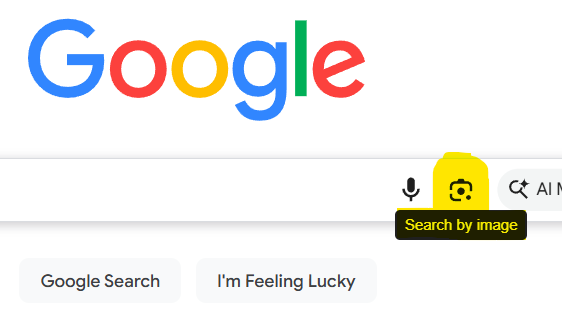
Let’s say you have a photo of a guitarist and want to do a reverse image search to identify the guitar they’re playing. You go to Google.com and click the Search by image icon.
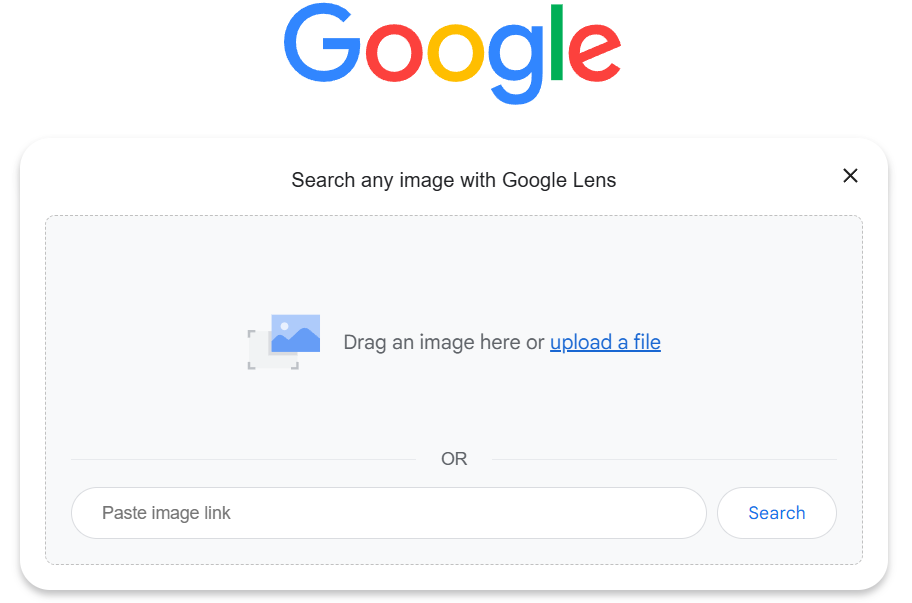
This opens a Google Lens drag-and-drop area where you can add your image.
The image you upload then appears on a new search page. Next, you drag the corners of the selection box to focus the search on the guitar.

You add the text query “What guitar is this?” in the Add to your search box above the image to give Google Lens some helpful context about what you want to know.
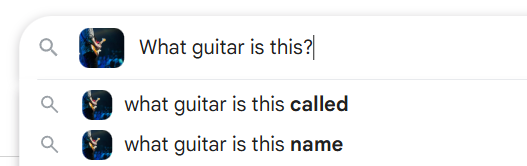
After pressing Enter, a search results page appears with:
- An AI overview describing the guitar
- Links to articles that feature exactly the same image
- Links to guitar-related content that features the image or pictures of similar guitars
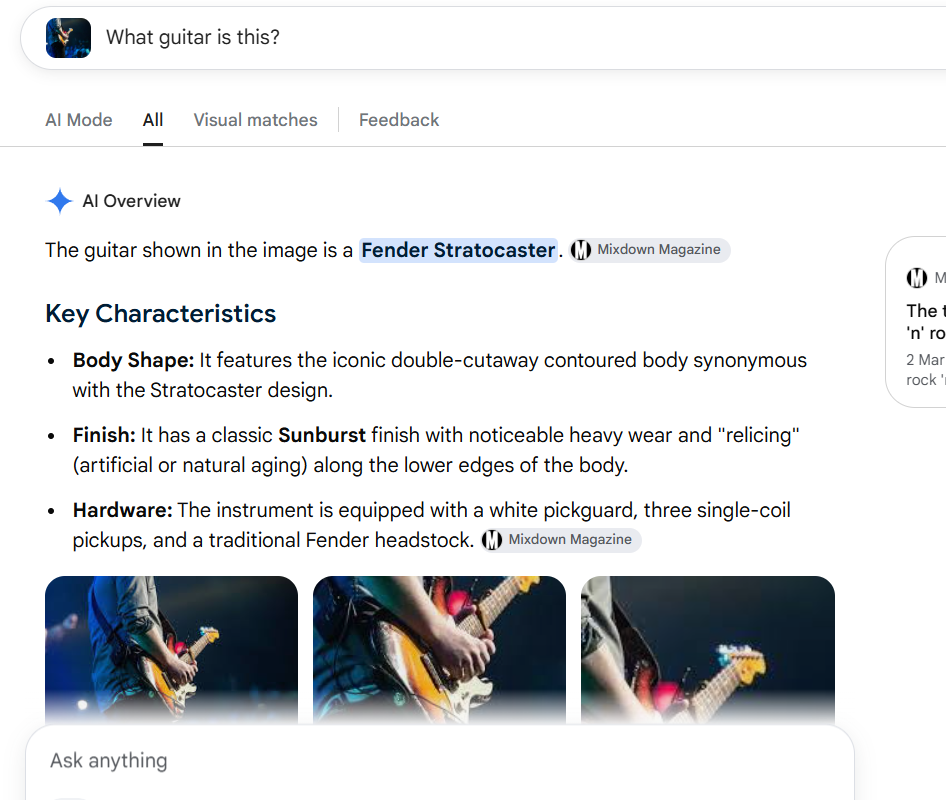
This information tells you that the guitar is a Fender Stratocaster, or Stratocaster-style guitar, in a color and finish that’s similar to one played by Eric Clapton.
Just click on the “search photos” icon located just below the main search bar.

If you’re using an iPhone or iPad, you can download the Google app in the App Store.
Using an image on a webpage
Imagine you come across the same image of the guitarist on a webpage and want to find out what kind of guitar they’re playing. You right-click the image and select Search image with Google Lens.
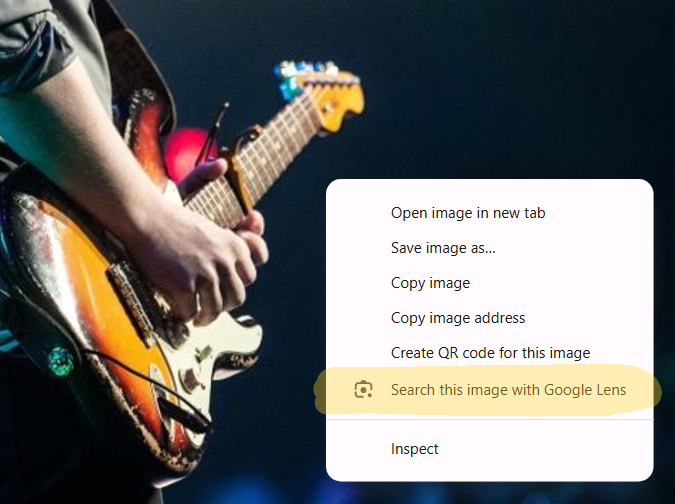
This opens a search panel at the side of your browser, where you add “What guitar is this?” in the “Add to your search box” and press Enter to see the results.
In Microsoft Edge, you can send an image to Copilot by right-clicking on it and selecting “Ask Copilot about this image.” This opens a Copilot chat where you can ask for information relating to the image.
In Safari on a Mac, you can read an informative summary of an image by control-clicking on it and selecting “Look Up.”
Using the camera on your phone
If you want to find out something about an object that’s in front of you, you can show it to Google Lens by pointing at it with the camera on your phone or tablet.
On an Android device, you can open Google Lens by clicking on the Google Lens icon in your camera app.
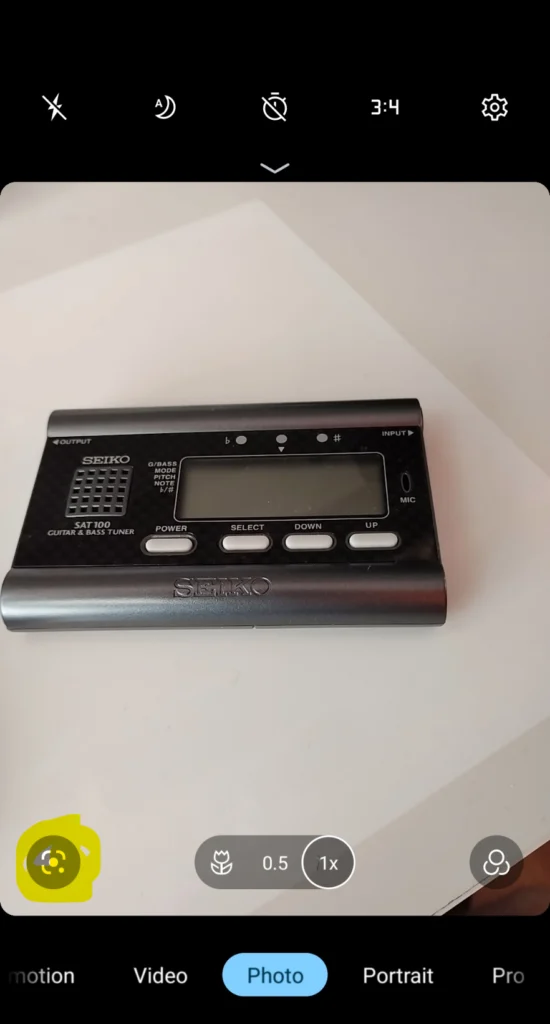
On an iPhone or iPad, the most convenient way to access Google Lens is to download the Google app. Note that this is a different app from Google Chrome.
Open the Google app, then tap the Google Lens icon in the search bar on the main screen.
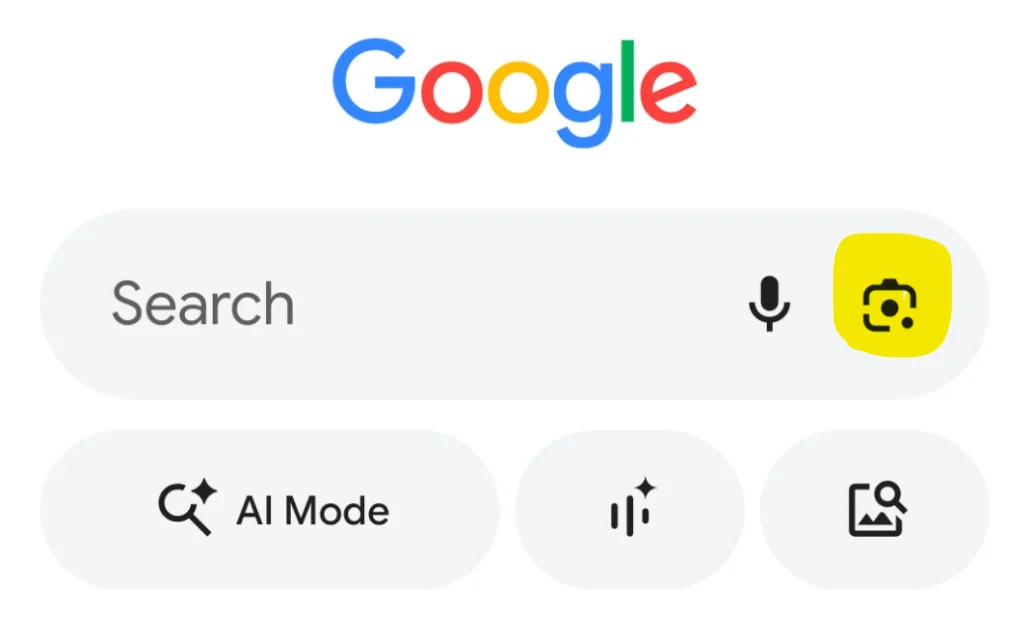
To access this feature, press and hold the camera control button on your iPhone.
Once you’ve accessed Google Lens on your device, your camera will be automatically activated. Point it at the object you want to identify, keeping it within the selection box, and click the search icon.
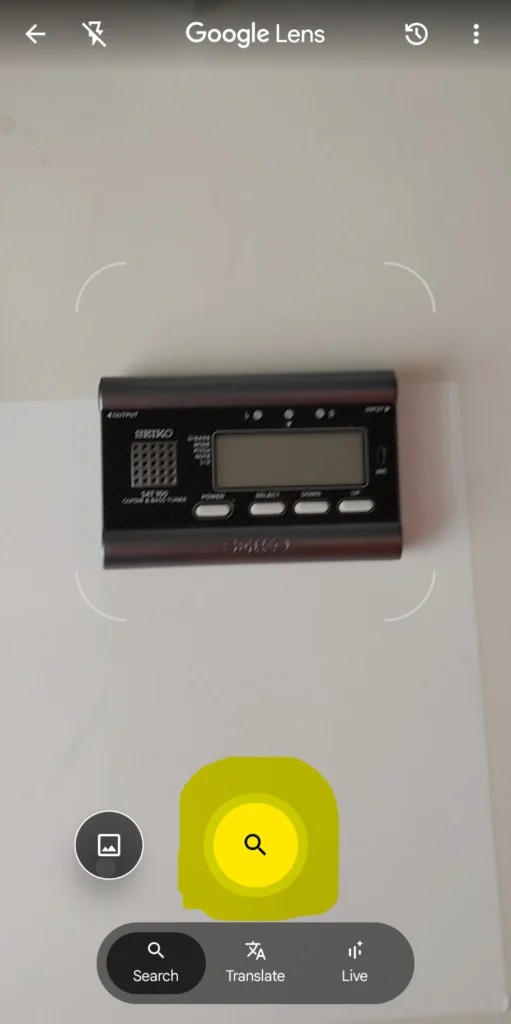
This will open a results page where you can add a query in the “Ask about this image” box, such as “Where can I buy a guitar tuner like this?”
Frequently asked questions about how to do a reverse image search
- How do I reverse image search on iPhone?
-
There are a few ways to reverse image search on iPhone.
You can use the “Visual Look Up” feature in apps such as Photos and Safari to identify objects, landmarks, plants, animals, and other things in an image. Open the image in full screen, then tap the circular icon with stars that appears when the feature recognizes something. The icon changes depending on the content of the image.
The latest iPhones have visual intelligence functionality. This lets you point your camera at something and search for information about it on Google. You can access it by pressing and holding the Camera Control button.
If you don’t have visual intelligence, you can do a reverse image search by downloading the Google app (not Google Chrome). Open the app and tap the Google Lens icon in the search bar. From there, you can take a photo with your camera or select an existing image from your phone and search for information about it.

You can use Quillbot’s AI Image Detector to check whether an image is likely to have been AI-generated.
Other interesting articles
If you want to know more about colors, letters, or the meaning of emojis, make sure to check out some of our other articles with explanations and examples.