AI Image Editing Software | How to Guide
AI image editing software means that it’s now possible to quickly make changes to photos and other images that would previously have required advanced editing skills.
If you’re new to AI image editing software, this beginner’s guide will show you how to make common changes, such as removing objects and backgrounds and adjusting lighting, using a tool like Quillbot’s AI Image Editor.
Key takeaways
- AI image editing software lets you make complex changes to images without advanced editing skills.
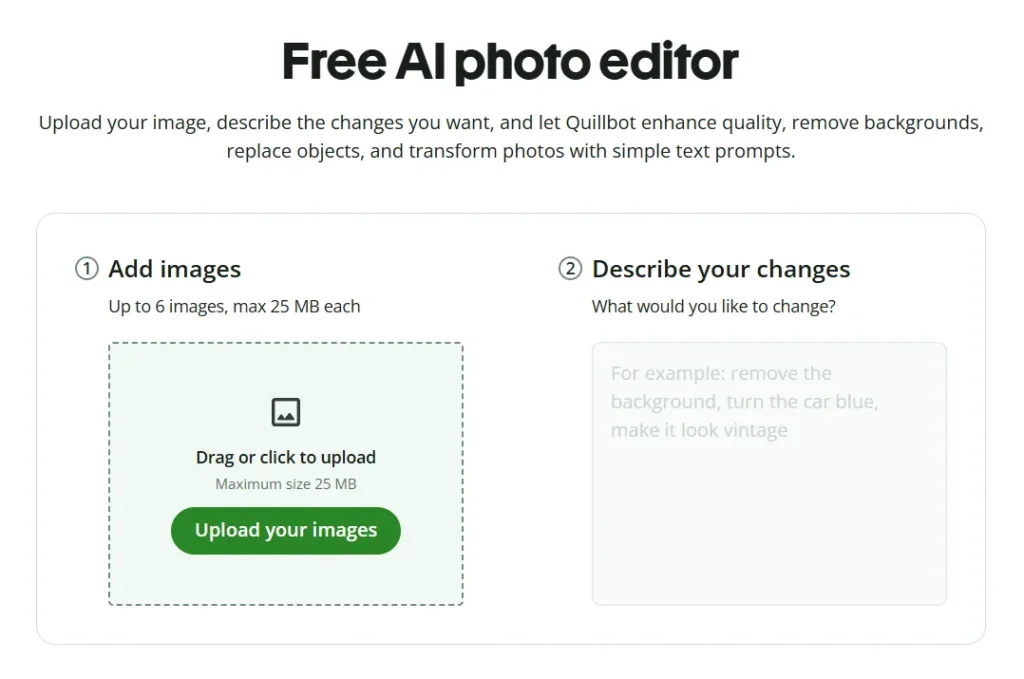
- Many AI image editors work from simple text prompts describing the changes you want to make.
- Common AI editing tasks include removing or adding objects, changing backgrounds, adjusting lighting, retouching photos, and extending images.
- AI tools can also enhance poor-quality images to make them look sharper and more professional.
How to use AI image editing software
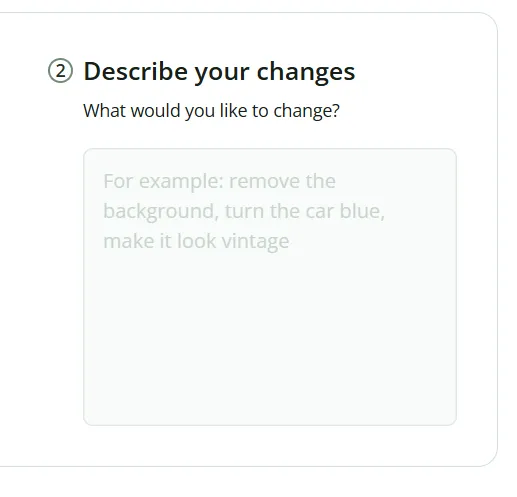
To make changes to images using AI image editing software, you specify the alterations using text instructions called “prompts.”
Learn how to prompt AI image editing software with the help of the examples below. Each one shows how a different type of edit was made using Quillbot’s online software, including the text entered into the prompt box as well as before and after images.
Removing objects
Prompt
Remove the gray coffee mug on the far right side of the desk.
Before AI image edit

After AI image edit

Removing backgrounds
Prompt
Remove the background, the laptop, and the desk.
With background
With background removed using AI image editing software

Adding objects
Prompt
Add some highlighter pens to the desk.
Original image
Image with objects added using AI

Adjusting lighting
Prompt
Put closed curtains over the window. Add a lamp in the background as the only source of light.
Unedited photo
Lighting adjustments using AI image editing software

Retouching photos
Prompt
Make the wooden desk a deeper colored type of wood.
Before retouching
After AI retouching

Extending images
Prompt
Zoom out to show more of the office.
Original image
Image extended with AI

Enhancing images
Prompt
Make this poor-quality image look sharp and professional.
Poor-quality image

Enhanced image

Changing backgrounds
Prompt
Make it look like the man is working in a cafe. Remove the houseplant from the desk. Change the desk to a large cafe table. No other people.
Old background
New background

Frequently asked questions about AI image editing software?
- What edits can you do with AI image editing software?
-
With AI image editing software like Quillbot’s online AI Image Editor, you can handle many common editing tasks, such as removing objects, changing backgrounds, adjusting lighting and colors, retouching photos, and adding or replacing elements.
Other interesting articles
If you want to know more about colors, letters, or the meaning of emojis, make sure to check out some of our other articles with explanations and examples.